
You are here:
Brand the Login Pages
Use the Experience Builder to customize and brand the login pages with your own design. You can change the appearance of the login pages with a background image, color scheme, and font settings. Use Experience Builder to set the background. Your preference applies to all login pages unless you override the settings within an individual page.
- Select Go To Experience Builder, if you’re not already in it.
- From the Go To menu, select Login.
- In the left pane, upload an image for the background, and then set color and text preferences as needed.

Example The Branding Editor settings in Experience Builder: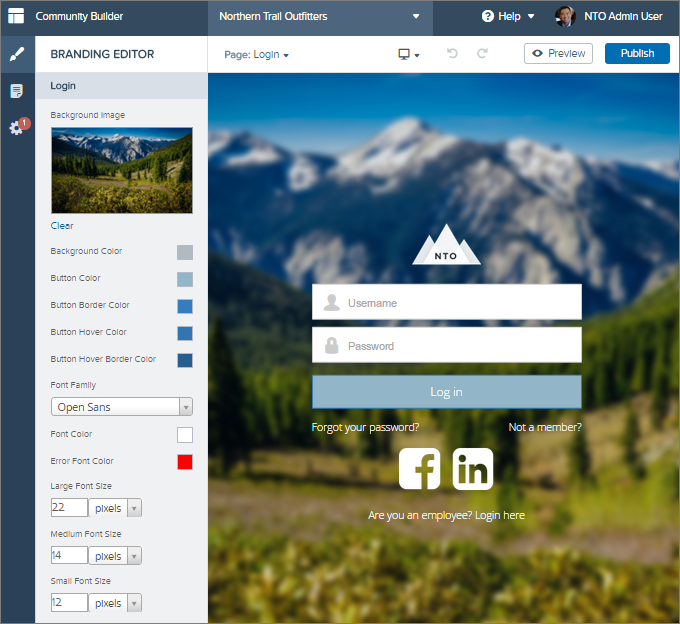

Warning When you customize a login page or any page that includes
fields with sensitive or confidential information with Experience Builder, we
recommend that you use only standard components built by Salesforce or components
that you built, customized, or vetted. Use of third-party components and code
libraries on a page that includes fields with sensitive or confidential information
can increase your risk for security vulnerabilities.
Did this article solve your issue?
Let us know so we can improve!
