
You are here:
Forgot Password
Use the Forgot Password component to let users request a new password.
Sometimes users forget their existing passwords and need a new one. The Forgot Password component gives users the ability to get one without contacting an administrator. The user enters the username that’s associated with the account, clicks the button, and gets email instructions for resetting the password.
- Select the Forgot Password component in the page that you're configuring.
-
In the property editor, configure the properties
for the component.
Property Details Check Email URL Enter the view or path to the page that notifies the user when the password has been reset and an email has been sent. Username Label Enter the text that appears in the field where the user enters a valid username, which can be in the form of an email address if users are identified that way. Submit Button Label Enter the text for the button that the user clicks to make the password reset request.

Example Sample Forgot Password component: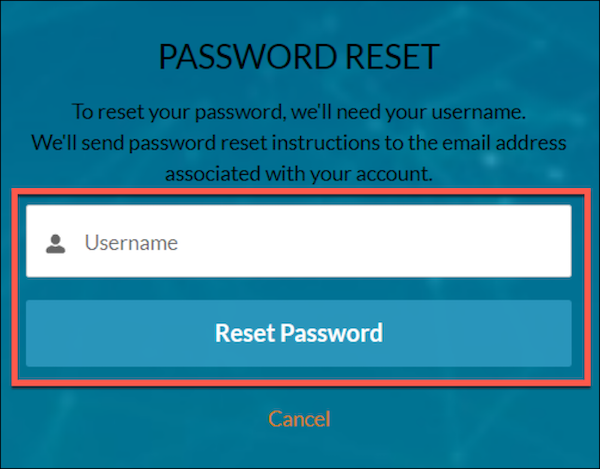
Did this article solve your issue?
Let us know so we can improve!
