You are here:
Set Icons for Social Login
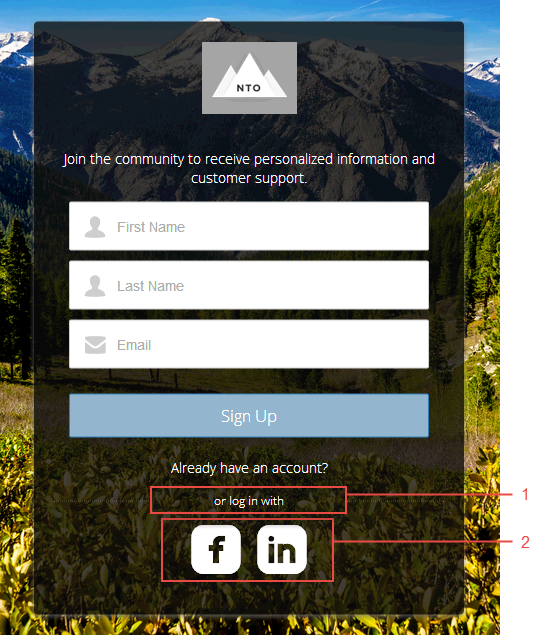
The Social Login component provides users with icons that they can click to log in to a third-party account, such as Facebook© or LinkedIn©. Set these icons for each authentication provider that you configure for the org.
Some users prefer to use an existing account with a service such as Facebook to log in to the site instead of setting up a new account and password. The third-party service is an authentication provider that verifies user identification. Use the Social Login component to add an icon for each supported authentication provider. The user clicks the icon and logs in using the associated account’s username and password.
Before you add the Social Login component, set up each authentication provider. For more information, see Authentication Providers.
- Select the Social Login component in the page that you're configuring.
-
In the property editor, configure the properties
for the component.
Property Details Show Header To show a text header above the authentication header icons, select this option. Header Text Enter the text for the header text. Use Experience Builder site auth provider URLs This option is selected by default in new Experience Builder sites and in new Social Login components that you add to existing sites. It improves performance and reduces HTTP redirects by using site-specific URLs for single sign-on (SSO) for all auth providers for your site. Copy the site’s callback URL in Auth. Providers in Setup. Update the callback URLs in your identity provider accordingly. When you deselect this option, Salesforce continues to use login.salesforce.com or test.salesforce.com to redirect to your site during SSO, which can result in decreased performance.
If you configure Apple as an external authentication provider, select this option to ensure that the Social Login component recognizes user information.