You are here:
Record List
The Record List component shows a list of records on the Record List page. Users can view records, switch between record list views, and create records directly from the list view. If a user has no access to a particular list view, they see the Recently Used list view instead.
When you create a custom navigation menu item using the Salesforce Object type, it automatically links to a list of the records for the selected object. Templates provide a page to display such a list of records. This generic page is called the Record List page. It’s used for all objects in your site that don’t have a custom page assigned to them.

- The Record List component supports all Object Home page supported objects.
- You can use the Record List component on any page in your site. We recommend adding it to custom list views that you create. You can also create a navigation menu item to link to that page with its internal page URL.
- We advise against using the Record List component to show products in a B2B Commerce store. A product Record List doesn't respect user entitlements and could expose information to users that you don't want them to see.
- On a mobile device, if a user taps any field in the Record List component, including a field containing a URL, they’re directed to the full record detail page.
- Select the Record List component on the Record List page.
-
In the property editor, configure the properties
for the component.
Property Details Number of Records The number of entries retrieved to show in the list view. The default is 25.
When the compact layout is selected, this property controls the number of records shown. If there are more than 25 records, users click a link to see the full list of records. The maximum number of records for the compact layout is 100.
When the full layout is selected, this property controls the number of records initially shown. As a user scrolls down, more records are displayed. The maximum number of records per page is 100, but this limit doesn't apply when the full layout is selected on desktop.
Layout Choose from full, standard, or compact layout. The compact layout is ideal for showing short lists of information in a narrow column or when displaying your site on a mobile device. When a page using the full layout is viewed on a mobile device, the page automatically adjusts to a more mobile-friendly layout. To display the compact layout on mobile, explicitly select Compact.
When choosing the layout, consider the following:
- When using the full
layout, use a column width of at least 50% of the
page. We also recommend that you don’t place another
component below the Record List component on the page.
- Full layout has a minimum height of 700 pixels. If you place a component below the full layout of the Record List component, the Record List can overlap with the component that’s underneath it.
- Full layout uses infinite scrolling. If you reference an object that contains many records, infinite scrolling can prevent site members from ever seeing the component below the Record List component.
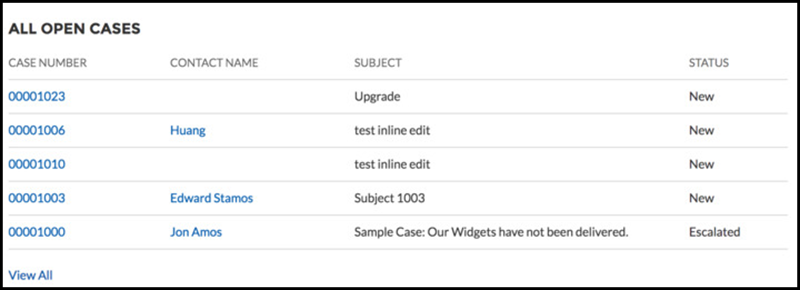
- Standard layout has some differences in display.
- Only the first four fields of the list view are displayed.
- When there is no data for the list view to display the Record List component is hidden.
- Compact layout works in any size column. However, View All will always redirect to the object home (for example, case list or account list). We recommend that you create a standard page and add the compact list there. This arrangement avoids issues that can arise when the full list for object home has been deleted.
If there aren’t records to display for either a standard or compact list view, the component is hidden.
Object Name The Salesforce object whose records you want to show. The dropdown shows the supported objects. The component supports all Object Home page objects. See Objects Supported by Out-of-the-Box Components and Pages in Experience Builder Templates.
If Page’s Object Name name is selected, only
Page’s
                                                Filter Name
is available in the Filter Name field.Filter Name The list view to show for the selected object. The dropdown shows only list views that are valid for the object you select. Allow list pinning 1 Lets users select their preferred default view for a record list. Enabled by default.
Lists, as elsewhere in Salesforce, can’t be unpinned, but users can select a new list to change their default view.
Pinned lists almost always override menu and component list settings. The exception is when the navigation menu for a component receives its filter name from the name of the page—like
My
                                                Accounts
. To allow users to see their pinned lists, create at least one more menu item that takesdefaultas the list view.Allow inline edit 1 Lets users edit individual fields in a list. Enabled by default. Header Configuration Click to expand. Show list actions 2 Displays available list view controls, such as new, sharing, filter, and any custom actions that you’ve created. Enabled by default.
- Users require necessary permissions for the viewed object to use the New button on the component to create records.
- For shared views, users need appropriate permissions to see the data.
- Related Lists for Campaign members have quick filters to narrow results, but the resulting views can’t be saved or shared.
- Site members can use search and quick filters to
quickly find information in their current session.
Users can click
 to filter the list view or
remove filters. They can also click
to filter the list view or
remove filters. They can also click  to view related charts.
Show list search 1 Displays search field, scoped to the displayed list. Enabled by default. Show refresh button Enabled by default. Show charts button Enabled by default. Show filter button Enabled by default. Show object name Enabled by default. Show image icon Enabled by default. Show display options 1 Lets users view records in a table or Kanban format, or restricts them to a single type of view. Default is Show All Options. - When using the full
layout, use a column width of at least 50% of the
page. We also recommend that you don’t place another
component below the Record List component on the page.

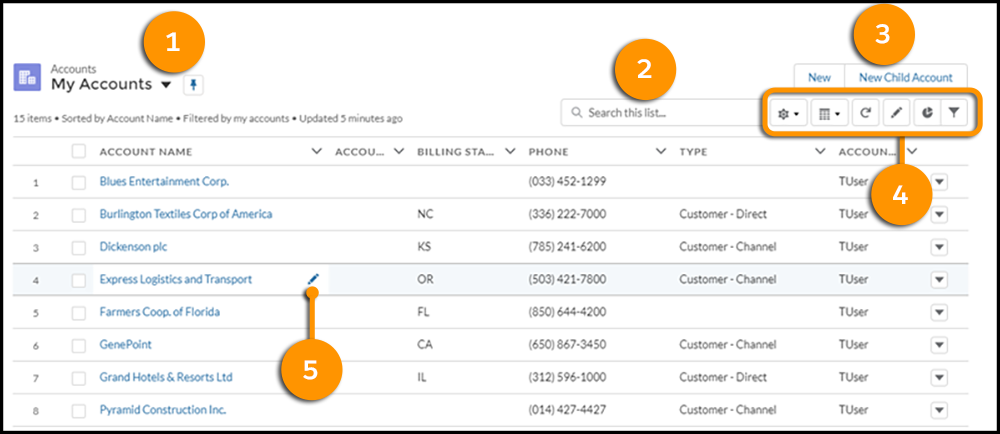
When all properties are enabled, site members can:
- Change the list view and pin it (1).
- Use search (2) to find items in long lists.
- Use list actions to accomplish list-related tasks, such as creating a record (3).
- Access list view controls (such as sharing settings), change how the list is displayed, view related charts, and filter the list view (4).
- Edit fields inline (5).
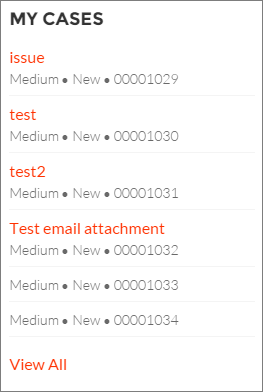
Sample Record List component (Compact layout):
Sample Record List component (Standard layout):