
You are here:
Path (Experience Builder Site Component)
On object detail pages in Experience Builder sites, use the Path component to indicate and mark the path through a business process.
You can add the Path component to Experience Builder site object detail pages for the following objects:
- Account
- Asset
- Campaign
- Case
- Contract
- Lead
- Opportunity
- Order
- Partner Fund Allocations
- Partner Fund Claims
- Partner Fund Requests
- Partner Marketing Budgets
- Product Request
- Product Request Line Item
- Product Service Campaign
- Product Service Campaign Item
- Service Appointment
- Service Contract
- Work Order
- Work Order Line Item
- Custom objects
For an overview of setting up Path in Salesforce, see Guide Users with Path. The Path component is intended for a wide-column layout. Add it to columns that are at least 50% wide, though full columns are best.

Note To make paths available on mobile devices, configure a custom path for mobile. In
the mobile app, Path supports leads and opportunities only.
- Set up a sales process in your org. If you’re creating a path for service appointments, work orders, or work order line items, you can skip this step.
-
Set up the path in the Setup menu.
- From Setup, enter Path in the Quick Find box, then select Path Settings.
- Click Enable, and then click New Path to create a path.
- Create object pages in Experience Builder (for any object that supports Path).
- Drag the Path component onto the detail page that you’re configuring.

Example Sample Path component: 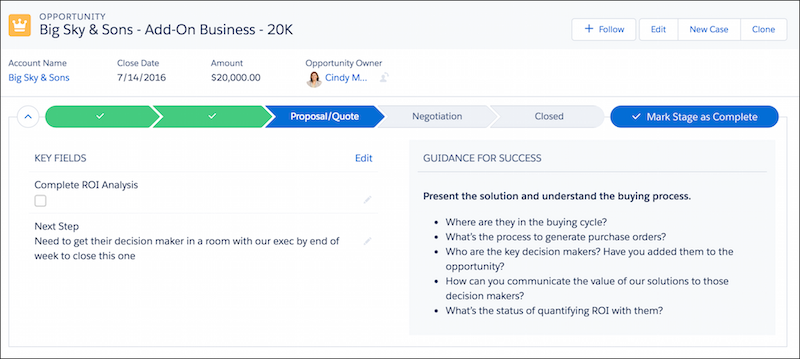
Did this article solve your issue?
Let us know so we can improve!
