You are here:
Tile Menu
Use the Tile Menu Lightning Web component in Experience Builder to add an intuitive and visually stunning navigation experience to your site.
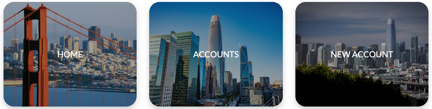
Customers using the Tile Menu can use images to access an external site, page, record, or global action. For example, clicking an image takes a customer to a page to log a case or file a claim. You can set up a maximum of eight image-link combinations per Tile Menu component.
Consider the following when setting up your Tile Menu:
- To make the images in the tile menu viewable by guest site users:
- Enable Let guest users view asset files and CMS content available to the site in in Experience Builder.
- Access the site’s guest user profile and Object Settings.
- Then, give read access to Documents.
- When using Translation Workbench to translate text in the Tile Menu, select Navigation Menu Item as your Setup Component.
- A new version of the Tile Menu component was included in the Summer ’20 release, and allows for much more customization. The new version of the Tile Menu is available in Experience Builder in the Summer ’20 release. If you use the old version of the component, shown as Deprecated in the component properties, the component still functions. If you delete your deprecated component, you must use the new version.

- You can package a tile menu with Bolt Solutions and distribute them. All the properties of the tile menu are included in the package, but admins have to associate a navigation menu to the tile menu after the Bolt Solution is installed.
- To see a Tile Menu and its images from a production org, use a Full sandbox.
- The Tile Menu allows a maximum of 20 tiles.
- From the components list, select the Tile Menu component and drag it onto a site page.
- On the page, select the Tile Menu component.
-
In the property editor, configure the properties
for the component.
Property Details Default Navigation Menu Select a navigation menu to showcase in Tile Menu. Edit Navigation Menu Click to edit your chosen navigation menu. Image Layout Select one of the three image options for the images in each menu tile.
- Full, No Overlay: Image takes up the whole tile. The banner with text doesn’t overlay the image.
- Full, With Overlay: Image takes up the whole tile. The banner with text overlays the image.
- Partial: Image is contained in an icon-type box within the tile.
Tile Formatting Click to expand. Show banner For the Full, With Overlay layout, choose to show a banner. Banner Position Options for:
- Full, No Overlay: Top
- Full, With Overlay: Top or Bottom
- Partial: Top, Right, Left, Bottom
Banner Height Choose 15–100%.
This setting doesn’t apply to the Full, No Overlay layout.
Banner Background Color Set the color for the banner background. Border Radius Choose from 0-50px. Blank Image Color Tile color if there’s no image. Tile Background Color For the Partial layout, the background tile color if the image doesn’t take up the entire tile. Icon Size Size of the icon containing the image for the Partial layout. Choose from small, medium, or large. Text Formatting Click to expand. Color Text color. Size Text size. Choose from small, medium, or large. Horizontal Alignment Choose from right, left, or center.