You are here:
User Profile
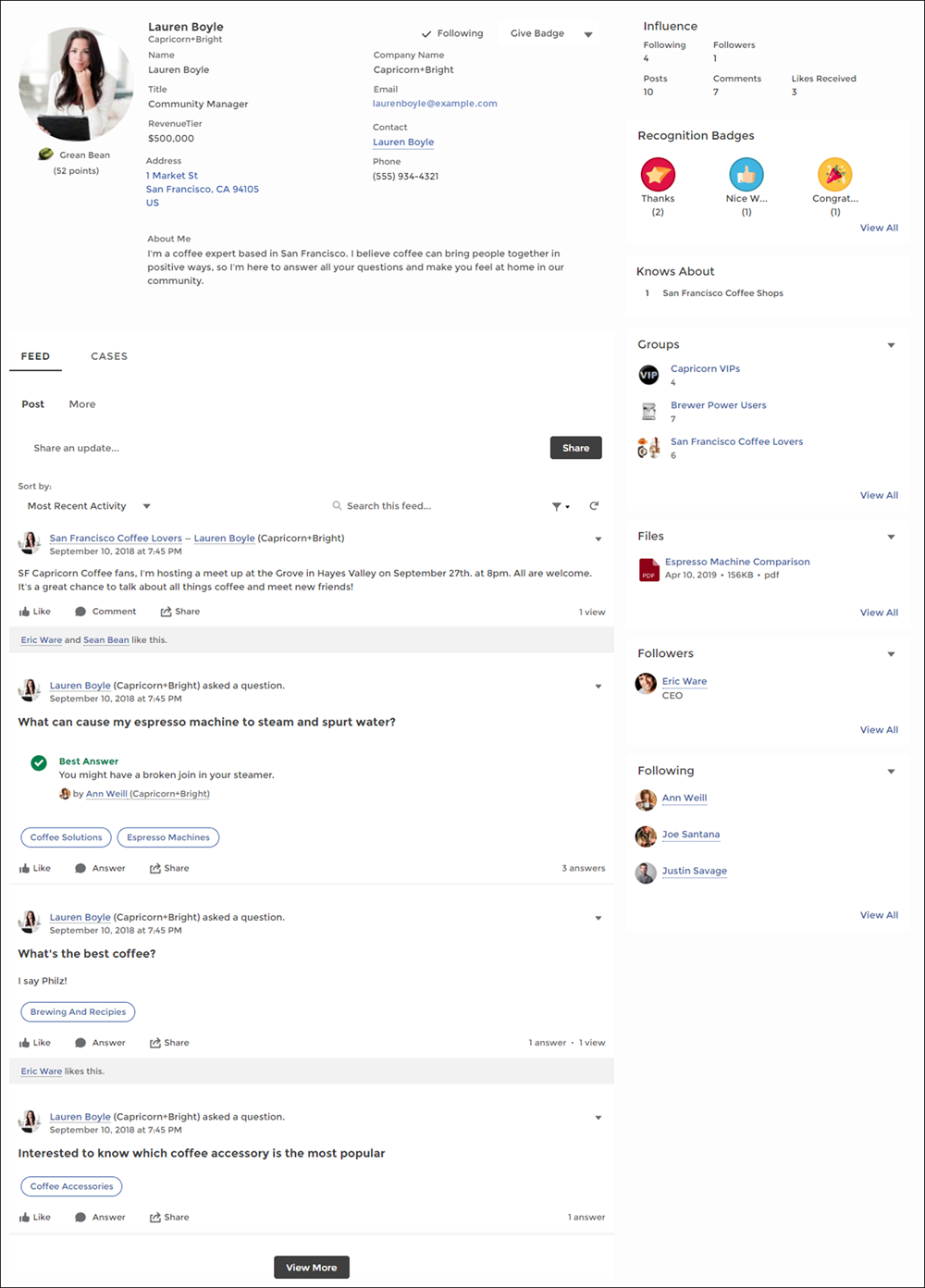
The User Profile component shows detailed information about a user. Details include contact information, profile photo, Chatter statistics, topics the user is knowledgeable about, who the user is following, and the user’s followers.
The User Profile component uses a two-column layout by default. Profile details and the profile image are always shown, but you choose if you want to show related lists, Chatter statistics, and Knows About. You can also customize labels.
The layout of the component makes it ideal for viewing your site on a mobile device. When viewed on a mobile device or tablet, the component uses a single-column layout with four tabs: Feed, Cases, Details, and Related. The Cases tab is visible only when users view their own profile. You can edit all tab labels.
If nickname display is enabled for the site, the nickname is shown in place of the full name when a user views another user’s profile. The full name is shown when a user views their own profile.
If you prefer, you can create a custom layout with more granular control over the placement of user profile content. Create a custom site page, and use the profile components to build your own version of a profile. Profile components include the User Profile Summary, User Profile Tabs, User Profile Statistics, User Profile Knows About, and User Profile Related List components.
- Select the User Profile component in the page you’re configuring.
-
To view the properties component, select the Properties pane:
Property Details User ID The system supplies this value so that authenticated users can view their own information. Don’t update this field. Show All Updates as the Default Feeds Filter When this box is selected, the feed automatically defaults to the All Feeds filter. If it isn't selected, the feed defaults to the Posts Created by this User filter. Show Influence Determines if the user’s Chatter statistics are shown. Statistics include number of posts and comments, likes received, followers, and people they’re following. Influence Label Enter a title for the Influence list. The default text is Influence. Show Knows About Determines if the Knows About list is shown. Knows About Label Enter a title for the Knows About list. The default text is Knows About. Maximum Topics in Knows About Displayed (up to 10) Enter the maximum number of topics listed for each user in the Knows About list, up to a limit of 10. Show Recognition Badges Determines if the Recognition Badges card is shown. Recognition Badges Label Enter a title for the Recognition Badges card. The default text is Recognition Badges. Button Text Enter the text you want to display on the button for awarding badges to other users. The default text is Give. Show Related Lists Determines if related lists are shown. Related lists can include Followers, Following, Groups, and Files. Feed Tab Label Enter the text you want to display on the tab that users select to view a user’s Chatter feed. The default text is Feed. Cases Tab Label Enter the text you want to display on the tab that users select to view their cases. This only displays for users on their own profile. The default text is Cases. Cases Tab Header Label Enter the text for the label that appears at the top of the list of cases. The default for this field is My Cases. Case Filter Name or ID Enter the name of the list view that displays cases. Create Case Label Enter the text you’d like to display on the button that users can click to create a case. The default text is Create Case. Record Details Tab Label (Mobile only) Determines if a record details tab appears. Record details include profile details, Knows About, and Influence. The default label is Details. Available only when a site is viewed on a mobile device. Related Records Tab Label (Mobile only) Determines if a related records tab appears, such as Groups, Files, Followers, and Following. The default label is Related. Available only when a site is viewed on a mobile device.