Loading
Feature degradation | Gmail Email delivery failureRead More
Experience Cloud
Table of Contents
Select Filters

          No results
          No results
          Here are some search tips

          Check the spelling of your keywords.
          Use more general search terms.
          Select fewer filters to broaden your search.

          Search all of Salesforce Help
          User Profile Tabs

          User Profile Tabs

          The User Profile Tabs component lets users see their feed and cases on their profile. They can also post to their feed directly from their profile. When viewing another user’s profile, they see the user’s activity but not their cases.

          Note
          Note Beginning in Summer ’26, Chatter is turned off by default in all new orgs. For any features in these orgs that require access to Chatter functionality or the Chatter APIs, turn on Chatter by going to Setup | Chatter Settings and selecting Enable. For details, see Chatter Is Turned Off by Default in New Orgs Beginning in Summer ’26.

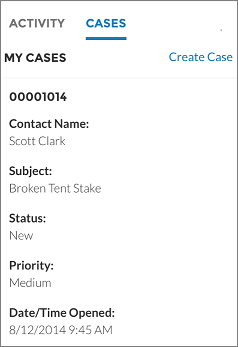
          On desktops and tablets, users see a list view of up to 25 of their most recent cases. They can sort columns in the list and click the case number to view the details of that case. Navigation arrows let them click through the list of cases when there are multiple pages. On mobile devices, the view is optimized and users scroll through a list of cases and select a case to see its details.

          1. Select the User Profile Tabs component in the page you're configuring.
          2. In the property editor, configure the properties for the component:
            Property Details
            User ID The system supplies this value. Don’t update this field.
            Feed Tab Label Enter the text you want to display on the tab that users select to view a user’s Chatter feed. The default text is Feed.
            Cases Tab Label Enter the text you want to display on the tab that users select to view their cases. This only displays for users on their own profile. The default text is Cases.
            Case Filter Name or ID

            Enter the name of the list view that displays cases.

            By default, the template uses the AllOpenCases view, which lets users view any open cases that they have permission to see. Configure sharing to ensure that users see only cases that belong to them. Alternatively, you can use another pre-defined list view or create a custom list view.

            Header Title Enter the text for the label that appears at the top of the list of cases. The default for this field is My Cases.
            Create Case Label Enter the text you want to display on the button that users can click to create a case. The default text is Create Case.
            Show All Updates as the Default Feeds Filter When this box is selected, the feed automatically defaults to the All Feeds filter. If it isn't selected, the feed defaults to the Posts Created by this User filter.
          Example
          Example Sample User Profile Tabs component:
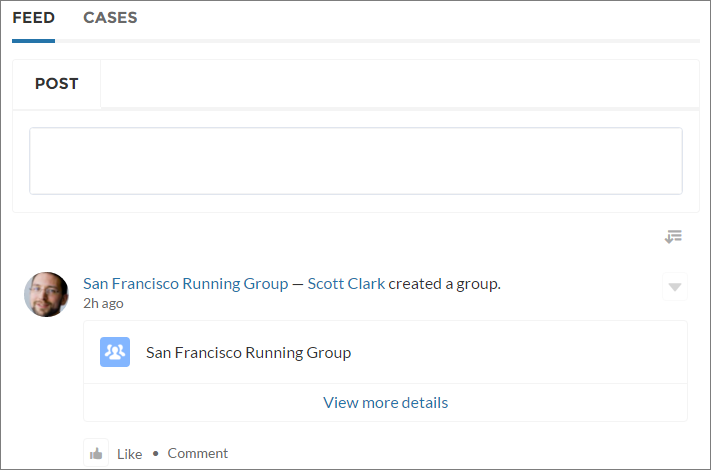
          Cases in User Profile Tab

          Case list viewed on a mobile device:

          Case list for mobile device
           
          Loading
          Salesforce Help | Article