
You are here:
Create and Configure Forecast Sets for Advanced Account Forecasting
A forecast set represents a set of configurations for forecasts for a particular business objective. These configurations include forecast dimensions, measures, adjustment periods, calculation methods, and calculation frequencies. Forecast sets can vary based on business units, locations, product lines, or other factors. For example, a company can have two forecast sets: one on the sales demand forecasts for the Hammer product in Japan ship-to location and another for service revenue forecasts for the Forklift product family in the France location.
Required Editions
| Available in: Lightning Experience |
| Available in: Enterprise, Unlimited, and Developer Editions |
| User Permissions Needed | |
|---|---|
| To modify forecast settings: | Customize Application |
- Create a forecast set.
- Configure the building blocks of the forecast set.
- Add dimensions to the forecast set.
- Add measures to the forecast set.
- Group measures in the forecast set.
- Choose when users adjust forecasts for the forecast set.
- Define formulas for the forecast set.
- Activate the forecast set.
Create a Forecast Set
Create a forecast set to define the configurations for a collection of forecast data points. When you create, a forecast set, it's in an inactive state. After you define forecast configurations, activate the forecast set.
- From Setup, in the Quick Find box, enter Advanced Account Forecasting, and then select Advanced Account Forecasting.
-
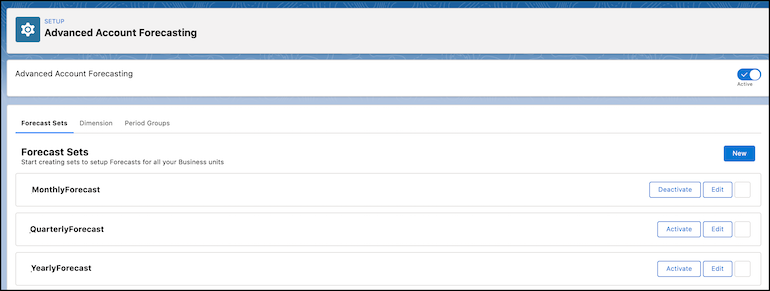
Go to the Forecast Sets tab, and click New.
-
Select a period group.
Period groups define the duration of the periods for which forecasts are generated. Only active period groups appear in the Period Group field. See Define a Period Group for Advanced Account Forecasting.
-
Select a forecast fact object.
A forecast fact object stores forecast data. Select Advanced Account Forecast Fact object or your custom forecast fact object. See Manage Your Forecast Fact Object for Advanced Account Forecasting.
- Enter a description.
- Save your changes.
Configure the Building Blocks of a Forecast Set
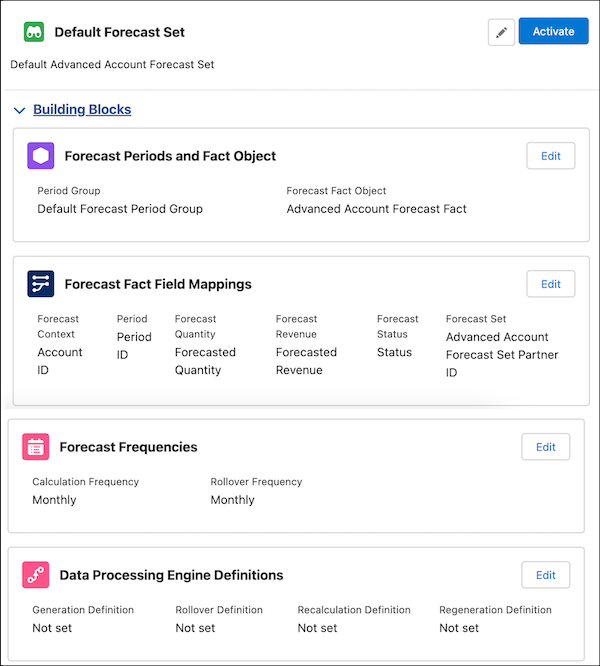
The building blocks of a forecast set represent key configurations for forecasts, such as the context of the forecasts, the frequency for generating forecasts, and how forecasts are calculated. Map the key parameters in your forecast set, such as forecast context and status, to the fields in your forecast fact object. Specify the frequencies at which forecasts are calculated and rolled over for the new periods. Specify the data processing engine definitions for generating, rolling over, recalculating, and regenerating forecasts.
- On the forecast set that you created, expand the Building Blocks section.
-
Specify the forecast fact field mappings.
The forecast fact object that you use determines your field mapping.
- In the Forecast Fact Field Mappings section, click Edit.
-
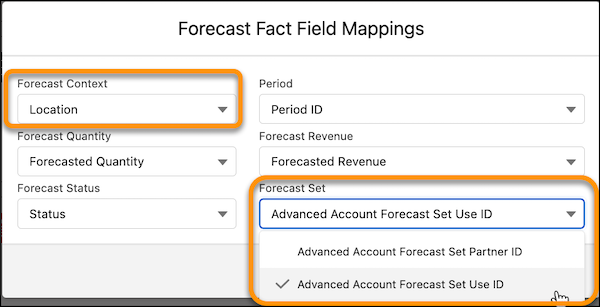
For Forecast Context, select the field in the forecast fact object that's a lookup
to an object whose record is used as the context for generating forecasts.
The context of a forecast is the specific focus or basis of generating the forecasts, such as an account, a product, or a product category. If you use Advanced Account Forecast Fact as the forecast fact object, select a field such as Account ID or Product ID.
-
For Period, select the field in the forecast fact object that's a lookup to the
Period object.
If you use Advanced Account Forecast Fact as the forecast fact object, select Period ID.
-
For Forecast Quantity, select the field in the forecast fact object that stores
forecast quantity values.
If you use Advanced Account Forecast Fact as the forecast fact object, select Forecasted Quantity.
-
For Forecast Revenue, select the field in the forecast fact object that stores
forecast revenue values.
If you use Advanced Account Forecast Fact as the forecast fact object, select Forecasted Revenue.
-
For Forecast Status, select the field in the forecast fact object that stores the
status of the forecast.
If you use Advanced Account Forecast Fact as the forecast fact object, select Status.
-
For Forecast Set, select the field in the forecast fact object that's a lookup to
the forecast set use object.
A forecast set use object, such as Advanced Account Forecast Set Use, is a junction between a forecast fact object, such as Advanced Account Forecast Fact, and another object that serves as the context for generating forecasts, such as Account or Product. If you use Advanced Account Forecast Fact as the forecast fact object and Advanced Account Forecast Set Use as the forecast context object, select Advanced Account Forecast Set Use ID.
- Save your changes.
-
Specify the forecast frequencies.
- In the Forecast Frequencies section, click Edit.
-
For Calculation Frequency, select the frequency at which the forecasts are
calculated.
You can select Weekly, Monthly, Quarterly, or Yearly. The Weekly value is available only if custom fiscal years are enabled in your org. See Define a Custom Fiscal Year.
-
For Rollover Frequency, select the frequency at which the forecasts are rolled over
for the new periods.
You can select Weekly, Monthly, Quarterly, or Yearly. The Weekly value is available only if custom fiscal years are enabled in your org.
- Save your changes.
-
Select the data processing engine definitions for generating, rolling over,
recalculating, and regenerating forecasts for the forecast set.
You can select only the DPE definitions that are active and have the Advanced Account Forecast process type in forecast sets. See Data Processing Engine for Advanced Account Forecast Calculations.
- In the Data Processing Engine Definitions section, click Edit.
- For Generation Definition, select the DPE definition for generating forecasts.
- For Rollover Definition, select the DPE definition for rolling over the forecasts for new periods.
- For Regeneration Definition, select the DPE definition for regenerating forecasts.
- For Recalculation Definition, select the DPE definition for recalculating forecasts.
- Save your changes.
Add Dimensions to a Forecast Set
Dimensions categorize forecast data in the forecast table. You can add up to six dimensions to a forecast set. For example, to generate forecast data that's categorized by country, city, and product, add the country, city, and product dimensions to a forecast set.
To add dimensions to a forecast, first, create dimensions and specify their source objects in the Dimensions tab of the Advanced Account Forecasting setting. You can’t add multiple dimensions with the same source object to a forecast set.
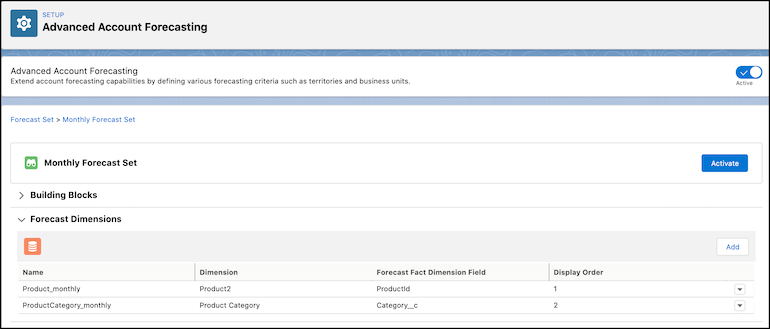
- On the forecast set that you created, expand the Forecast Dimensions section.
- Click New.
-
Enter a name for the dimension.
The name appears in the forecast table.
-
Select a dimension.
You select the dimensions created in the Dimensions tab of the Advanced Account Forecasting settings.
- For Forecast Fact Dimension Field, select a field in your forecast fact object that stores the value for the dimension.
-
In Display Order, enter a number that indicates the position of the column for the
dimension in the forecast table.
The display order is the position (from left to right) of this dimension as a column in the forecast table. Measure values are grouped by the first dimension, then by the next dimension, and so on. For example, when you enter 1 for the product dimension and 2 for the location dimension, measure values are grouped by product and then by location.
- Save your changes.

The sales team at a manufacturing company wants to track product inventory forecasts. They want to track forecasts for each inventory location and product.
The company's Salesforce admin creates dimensions with these source objects.
- Inventory Site: Associated Location source object
- Product Item: Product Item source object
The Salesforce admin creates these fields on the Advanced Account Forecast Fact object.
- Inventory Location: A lookup relationship field to the Associated Location object.
- Product Item: A lookup relationship field to the Product Item object.
These fields store the forecast values for the dimensions in the advanced account forecast fact records.
The Salesforce admin creates a forecast set for the product inventory forecasts with Advanced Account Forecast Fact as the forecast fact object. The admin adds these dimensions to the forecast set.
- Dimension 1
- Name: Inventory Location
- Dimension: Inventory Site
- Forecast Fact Dimension Field: Inventory Location
- Display Order: 1
- Dimension 2
- Name: Product
- Dimension: Product Item
- Forecast Fact Dimension Field: Product Item
- Display Order: 2
Here's how the forecast table appears with these dimensions.
| Inventory Location | Product Item | Measure | Aggregate | June FY 2024 (1/6/2024) | July FY 2024 (1/7/2024) |
|---|---|---|---|---|---|
| Osaka | Dehumidifier Ultra | Quantity On Hand | 1,000 | 120 | 140 |
| Stock Outs | 12% | 10% | 12% | ||
| Electric Fan Mini | Quantity On Hand | 2,000 | 42 | 43 | |
| Stock Outs | 4% | 3% | 3% | ||
| Sakai | Dehumidifier Ultra | Quantity On Hand | 120 | 10 | 25 |
| Stock Outs | 11% | 13% | 15% | ||
| Air Purifier Large | Quantity On Hand | 400 | 23 | 45 | |
| Stock Outs | 5% | 4% | 1% |
Add Measures to a Forecast Set
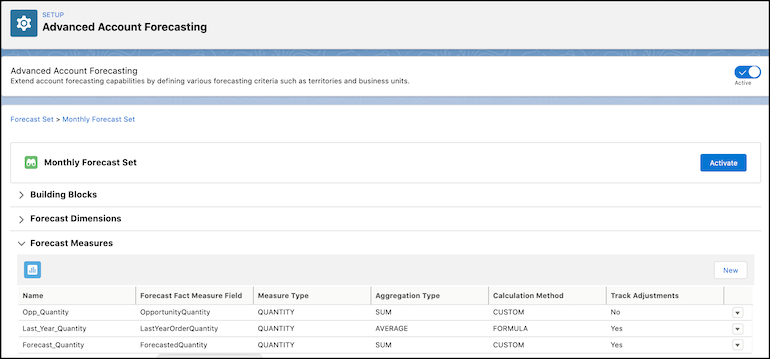
Measures are quantitative values that contain numerical data, such as opportunity quantity, opportunity revenue, last year order quantity, and sales agreement quantity. You can add multiple measures to a forecast set. To add a measure to a forecast set, you specify the field in the forecast fact object where it's stored, how the measure is calculated and aggregated, and whether adjustments made to the measure are tracked.
- On the forecast set that you created, expand the Forecast Measures section.
- Click New.
-
For Name, enter a name for the measure.
The name appears in the forecast table.
- For Forecast Fact Measure Field, select a field in your forecast fact object that stores the value for the measure.
-
For Measure Type, select the type of measure.
- Quantity
- Revenue
-
For Aggregation Type, select how the measure values are aggregated.
- Sum
- Minimum
- Maximum
- Average
-
For Calculation Method, select a method for calculating the measure values.
Batch Process Specifies that an automated batch process, such as data processing engine definitions, is used to calculate the measure values. User-Editable Specifies that users can define forecast values. Forecast Formula Specifies that forecast values are calculated using forecast formulas. For more information, see Create and Configure Forecast Sets for Advanced Account Forecasting. -
For Track Adjustment, specify whether adjustments to the measure values are
tracked.
- Yes
- No
- Save your changes.
Group Measures in a Forecast Set
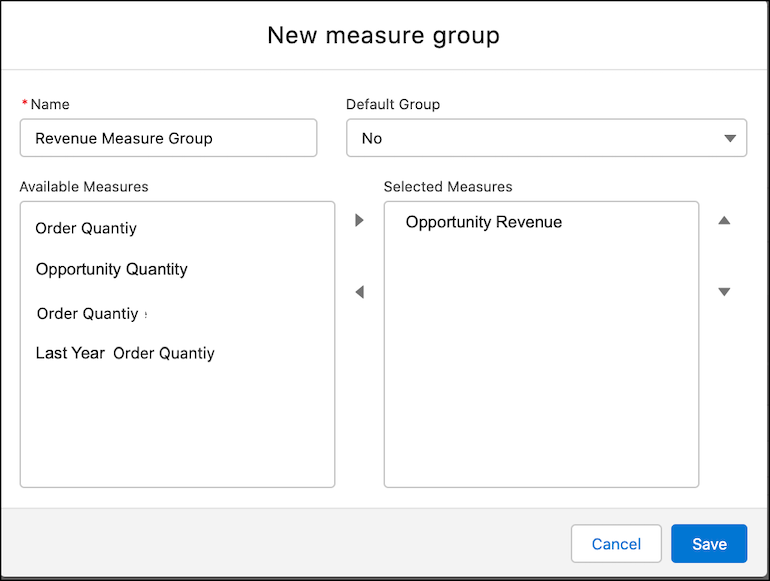
Create measure groups to group similar measures and help users easily view forecasts for specific measures, such as quantity or revenue. In the forecast table, users see forecasts for measures that are in the selected measure group.
- On the forecast set that you created, expand the Forecast Measure Group section.
- Click New.
- Enter a name for the measure group.
-
Specify whether the measure group is the default group.
- Yes
- No
You can specify only one measure group as the default group. - From the Available Measures list, select the metrics that you want to add to the measure group, and move them to the Selected Measures list.
- Save your changes.
Choose When Users Can Adjust Forecasts for a Forecast Set
Define how users with different user profiles can adjust forecasts for a forecast set. You can define an adjustment period for each user profile.
- On the forecast set that you created, expand the Forecast Adjustment Periods section.
- Click New.
- Select the users profile of the users that make adjustments to the forecasts.
-
Select the frequency of the adjustment periods.
- Week
- Month
- Quarter
- Year
The Week value is available only if custom fiscal years are enabled in your org. See Define a Custom Fiscal Year. - In Period Start Date, enter the number of days after the beginning of an adjustment when users can adjust forecast values.
- In Duration Days, enter the number of days for which the adjustment period is open.
- Save your changes.
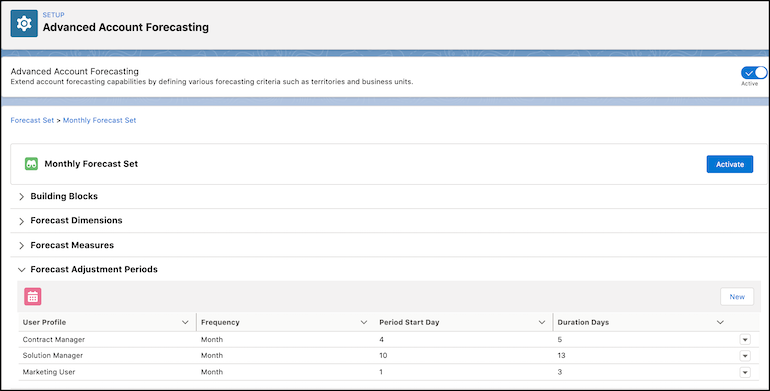
The sales team at a manufacturing company wants to track quarterly product demand forecasts. The team wants three sets of users to adjust forecasts during different intervals.
- Account executives can edit the forecast during the first ten days of every month.
- Key account managers can edit the forecasts after the first seven days of every quarter, for up to fourteen days.
- Finance managers can edit the forecasts during the first three days of every week.
The Salesforce admin creates a forecast set for the quarterly product demand forecasts, and adds three adjustment periods to the forecast set.
Define Formulas for Measures in a Forecast Set
If the calculation method of a measure is forecast formula, define a formula to calculate the measure's value. You can define formulas to calculate quantity or revenue measures for a range of periods.
- On the forecast set that you created, expand the Forecast formula section.
- Click New.
- In Start Period, enter the number of periods after the first period from when the forecast is applicable.
- In End Period, enter the number of period after the first period until when the forecast is applicable.
-
In Type, enter the type of values for which the formula is applicable.
- Quantity
- Revenue
-
Enter a formula expression.
Use the Field, Function, and Operator drop-down lists to compose your formula. Use the Field drop-down list to add fields from the selected forecast fact to the formula. Use the Function drop-down list to add functions to the formula, such as IF, ISBLANK, and MAX. Use the operator drop-down list to add arithmetic and logical operators to the formula, such as +, &, and <>.
- Click Create.
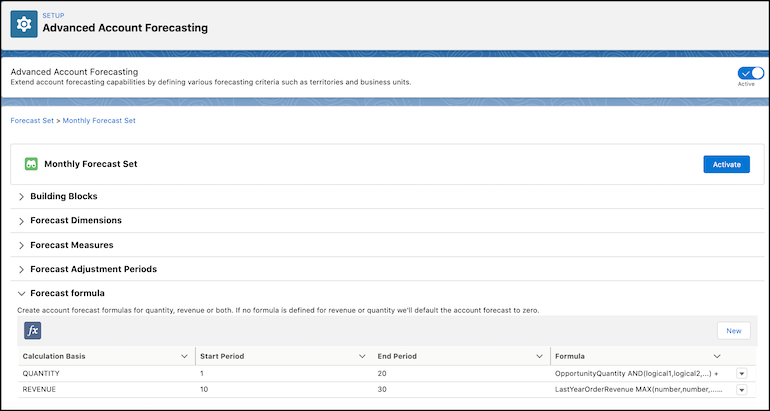
The sales team at a manufacturing company wants to track quarterly product demand forecasts. The team wants use two measures for their forecasts.
- Forecast Revenue: The forecast revenue must be a sum of these values.
- 50% of the opportunity revenue
- The previous year's order revenue or the current order revenue, whichever is lower
- Sales agreement revenue
- Forecast Quantity: The forecast quantity must be a sum of these values.
- Opportunity quantity
- The previous year's order quantity or the current order quantity, whichever is higher
- 80% of the sales agreement quantity
The Salesforce admin creates a forecast set with Advanced Account Forecast Fact as the forecast fact object. The admin defines these forecast measures.
| Name | Forecast Fact Measure Field | Measure Type | Aggregation Type | Calculation Method | Track Adjustments |
|---|---|---|---|---|---|
| Forecast Revenue | Forecasted Revenue | Revenue | Sum | Forecast Formula | Yes |
| Forecast Quantity | Forecasted Quantity | Quantity | Sum | Forecast Formula | No |
The Salesforce admin defines these forecast formulas.
