
Create Custom Filter Logic and Save as a Template
Create a custom filter logic to filter dataset records efficiently. Custom filter logic helps you to filter a large dataset of records when creating actionable lists. Save the filters and filter logic as a template to reuse.
Required Editions
| Available in: Lightning Experience |
| Available in: Clouds that have Industry Sales Excellence and Query for Datapipelines User licenses |
| User Permissions Needed | |
|---|---|
| To create a custom filter logic: | Actionable Segmentation AND Query for Datapipelines User |
Before creating filter logic, add filters that specify filtering conditions. When you add a filter, it’s numbered. Your first filter is numbered 1 and your second filter is numbered 2 and so on. Create filter logic using numbered filters.
For example, let’s say you have a dataset of Accounts with fields like City, Annual Revenue, and Asset Under Management, and you’ve created these filters:
- Filter 1: Total deposits greater than $50,000
- Filter 2: Asset Under Management value is greater than US$100000
- Filter 3: Accounts from Los Angeles
These three filters cause your dataset to return Accounts in Los Angeles with total deposits greater than $50,000, and Asset Under Management greater than US$100,000. But what if you want Accounts in Los Angeles AND with annual revenue greater than $50,000 OR Asset Under Management greater than US$100,000? Create a filter logic in the Actionable List Builder page.
- From the App Launcher, find and select Actionable List Builder, and then click New.
-
Add the filters and click Add Filter Logic (1).
 Important Fields of type Date can’t be used in a filter.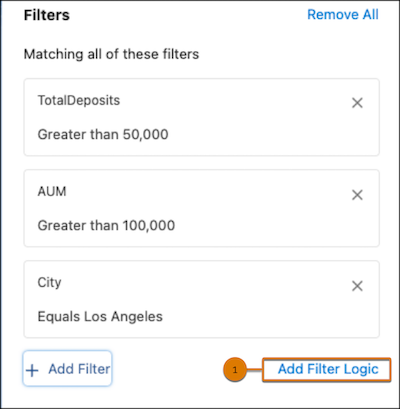
-
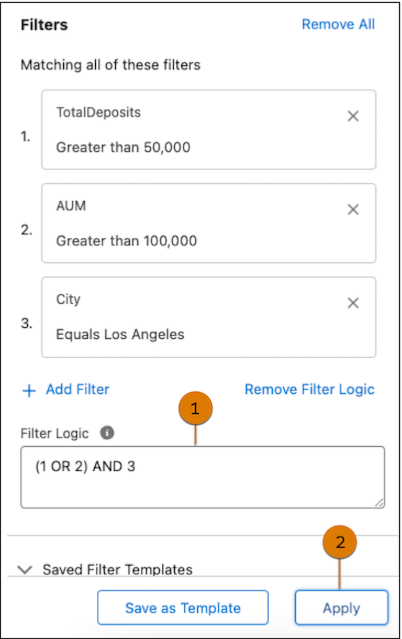
Enter the filter logic condition (1), and click Apply (2). In this
example, we’ve added (1 OR 2) AND 3 filter logic condition. Consider these conditions when
creating filter logic:
- Use a filter at least one time and only one time in the filter logic.
- Only AND and OR operators are allowed.
- Use parentheses when using successive AND and OR operators.
-
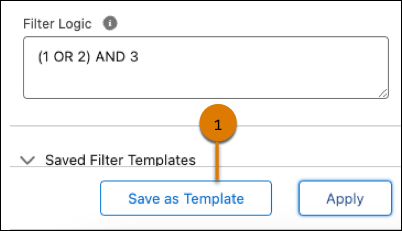
To
save these filters and filter logic as a template, click Save as
Template (1).
- Specify a name for the template.
- Provide a short description of the filter logic rationale to help other list creators who intend to reuse this template.
- Select public or private based on whether you wish to share this template with other list creators or keep it private.
- Save the template.
- Select the records from the filtered list either manually or in bulk and add to the list.
