You are here:
Timeline for Health Cloud Empower
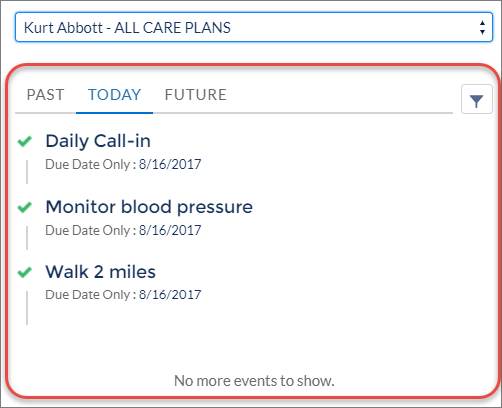
The Timeline for Health Cloud Empower component enables patients who are logged in to the site to see their past, current, and future healthcare events.
Required Editions
Available in: Lightning Experience Available in: Enterprise and Unlimited Editions with Health Cloud |

Use the Timeline View Configurations tab to create filters that specify the precise fields that appear in the timeline from a particular record. Make sure to select Timeline for Health Cloud Empower in the Configuration Target field.
Health Cloud respects your sharing and field-level security settings for data that is displayed in the timeline component. Ensure that security settings for the Timeline View Configuration, Filter Column, Filter Condition, and Filter Criteria objects are configured appropriately for your users.
- In your Experience Cloud site’s workspace, select Builder.
-
On the top-left corner of the page, click
 .
.
- Under Custom Components, select and drag the Timeline for Health Cloud Empower component onto an editable area of the page.
-
In the property editor, configure properties for the component:
- Empty State Text
- Text instructing users to select a care plan to view timeline events. Default text is Select a care plan to view timeline events.
- Show past events
- Select to show past activity in the timeline.
- Show future events
- Select to show future activity in the timeline.
- Page Reload Size
- The number of events loaded initially for each category of tasks and when a user selects Show More. The default is 50 events.
The filter element on the page is controlled by the types of events you define in the Timeline View Configurations tab.
The Past, Today, and Future tabs of the Timeline can each show up to 500 events.