
You are here:
Analyze Audit Records
Analyze the customer identity verification audit records generated by the CCA’s identity verification flow.
Required Editions
| Available in: Lightning Experience |
| Available in: Enterprise, Professional, Starter, and Unlimited Editions |
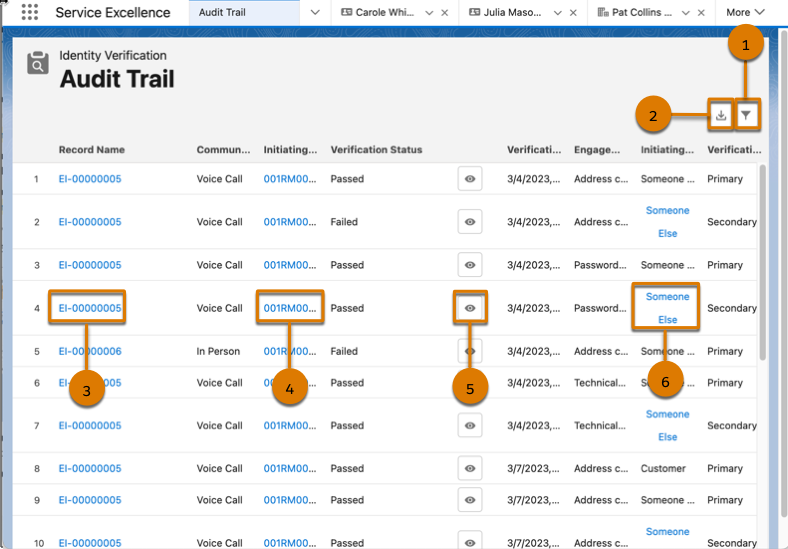
When you open Audit Trail, it automatically shows up to 30 identity verification audit records from the last 24 hours in the ascending order of verification timestamp. You can scroll down to view more records.
The data recorded in each audit record includes:
| COLUMN | DESCRIPTION |
|---|---|
| Record Name | The unique identifier of a customer engagement. |
| Communication Channel | The channel through which an engagement interaction occurred. |
| Initiating Attendee | The attendee who initiated an engagement. |
| Verification Status | The identity verification status of the initiating attendee. Values include Passed or Failed. |
| Verification Timestamp | The time at which the initiating attendee is verified. |
| Engagement Topic | The reason for the engagement as stated by the initiating attendee. |
| Initiating Attendee Type | The type of the initiating attendee. Values include Customer or Someone Else. |
| Verification Type | The type of verification, primary or secondary, associated with an audit record. |

Note
- Audit Trail shows the primary and secondary verification timestamp according
to the timezone and locale specified in the Language & Time Zone section
of your Salesforce profile. To go to the section, click
 , and
then click Settings. Locate the section under My
Personal Information.
, and
then click Settings. Locate the section under My
Personal Information. - The actual verification time and the verification timestamp that appear in Audit Trail differ slightly because audit records are generated after the CCA completes verification.
-
To filter audit records with more granularity and find the information you need
quickly, click
 (1).
(1).
- Filter audit records by date range, verification status, and initiating attendee ID. You must manually enter the ID, and the ID must exactly match the ID stored in Salesforce.
- In the calendar window, the current date appears according to the timezone and locale specified in the Language & Time Zone section of your Salesforce profile.
- Verification status helps you filter audit records based on success or failure of identity verification.
- You can further narrow down the audit records by specifying the initiating attendee ID of engagement interactions.
- To filter audit records by initiating attendee ID, select a verification status: Passed or Failed.
-
To export audit records from Audit Trail to a CSV file, click
 (2).
(2).
- To open a record, click the corresponding record name link (3).
- To open an account, contact, or lead record, click an initiating attendee link (4).
-
To view these identity verification details in read-only format, click
 (5):
(5):
- Overall verification status
- Required and additional verification questions
- Verification status for each question
Note The answers to the verification questions are hidden to protect the privacy of the customer.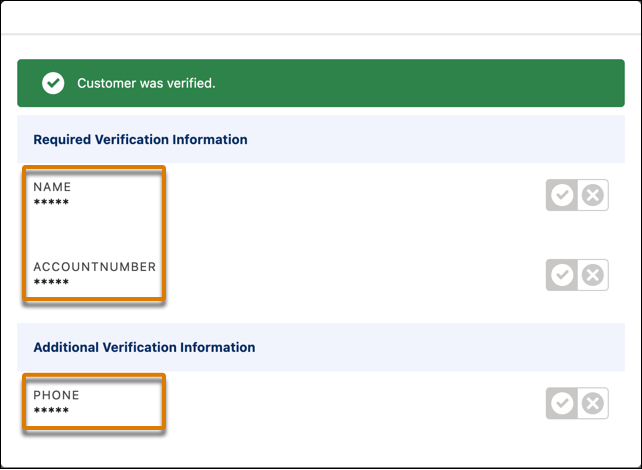
-
To view primary and secondary verification details of audit records that are of
secondary verification type, click the hyperlink (6) in the Initiating Attendee
Type column.
Note
- You can’t delete audit records manually.
- No retention periods are configured for the audit records stored in Audit Trail.
Did this article solve your issue?
Let us know so we can improve!
