
You are here:
Use Advanced Approvals in a Quote
Now that your Approval Designer has created and activated an approval workflow for discounts, you’re ready to create quotes as a sales rep and use it.
Required Editions
| Available in: Lightning Experience |
| Available in: Enterprise, Performance, Unlimited, and Developer Editions where Advanced Approvals is enabled |
| User Permissions Needed | |
|---|---|
| To create a quote: | Create on Quotes |
| To submit a quote for approval: | Run Flows |
| To approve a quote: | Approval Admin |
This example builds on the previous one, where we created an approval workflow called Discount Threshold Approval. We've also modified our Quote object’s page with the Apex classes and buttons required to trigger the approval process.
Here’s our scenario. Any quote discounted at 25% or above requires approval from a Sales Manager. Quotes with discounts larger than 50% also require approval from a Senior Vice President (SVP, Sales).
Follow the steps below to see how to create a quote and manage it's approval workflow.
- Create a quote for the buyer (add products, specify discounts)
- Submit your quote for approval
- View and Manage Approvals
Create a Quote for Approvals
Let’s start by creating a quote and adding products to it. Then, add associated discounts to verify that the approval workflow triggers and routes as designed.
- From the App Launcher, find and select Quotes.
- Click New Quote.
- On the quote page, click Browse Catalogs.
- Select a catalog, and click Next.
- Add products to your quote and click Save.
- Provide a discount of over 50% to any product at the line item level.
Submit the Quote for Approval
When your quote is ready, you’ll need to submit it for approval. Notice that since one of the line items in the quote has a discount of 50%, the approval workflow will be triggered and the quote will be sent for approval.
- Save your quote after making all pricing changes.
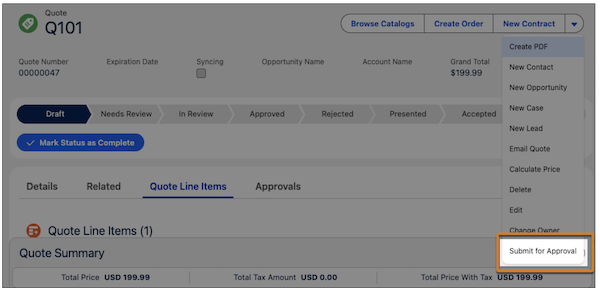
- Click Submit for Approval. Note: The name of this button may be different if you provided a different name when you performed the Add Approval Button task.
- Provide comments to aid the quote approval process.
-
Submit your quote for approval.
View and Manage Approvals
The Approvals home page helps your approval submitters and approvers to manage their approval work items.
- If you can’t view the Approvals home page, ensure that your administrator grants you READ access on the ApprovalSubmission object to the user.
- By default, sharing for the ApprovalSubmission object and related records is set to Private, which can be misconfigured. If public visibility is required, the administrator must ensure the related record has a Public Read access set.
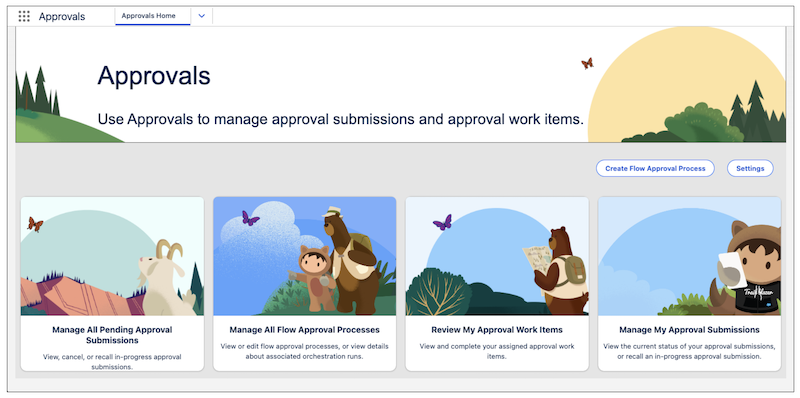
- If you’re an approval submitter, click Manage My Approval Submissions. A list of all the approval requests made by the submitter along with their statuses is displayed.
-
If you’re an approval administrator, click Manage All Pending Approval Submissions.
Approval administrators can view all submissions and their statuses. They can also perform approval actions on behalf of other approvers.
- If you’re an approver or a reviewer, click Review My Approval Work Items. Reviewers can approve or reject any pending quotes assigned to them. They can also navigate from the Approval Work Item record by clicking the Related Record ID, which will take them to the Approvals tab on the Quote record to approve or reject the quote.
- Reviewers can also approve or reject an approval submission as a response to the email without going to the work item on your Approvals application.
- Finally, if Smart Approvals is enabled, submissions that meet the workflow's conditions will be automatically approved.
If you’ve got multiple approvers, they’ll see assigned work items on their login.
