You are here:
Generate a Single Invoice PDF Document by Using Flow, Apex, and Omniscript
Generate a PDF document for an invoice that's generated from an Account or Order record page, or that's generated by using the Invoice Creation API.
Required Editions
| Available in: Lightning Experience |
| Available in: Enterprise, Performance, Unlimited, and Developer Editions with the Revenue Cloud Billing license. Contact your Salesforce account executive for more information. |
| User Permissions Needed | |
|---|---|
| To generate invoice PDF documents: | Billing Admin permission set OR Billing Operations User permission set AND DocGen User permission set |
To generate a PDF document for an invoice, create a Document Generation Process record by configuring an Apex class, by creating a flow with the Create Records element, or by using the default Omniscript available on that Invoice record page.
Create a Document Generation Process Record Using Flow or Apex
Create a Document Generation Process record by creating a Flow with a Create Records element or by configuring an Apex class.
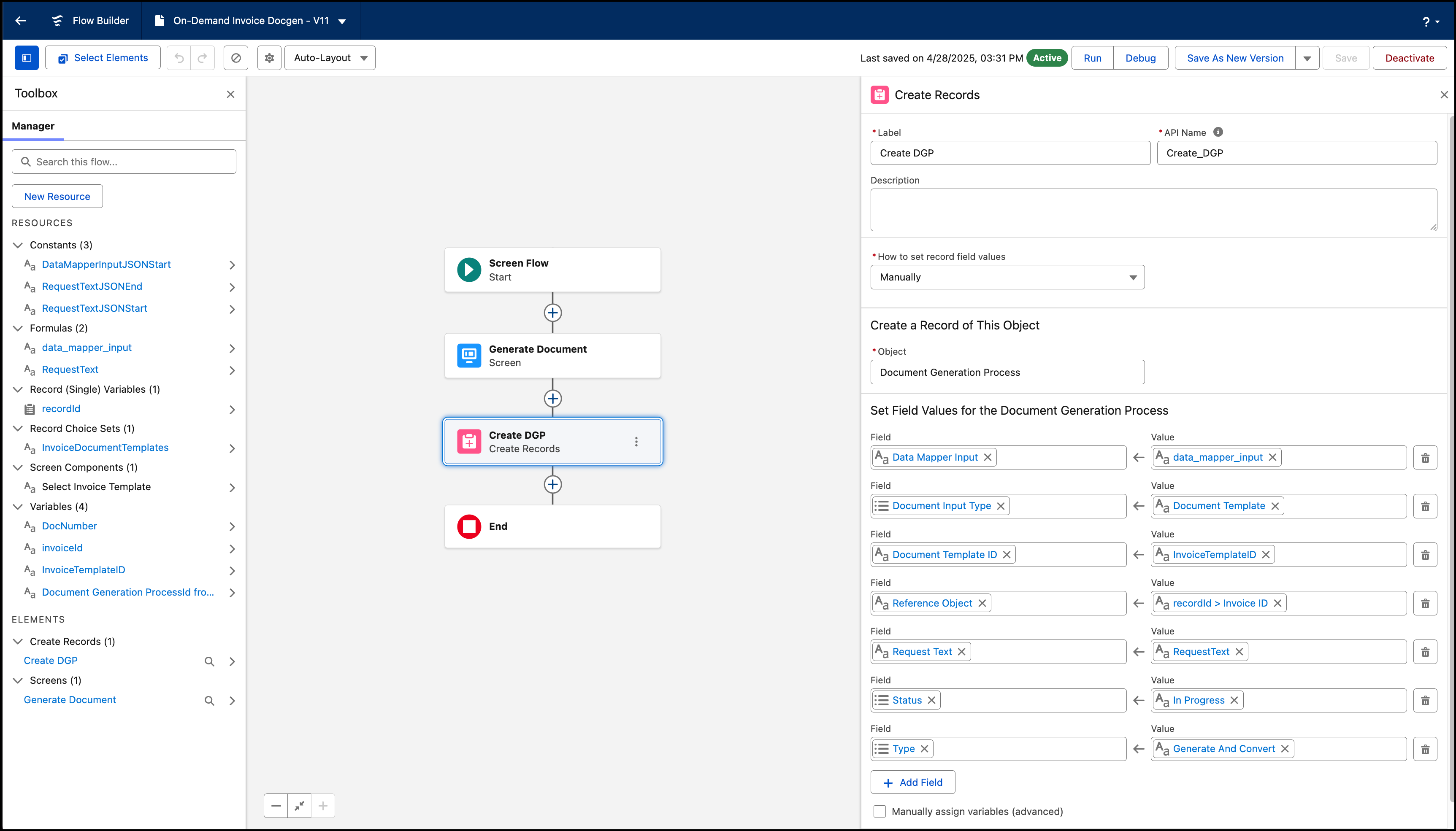
If you create a flow, add an element to get the document template to use for generating the invoice PDF document. Then, add a Create Records element with these values:
- Enter Generate And Convert as the type.
- Enter Document Template as the document input type.
- Enter DefaultInvoiceTemplate record Id or any custom document template as the document template.
-
Enter a JSON input in the
{"Id":"<Enter Invoice ID>"}format as the data mapper input. -
Enter the ID of the record for which you want generate a PDF document as the reference
object.
The generated PDF document is attached to the record.
-
Enter a JSON input in the
{"keepIntermediate":false,"title":"<Enter Invoice
      Number/ Document Number>"}
format as the request input. - Enter Advanced as the doc generation API version type.
-
Enter In Progress as the status.
If you configure an Apex class, specify the same values that are mentioned for the Create Records element.
Generate a Single Invoice PDF Document with Omniscript
Generate a PDF document for an invoice by using Omniscript.
To generate a PDF document for an invoice, configure Omniscript on your Invoice record page, and then generate a PDF document from the Invoice record page.
Configure Omniscript on Invoice Record Page
- Open the invoice record that you want to generate a PDF document for.
- From Setup, go to Edit Page.
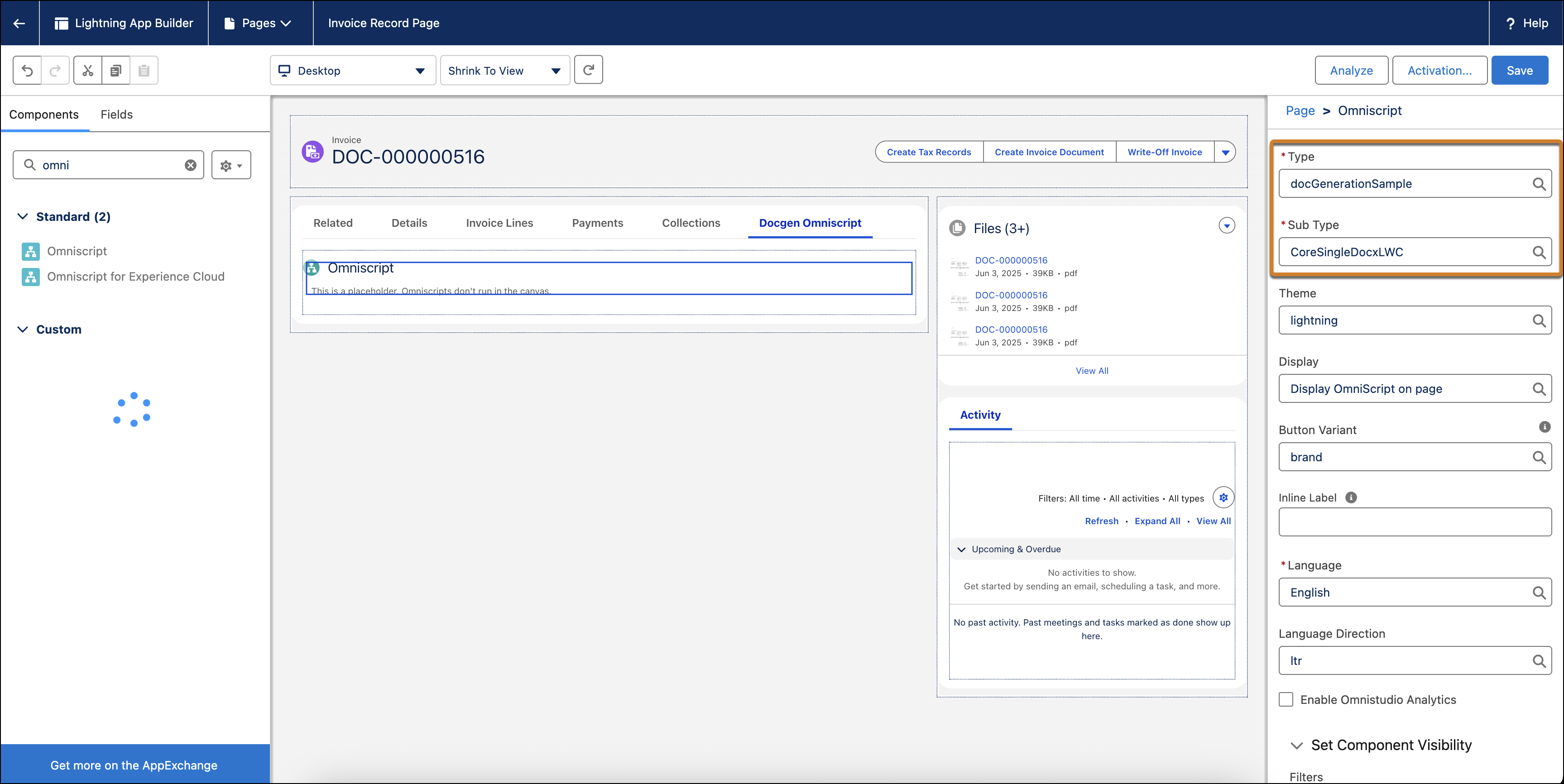
- In the components search bar, enter Omniscript.
-
Drag the Omniscript component onto one of the tabs of the Invoice record page
layout.
You can also create a tab to configure Omniscript on the Invoice record.
Generate a PDF Document from Invoice Record Page
- Open the invoice record that you want to generate a PDF document for.
- Go to the tab where you added the Omniscript component.
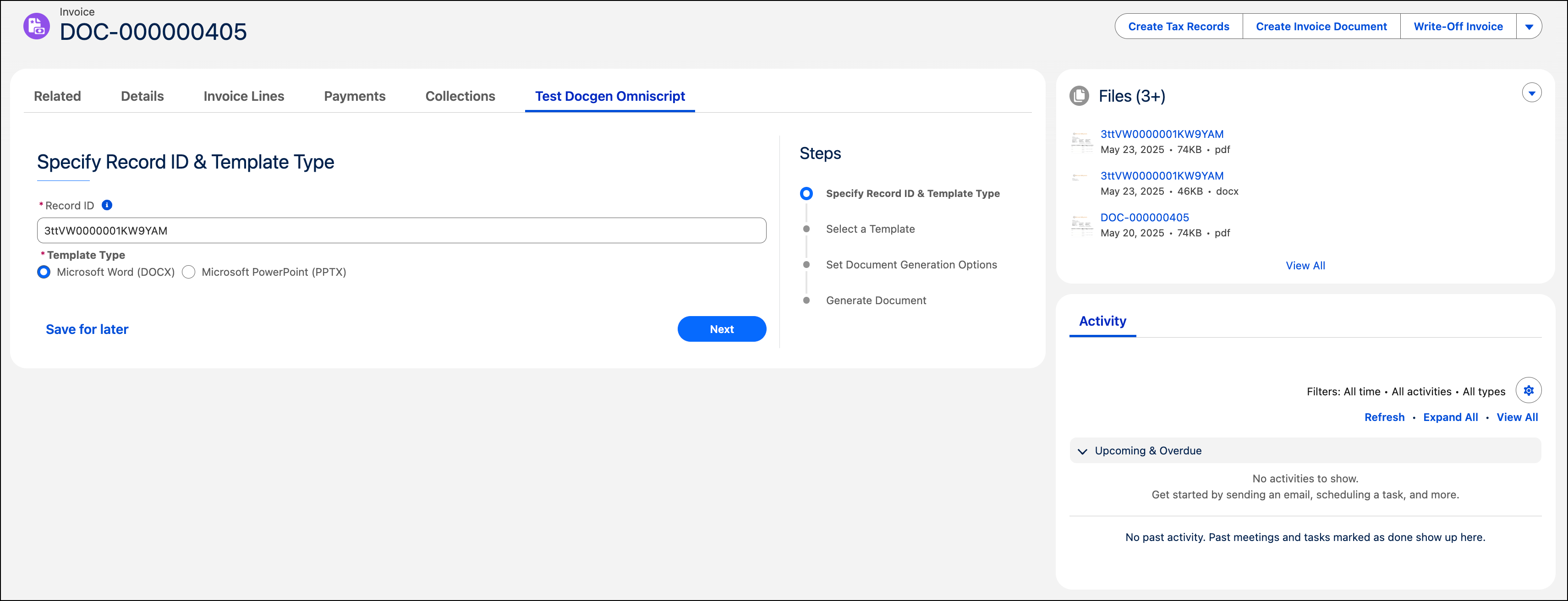
- Enter the invoice record ID.
-
Select a template type, and then click Next.
-
Select a template, and then click Next.
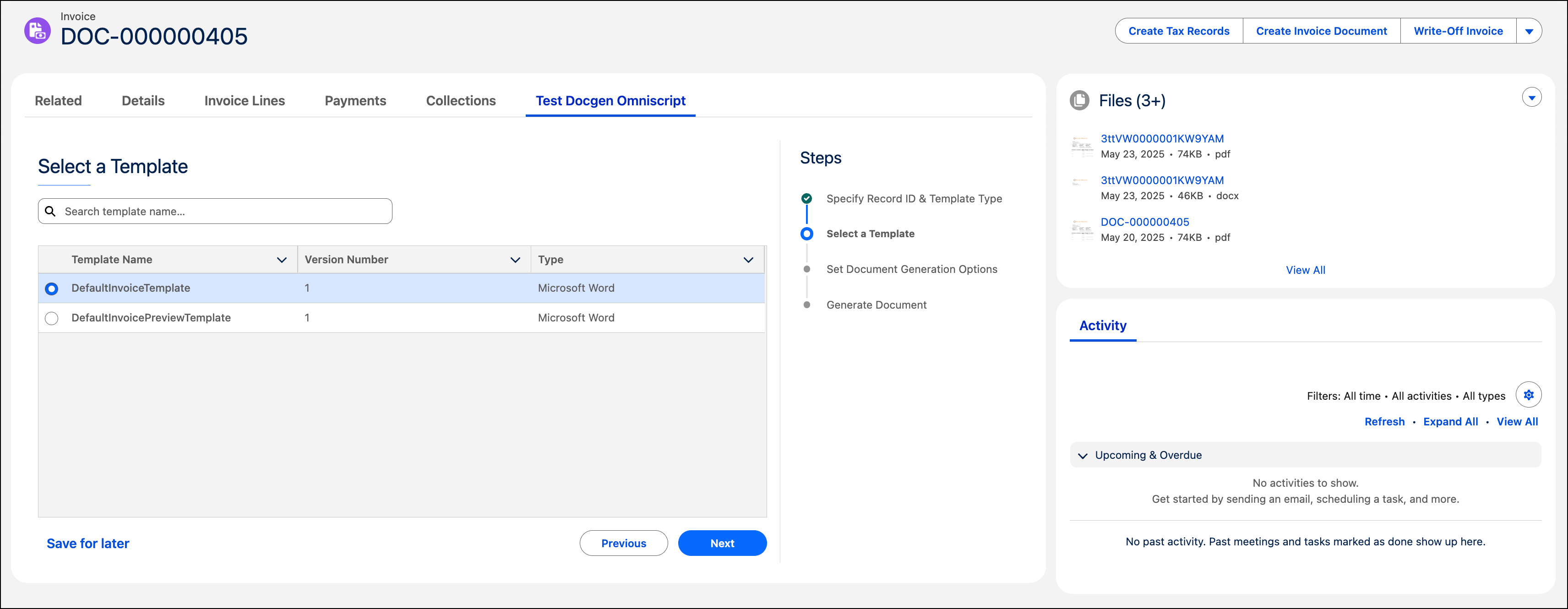
- Select Server Side Document Generation as the document generation type.
- Select Microsoft Word or Microsoft PowerPoint & PDF as the output file format.
- Select the font source.
-
Enter a document title, and then click Next.
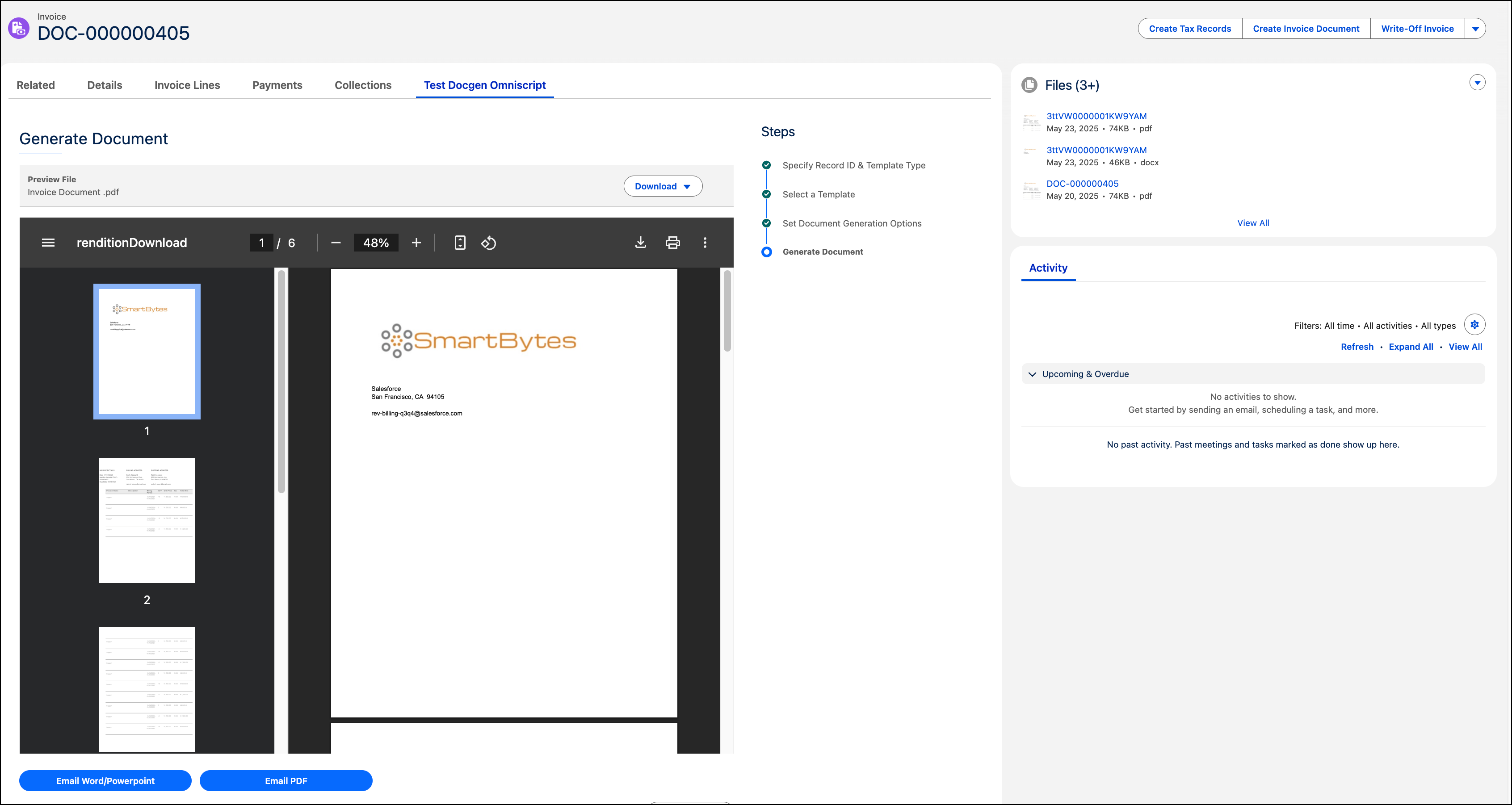
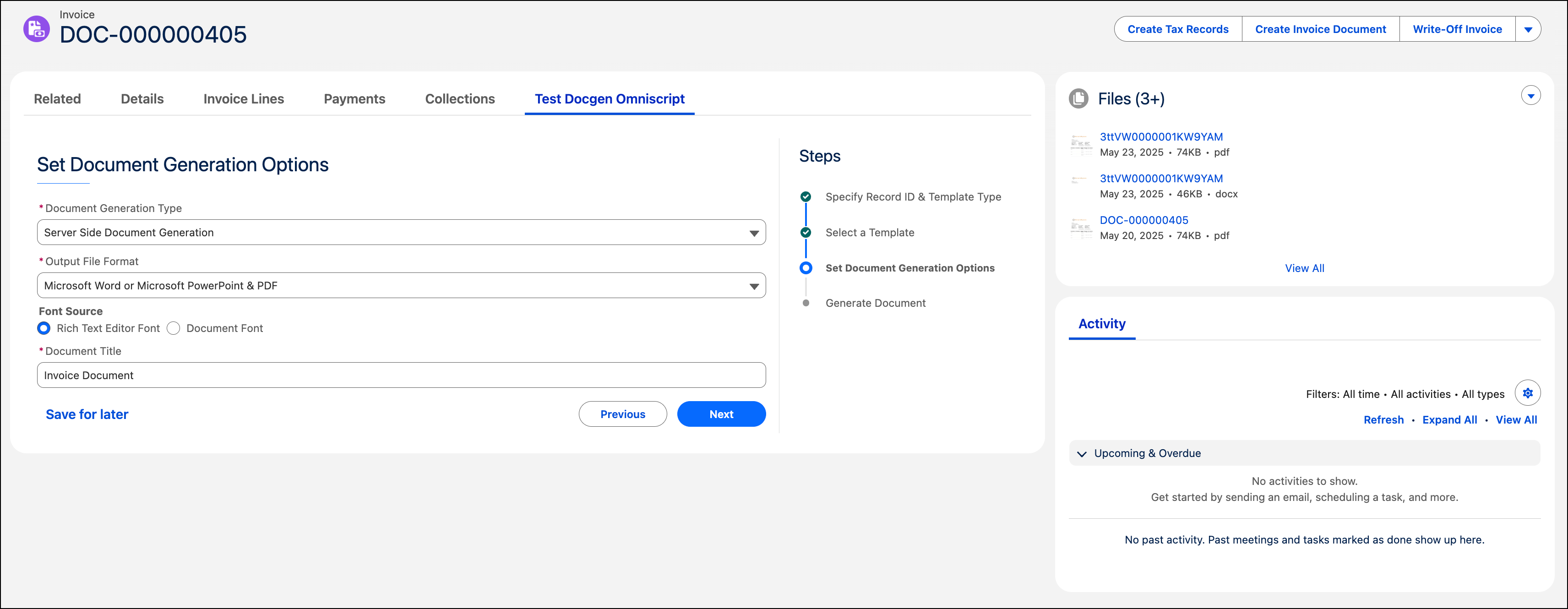 An invoice document is generated.
 -
Download the generated invoice document.