
You are here:
How to Design a Grouped Decision Matrix (Example)
When your business requires you to have multiple similar matrices with the same input and output headers, consider creating a grouped matrix. Learn how to create a grouped decision matrix and call it from an expression set version.
Required Editions
| Available in: Lightning Experience |
| Available in: Enterprise, Unlimited, and Developer Editions for clouds that have Business Rules Engine enabled |
- Create a Grouped Matrix for Car Rental Plans
Store the details of car rental plans for different cities using grouped matrix versions. City names are used as the values for each version’s group key. - Call the Rental Plans Matrix from an Expression Set Version
Add a lookup table step to an expression set version to call the grouped matrix. Next, simulate the version to test if the grouped matrix works as expected.
Create a Grouped Matrix for Car Rental Plans
Store the details of car rental plans for different cities using grouped matrix versions. City names are used as the values for each version’s group key.
Required Editions
| User Permissions Needed | |
|---|---|
| To create a grouped decision matrix and configure and activate its versions: | Rule Engine Designer |
- From the navigation menu in Business Rules Engine, select Lookup Tables.
- Click New.
- Select Decision Matrix | Next.
- For name, enter Car Rental Fees.
- For type, select Grouped.
-
For group key, enter City.
The matrix and its first version are created.
- On the Related tab of the matrix, select Car Rental Fees V1.
-
Edit the version.
- Click Edit.
- Change the version name to Car Rental Fees NYC.
-
In Group Key Value, enter New York City.
Use this version to store the data specific to New York City.
- Save the version.
-
Configure the version data.
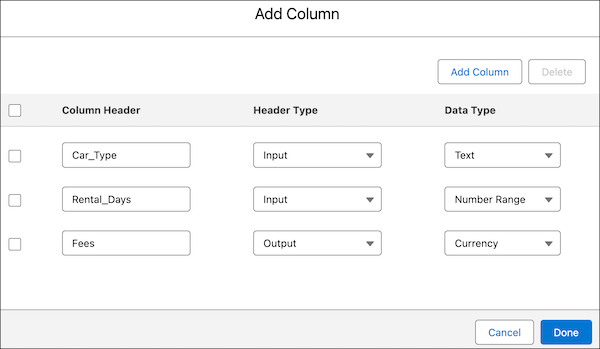
- To configure the column headers, click Add Column.
-
Create these columns, and click Done.
-
To add row data, click Add Row for each new row that you want to
add, and configure these rows.
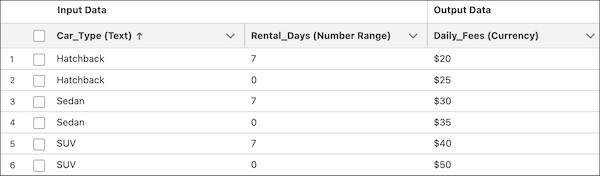
The values 0 and 7 in the Rental_Days column represent the ranges: 0–6 and 7 and above respectively.
- Save and activate the version.
-
Create a version to store the car rental details for San Francisco.
- In the header of the Car Rental Fees NYC version, click New Version.
- Select Include column headers and rows.
- For name, enter Car Rental Fees SF.
- Enter 2 for the version rank and number.
- Save the version.
-
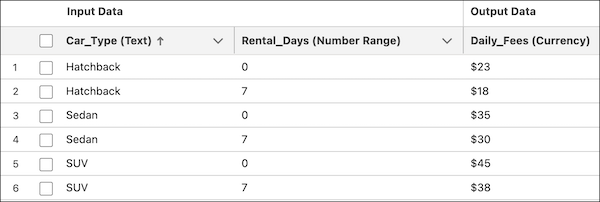
To modify the row data, click
 in a cell and change the cell’s value.
Here’s the modified row data for the San Francisco version.
- Save and activate the version.
-
Create a version to store the car rental details for Chicago.
- In the header of the Car Rental Fees SF version, click New Version.
- Select Include column headers and rows.
- For name, enter Car Rental Fees Chicago.
- Enter 3 for the version rank and number.
-
To modify the row data, click in a cell and change the cell’s value.
-
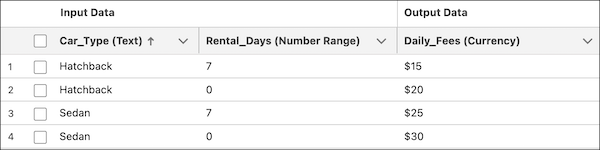
In
this example, Chicago doesn’t have rental plans for SUVs. To delete rows with Car_Type as
SUV, select the row checkboxes, and click Delete Rows.
Here’s the modified row data for the Chicago version.
- Save and activate the version.
Call the Rental Plans Matrix from an Expression Set Version
Add a lookup table step to an expression set version to call the grouped matrix. Next, simulate the version to test if the grouped matrix works as expected.
Required Editions
| User Permissions Needed | |
|---|---|
| To create and activate an expression set: | Rule Engine Designer |
| To run an expression set | Rule Engine Designer OR Rule Engine Runtime |
-
From the App Launcher (
 ), find and select Business Rules Engine.
- Click the app navigation menu, and then select Expression Sets.
- Click New.
- Name the expression set Get Car Rental Fees.
- Select the Default usage type and save the expression set.
- In the Expression Set Versions area, select Get Car Rental Fees V1.
-
Click
 , and enter 1 as
the version rank.
, and enter 1 as
the version rank.
-
To call the grouped decision matrix from the expression set version, add a lookup table
step.
-
Click
 in the expression set canvas, and select
Lookup Table.
in the expression set canvas, and select
Lookup Table.
-
In the Lookup Table Details field, start typing Car Rental, and
select Car Rental Fees.
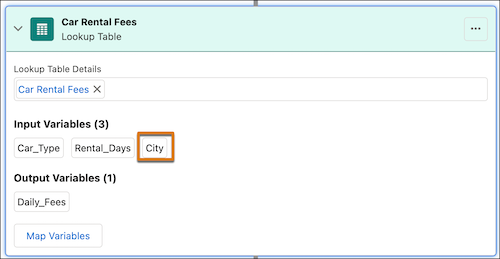
The group key of the matrix, City, appears as one of the input variables of the selected grouped matrix.
-
Click
- Save the version.
-
To verify that the grouped matrix works as expected, simulate the version with a few sample
input values.
- Click Simulate.
- In Car_Type, enter Hatchback, in City, enter San Francisco, and in Rental_Days, enter 10.
-
Simulate the version.
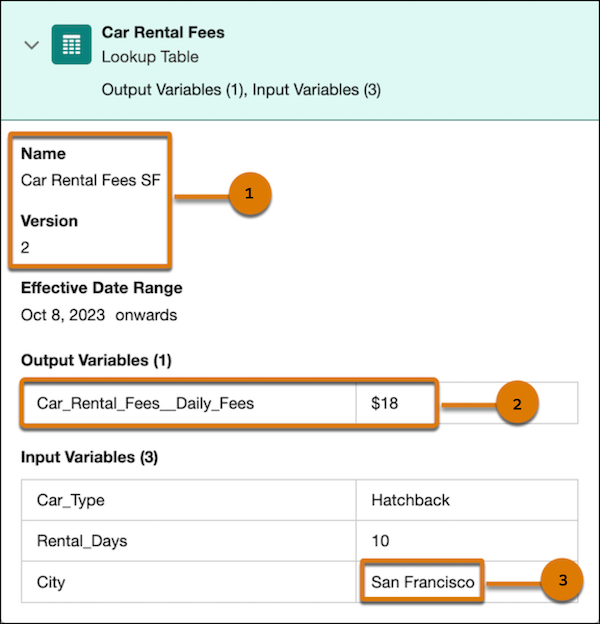
Here, San Francisco (3) is one of the values of the matrix key City. Based on this input value, the matrix version (1) whose key value is San Francisco is considered, and the output value (2) that corresponds to the values of the input variables is returned.
Simulate the expression set version with a few different values for the matrix’s input variables.
To activate the expression set version, click Back, and then click Activate.

