Loading
Salesforce now sends email only from verified domains. Read More
Discovery Framework and Assessments
Table of Contents
Select Filters

          No results
          No results
          Here are some search tips

          Check the spelling of your keywords.
          Use more general search terms.
          Select fewer filters to broaden your search.

          Search all of Salesforce Help
          Capture a Respondent’s Signature on an Assessment Form

          Capture a Respondent’s Signature on an Assessment Form

          Respondents can use a digital signature to authenticate their responses on the form when you add the Discovery Framework Signature element to a form. They can either type or draw their name or initials, and use the signature in multiple places on the form before submitting it. The Assessment Signature object stores the signature details, and the Digital Signature object stores the signature.

          Required Editions

          View supported product editions.
          User Permissions Needed
          To add a Discovery Framework Signature element to an Omniscript: View permissions information.

          When submitting the responses, respondents can either type their name or initials and select a Salesforce font as their signature style, or they can draw their own e-signature. They can also add the same signature at multiple places on the form before submitting the responses. Respondents can reuse the same signature in multiple locations within the Discovery Framework Omniscript. However, the Signature element doesn't support capturing signatures from multiple users in the same Omniscript.

          Note
          Note The Discovery Framework Signature component isn’t available for Experience Cloud users. Discovery Framework Signature component works only with Omniscripts of the Discovery Framework type.

          Watch this video to learn how to capture a respondent’s signature on the form for a Financial Services scenario.

          If you aren’t able to watch the view in full screen, open the video on a new tab: Play button Get to Know the Discovery Framework Signature Element.

          1. From the Omniscript Designer Build panel, under Inputs, drag the Signature element onto the canvas.
            You can add the element in multiple places on the form.
          2. To configure the Signature element, click the Signature element on the canvas to open the Properties panel.
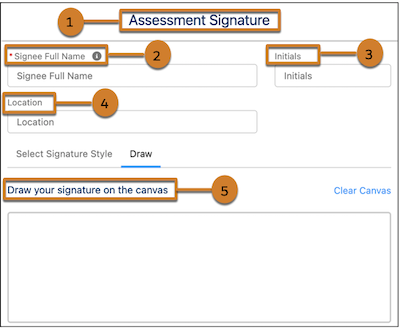
            Customize the text you want to show on the Signature component screen for respondents, when taking up an assessment.
            Signature component UI elements
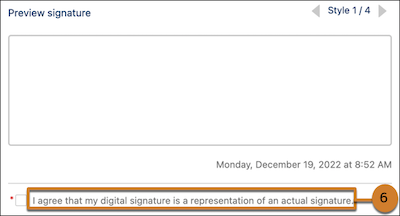
            Signature component disclaimer UI element

            The table shows the UI elements on the component and the corresponding properties in the Properties panel to configure.

            UI Element Property
            The tile of the component (1) Title
            The field name to capture the respondent’s full name details (2) Signee Full Name Label
            The field name to capture the respondent’s initials details (3) Initials Label
            The field name to capture the respondent’s location details (4) Location Label
            The description for the canvas when the respondent chooses to draw the signature (5) Signature Canvas Description
            The disclaimer message for the signature component (6) Disclaimer
          3. To edit the signature, respondents can click Edit Signature on the component and edit the signature before submitting the assessment.
            Editing the signature updates all instances of a signature on the form.
           
          Loading
          Salesforce Help | Article