
Advanced User Cockpit for Enhanced Data Model
Advanced User Cockpit helps you stay organized while you perform your field activities. This cockpit shows the user cockpit for all users in a project based on the advanced model. Plan your visits, activities, tasks, customer tasks, and notifications. Get map guidance on your visits and view customer sales reports. View your CRM analytics and launch any third-party application without navigating away from the app. Automatically sync the data between your mobile device and Salesforce, and do a lot more.
Required Editions
| Available in: Lightning Experience in Enterprise and Unlimited Editions that have Consumer Goods Cloud enabled. This feature is available only with the enhanced Consumer Goods data model (Spring ’22 onwards). |
This image shows how the Advanced User Cockpit is organized with cards.
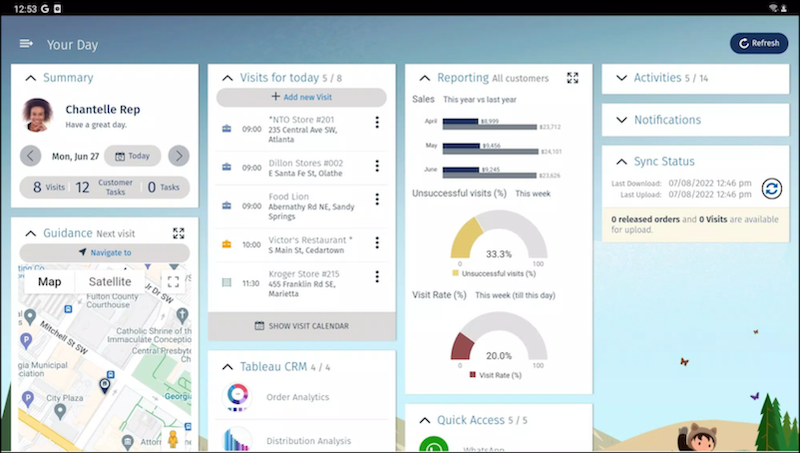
This table describes the cards in an Advanced User Cockpit for an enhanced data model.
| Card | Description |
|---|---|
| Summary | View your name, picture, number of open visits, your tasks for the day, customer tasks, and the number of open visits for a selected date. |
| Visits for Today | View the list of planned and in-progress visits scheduled for the day that was selected on the Summary card. View the visit details, execute, complete, cancel, reschedule, or delete a visit, and navigate to the store related to the visit. You can delete visits, except completed visits, if Delete Allowed is selected in the visit template. |
| Reporting | Get insights about your customer in a snapshot. View the customer’s sales and monitor three months’ sales data comparing last year’s sales with the current year's sales, graphs illustrating unsuccessful visits, and visit rate. |
| Activities | View all the standard and event-driven activities related to the customer. Example for a standard activity: Standard Contract Compliance. |
| Guidance | See the map of your next visit location. To see a list of all your planned visits for a selected day, tap Show Tour. Execute, complete, cancel, reschedule, or delete any of your visits, and navigate to the store related to the visit. You can also search for customers by specifying a starting point, and navigate to their location. |
| CRM Analytics | Get insights into orders, distributions, and customer’s top categories. Increase sales, improve store compliance, and identify if the store is at risk. |
| Quick Access | Launch a third-party app directly from the Consumer Goods offline mobile app. |
| Quick Actions | Shows the global quick actions that were built with Lightning Web Components (LWC) when the mobile app is integrated with LWC in online mode. |
| Notifications | View notifications created by your supervisor. For tablets, this card shows 5 recent unread notifications, and for phones, the card shows 3 recent unread notifications. |
| Customer Tasks Today | Review customer tasks created by your supervisor or create customer tasks during visits. You can associate a customer and specify a due date for the task. You can also cancel, delete, or copy a task. |
| Tasks Due Today | Track your day by maintaining a task list for yourself. Create tasks, view, cancel, or delete existing tasks. |
| Overdue Customers | View the list of customers managed by you, whose service date is past due. The due date is calculated by: Visit Completion date + Visit Frequency * 7. For example, if you select Aug 19, 2022 as the date on your cockpit, this card shows all customers with a visit completion date before Aug 22, 2022. To remove an overdue visit entry, tap Create Visit, and create the visits. |
| Sync Status | Shows the last download and upload timestamp of data sync between Salesforce and
your mobile device. This card also shows the number of released orders and visits
where data is available for upload. Tap  to download and upload the latest data. to download and upload the latest data. |
To view more options, customize app settings, get information about the app, and log out of
the app, from the main menu, tap  . This table describes the additional options.
| Action | Description |
|---|---|
| Visit Execution | View the list of planned visits scheduled for the current week. |
| Customer | Create customers and view the existing customers. Sort the customers list alphabetically or based on the location. Tap a customer to view these details.
|
| Product | View your existing product list. Tap a product to view the information about logistics, Bill of Material, and product images. |
| Order | Understand a customer’s order behavior by viewing the customer's orders, both open and released. Execute, cancel, delete, and copy your open orders. Create orders during store visits based on various order types such as:
|
| Sales Folder | Drive sales by viewing store events where you can sell. From the store events, view the top selling products. Sort your sales folder by customer or by sales type. To view the list of existing promotions, tap Promotions. The Promotions option appears only if the sales folder supports at least one promotion. |
| Time Card | Add, track, and monitor all your field rep activities by updating your daily reports. Track the productive time spent on visit activities, research, and sales, and downtime spent on breaks, vacation, or private appointments. Approve your timecard entries and change the status to Released, for the entry to be submitted for your supervisor’s review. |
| Reports | View your customer sales and promotion calendar reports. Select a customer and view the sales comparison between the current year and the previous year, and view their calendar with planned promotional events. |
| Notifications | View notifications created by your supervisor. |
| Tasks | Prioritize your tasks and stay organized. Create tasks for yourself or act on the active tasks that were assigned to you by your supervisor. |
| Customer Tasks | Review customer tasks created by your supervisor or create customer tasks during visits. You can associate a customer and specify a due date for the task. You can also cancel, delete, or copy a task. |
| My Settings | Choose your landing page, and review your calendar and theme settings. See Personalize Your Settings. |
| About | Read and copy the support and license information, and the app license agreement terms. |
| Logout | Log out of the app. |

