
Store Cockpit for Enhanced Data Model
Store Cockpits show visit-related information with in-store live reporting and serves as a single point of access for visit activities. As a supervisor, get a complete view of a customer and use this information to plan visits and review sales and compliance. As a sales rep, use this information to interact with store managers and understand store requirements.
Required Editions
| Available in: Lightning Experience in Professional, Enterprise, and Unlimited Editions that have Consumer Goods Cloud enabled. This feature is available only with the enhanced Consumer Goods data model (Spring ’22 onwards). |
This image shows the cards in Store Cockpit.
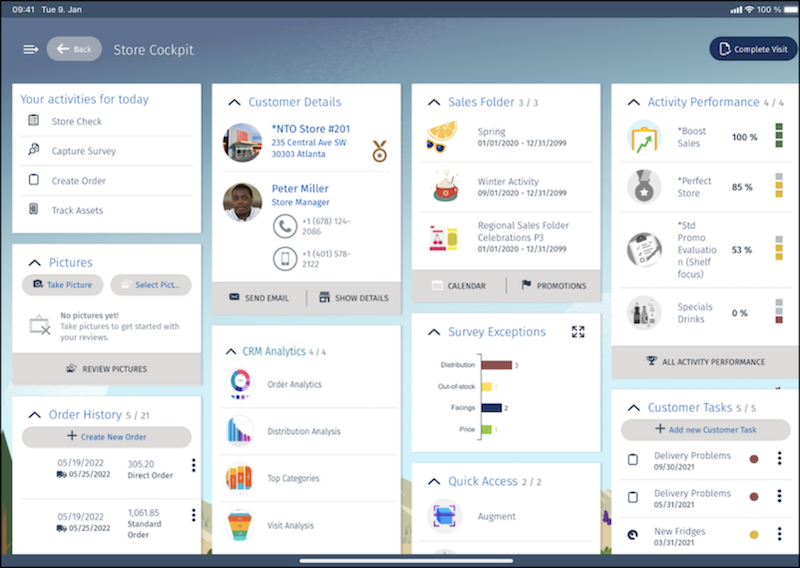
This table describes the cards of a Store Cockpit for an enhanced data model.
| Card | Description |
|---|---|
| Your Activities for Today | Click these options and perform the activities related to a task.
|
| Customer Details | Use this card to perform these tasks.
|
| Sales Folder | Elevate your sales pitch by viewing the store events where you can pitch and view the top selling products. To view the list of existing promotions, tap Promotions. The Promotions option is displayed only if the sales folder supports at least one promotion. |
| Activity Performance | Gauge the performance of your activities by viewing the activity scores. |
| Pictures | Represent the expected shelf display by adding and reviewing existing pictures of products. When reviewing images, you can suggest changes by drawing sketches on the image. Associate tags such as image type and the area where the product is to be displayed. For example, the image type is Shelf and the area is Main Aisle. |
| CRM Analytics | Get insights on orders, distributions, and customer’s top categories. Increase sales, improve store compliance, and identify if the store is at risk. |
| Quick Actions | Shows the global quick actions that were built with Lightning Web Components (LWC) when the mobile app is integrated with LWC in online mode. |
| Survey Exceptions | Stay up to date and analyze how products in the customer’s store are performing. |
| Customer Tasks | Prioritize your tasks and stay organized. Create tasks for yourself or act on open tasks that are assigned by your supervisor. The customer task types are personal tasks, follow-up tasks, and asset-related tasks such as asset installation, maintenance, movement, and retirement. You can cancel, delete, or create copies of customer tasks. See Create Customer Tasks. |
| Order History | Get an overview of the customer's past orders and understand the order behavior by reviewing the order history. Create orders during store visits based on these order types.
Review these details with the Order History card.
|
| Follow-Up Visits | Create or view planned future visits for the customer. You can also reschedule or delete a follow-up visit. |
| Quick Access | Launch a third-party app directly from the Consumer Goods offline mobile app. |
| Visit Notes | Create a note when you visit a customer or view the notes that were recorded during past visits. You can create only one note per visit. |
| Account Receivables | See customer dues, if any. |

- Access Store Cockpit for Enhanced Data Model
The Store Cockpit provides a 360° view of a store. You can get an overview of the store as if you’re physically visiting the store.
