Reports give
detailed
insights about your
customers as tables and
graphs.
You can
view
information such as a customer’s sales figures or promotions that are created for a
customer
by tapping the Reports
tile
on the main menu. The overview lists
the relevant
reports for the logged-in user.
Required Editions
Available in: Lightning Experience in Professional, Enterprise, and
Unlimited Editions that have Consumer Goods Cloud enabled.
Reports can
be a single page document or a single navigation step. You can also access reports from tabs
in a module.
Here are
the
types of available
reports:
Customer Sales report: Monitor month-wise sales data for a
customer.
To
access
a customer sales
report, from main menu,
tap
the Reports, Customer, or Visit Execution
tile.
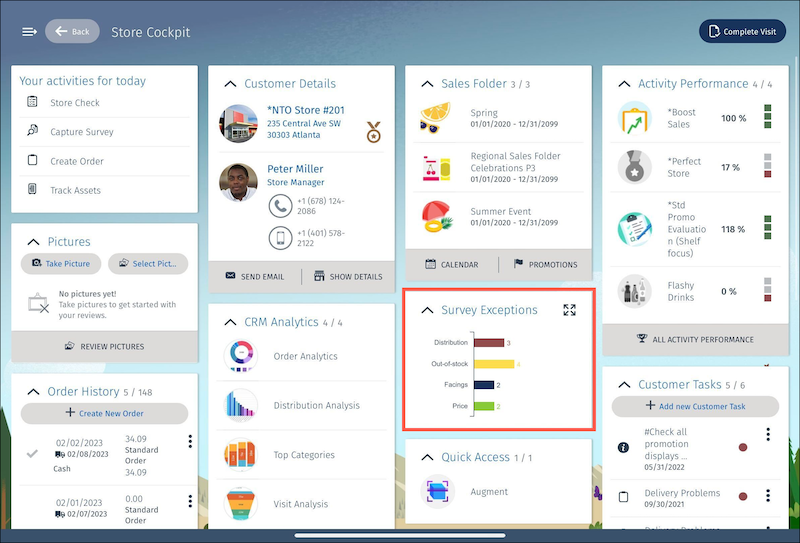
Survey
Exceptions
report: Monitor the
performance of products in a customer’s store.
To
access the
Survey
Exceptions
report for a customer,
go to
the
Store
Cockpit or
Visit
Summary
page.
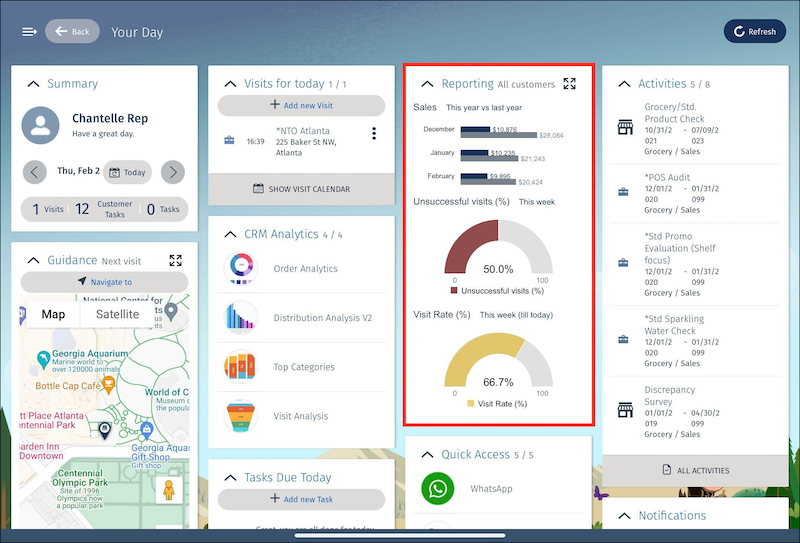
Reporting card: Get insights about your customer in a snapshot. View the customer sales
and monitor three months’ sales data by comparing the previous year’s sales with the current
year's sales, graphs illustrating unsuccessful visits, and visit rate. To access the
Reporting card, go to the User Cockpit.
A visit that’s not associated with a released
order is considered unsuccessful. Unsuccessful visit rate is calculated as the number of
unsuccessful visits x 100 ÷ total number of completed visits.
Promotion Calendar report: Get a visual overview
of
the current and planned promotions for a store in Promotion.
To
access
the report
go
to the Sales Folder card in the store cockpit
or to
the Reports
tile
on the main menu.
Generate a Customer Sales Report A customer sales report shows the sales graph for a customer. Use this report to analyze month-wise sales data for a customer, and compare last year’s sales with the current year's sales. You can view the data of the previous year, past months, and the current month.
Generate a Promotion Calendar Report A promotion calendar report is a graphical representation of the promotions that are valid for a period for a customer. The maximum number of days that are considered for a report is 180 days. The period is calculated as Visit Start Date + Promotion Finding Lead Time. You can view promotions report for either a customer or a customer set.
Did this article solve your issue?
Let us know so we can improve!
Loading
Salesforce Help | Article
Cookie Consent Manager
General Information
Required Cookies
Functional Cookies
Advertising Cookies
General Information
We use three kinds of cookies on our websites: required, functional, and advertising. You can choose whether functional and advertising cookies apply. Click on the different cookie categories to find out more about each category and to change the default settings.
Privacy Statement
Required Cookies
Always Active
Required cookies are necessary for basic website functionality. Some examples include: session cookies needed to transmit the website, authentication cookies, and security cookies.
Functional Cookies
Functional cookies enhance functions, performance, and services on the website. Some examples include: cookies used to analyze site traffic, cookies used for market research, and cookies used to display advertising that is not directed to a particular individual.
Advertising Cookies
Advertising cookies track activity across websites in order to understand a viewer’s interests, and direct them specific marketing. Some examples include: cookies used for remarketing, or interest-based advertising.