
Order Management
Use the Orders module to place orders based on various order types during store visits. The inventory reflects as stock and is updated when a device is synced.
Required Editions
| Available in: Lightning Experience in Professional, Enterprise, and Unlimited Editions that have Consumer Goods Cloud enabled |
Order types can be configured and can be one or a combination of the listed types.
- Standard Order: Created for advance orders. The system automatically calculates the order values when the product quantity is entered.
- Indirect Order: For products that are delivered to the customer from your wholesalers.
- Direct Order: Created when sales reps visit a store. The order values are calculated depending on the order templates. Reps can view the value after they enter the product quantity and then tap Calculate.
- Returns: Created to handle product returns.
- Advertising Material: For advertising materials.
- Free Goods: For free items.
- Special Orders: For products used in promotions.
An Order can be based on the current requirement of a store or a forward order for a seasonal event such as Christmas. Sales reps can discuss an order with store managers, suggest order quantities, or hand over samples from the available stock in their vehicle. For large orders, reps can use the Fast Order page to place an order quickly. Reps can also get signatures from store managers as a confirmation of an order. An ERP system calculates the final and accurate price of an order.
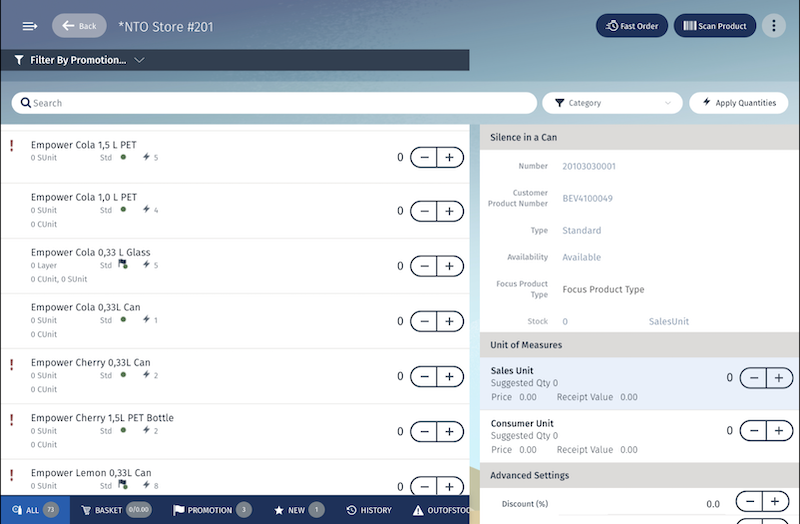
The Order page shows the products in an order.
 shows products from the authorization
list.
shows products from the authorization
list. shows focus products or the current priority products.
  shows products with promotions.
  shows order quantity suggestions based on historic orders.
  shows products from the
authorization list that have promotions.
shows products from the
authorization list that have promotions.
From the Orders module, a sales rep can perform these activities:
- View a product set based on authorization list, sales document assortments, and promotions.
- Add items outside of the assortment listing except for accounts with closed listing.
- Enter data efficiently by using the numeric keypad, in-place edit, and bar code scanning.
- Enter quantities in multiple units of measures with rounding.
- Get order quantity suggestions based on historic orders.
- Filter order items by promoted, new, historic, out-of-stock products, or category.
- View order notes, focus products, and customer product numbers.
- Calculate the order price.
- Capture signatures.
- Print order confirmations.
- View selectable promotions with optional pricing conditions.
- Place special orders.
Products can be prepopulated in the order item screen based on the authorization list—a specific type of product assortment—if these conditions are met:
- Product is active
- Consider Listing is Yes in Order templates
- Record Type is Assortment List in Product Assortment Templates
- Order date is between the valid from and valid to dates in Assortment Products
- Product Assortment Template is active
- Product has at least one default UoM—Is Order Unit and Order Ability are set to
True - The product has at least one UoM with Is Price Unit set to True.
- If Consider Field Availability is Yes in the order template, the order date is between the product’s Field Valid From and Field Valid To dates
- If Consider Delivery State is Yes in the order template, the order date is between the product’s Delivery Valid From and Delivery Valid To dates
Only products with the default UoM are shown. To add products that use a UoM that’s not the default, select Add Items.
The products are further filtered from the Assortment List based on listing module and
listing classification when Consider Modules is set to True in Customer Extension.

- Create an Order
You can create an order from your mobile device. - Order Quantity Suggestion
Sales reps can check suggestions for order quantities when they place an order. The quantity suggestion depends on the number of historical orders that's configured in the order template. - Modify Order Items
To order a product, enter a quantity. You can capture items based on multiple units of measures. The system supports all logistical units that are related to a product, such as consumer units, sales units, layer, and pallets. - Add Additional Products
You can add additional products to an order. - Create Fast Order
For large orders, use the Fast Order option to quickly search and order products. The option is available for all product selector groups in an order disposal list. - Order Calculation
Order calculation determines the pricing information of an order and calculates the order value. - Copy an Order
To quickly create an order, use the Copy option in the context menu of an order and copy the contents of the order. You can copy all items along with item templates and quantities from the source order. This option isn't available for deliveries and truck load documents and is only available for pre-orders. - Release and Submit an Order
To release an order, from the order header, tap Release. - Scan Products in an Order
You can add new products in an order by scanning a product's barcode. When you scan a product, the system increases the order quantity of the product by the value defined in the Scanning Increment field of the order item template. You can individually select the item template that's used for a new order item for each order by using the Settings option. - Enter Order Notes
To simplify an order entry for sales reps, define an invoice or delivery note for an order whose status is Initial. A predefined invoice or delivery note helps communicate special instructions to sales reps about order handling or any other order-related information. Sales reps can enter additional information such as notes specific to an order to track important details about the purchase. - Capture Signatures in an Order
Signatures are used when a customer or store manager confirms and releases an order. If an order template has an assigned signature template, when you release an order, the system initiates the process to capture the store manager’s signature. - Preview Order Confirmations
You can also view the store manager’s signature confirming the order in the order confirmation PDF. - About Order Payments
Collecting payment for an order depends on the customer role and the document transaction type of the order.
