
Create a Daily Report by Using Time Cards
Use time cards in the Consumer Goods Cloud offline mobile app to capture the time that you take to perform your daily activities. Make better decisions, maximize your productivity, and plan your time better.
Required Editions
| Available in: Lightning Experience in Professional, Enterprise, and Unlimited Editions that have Consumer Goods Cloud enabled. This feature is available only with the enhanced Consumer Goods data model (Spring ’22 onwards). |
| User Permissions Needed | |
|---|---|
| To create daily reports: | Consumer Goods Cloud Sales User |
-
From the Advanced User Cockpit, tap
 , and then tap Time Card.
-
Tap

- Select the date for which you want to create a time card entry.
- Select the type of daily report.
-
Tap
 .
.
-
Provide these details.
Field Description Identification Shows the report type. You can select the date for which you want to create the time card entry, and the time at which you start and end work.
Based on the time that's entered for the Time From/Thru field, the total working duration is calculated and shown in the Total Working Time field.
Status Shows the status and the owner of the time card. Activities Time card activities against which you can log your work duration. Total Activity Duration Total working hours logged against the time card activities. Total Working Time Total working duration entered in the Time From/Thru field. Comment Comments for the time card. -
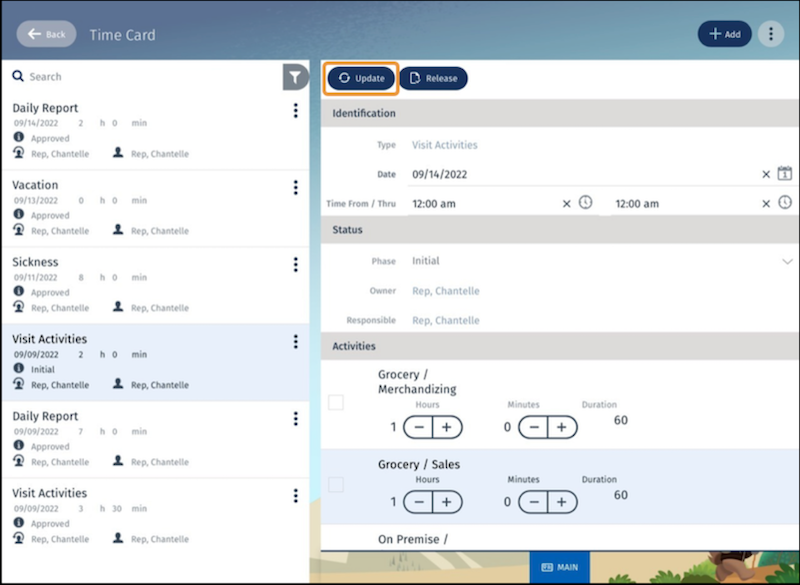
If you want to see the duration logged against all your activities for the daily report and
sync the daily report information with the calendar, tap Update. This
image shows various time card entries and the option to update an entry before submitting for
supervisor’s review.
- To save the time card, tap Approve.
You can edit or delete unapproved time cards that you created. But you can only edit the comments for an approved time card.
Did this article solve your issue?
Let us know so we can improve!
