You are here:
Add a Product to a Promotion in the Pricing Designer
When you add one or more products to a promotion, you determine what actions occur when the promotion is added to the cart, and then edit the minimum, default, and maximum quantity of the product(s) where applicable. The same promotion applies to all versions of the same product.

In the Attribute Override section, you can leave any value blank regardless of whether the attribute is marked as required. While the system permits blank required attributes during design time, you should always assign default values. This prevents validation errors and transaction failures during runtime.
This task is a step in the Creating a Promotion process.
This information is for the Vlocity Pricing Designer.
- From the App Launcher, click Vlocity Pricing Designer.
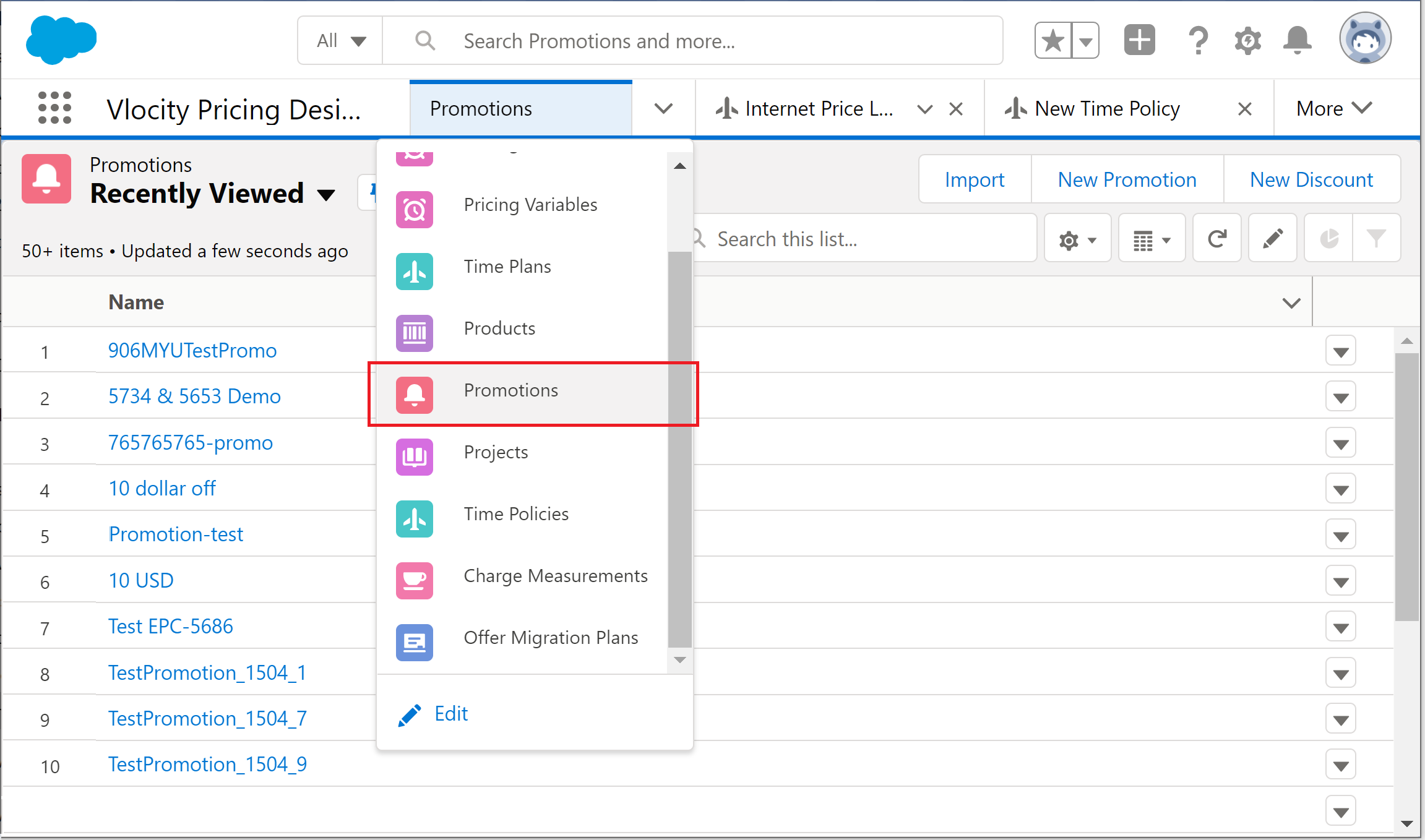
- Click Promotions from the navigation menu.
- Click a promotion from the Name column.
- Click Add Product.
-
Enter the following information in the Edit Promotion
Product Details panel. Fields marked with an asterisk are
required.
Field
Description
Promotion Details
Product
Search for and select the product to add to the promotion.
Apply promotion to child products
Enable this check box to apply the promotion to the top-level item of a product bundle and its child products.
If unchecked, the promotion is applied:
-
When a promotion is added with products existing in the Cart, the promotion applies only to the promotion item.
-
When a promotion is added to an empty Cart (before the promotion items are in the Cart), the products are automatically added to the Cart, and the promotion applies to the top-level item and included child items. The promotion isn't applied to any optional child items that are added manually to the promotion item. The promotion isn't applied to any optional child items that are added manually to the promotion item.
Description
Enter a description that appears along with the promotion in the cart.
Availability
From
Specify the date and time the promotion becomes available for use. When you choose the date, the system automatically populates the time with the current time. If the promotion does not have a beginning effective date that is current, it is not available for use. See Effectivity Date Ranges for Price List Entries.
To
Specify the date and time on which the promotion is no longer available for use. When you choose the date, the system adds the current time.
Cardinality
Min. Quantity
Specify the minimum amount of this product that must be purchased.
Max. Quantity
Specify the maximum amount of this product to be purchased. If the product is part of a product bundle that you have added to the promotion, this amount cannot exceed the maximum quantity designated for this product in the product bundle.
Default Quantity
Specify the default amount of this product to be purchased.
Promotion Eligibility
Parent Offer Product
The Parent Offer Product defines the specific product context required for a child promotion to trigger. For example, if you have a ChildProduct nested under a RootProduct, you can use this field to ensure the promotion applies to the child only when the RootProduct is present as its parent. If the child is added independently or under a different parent, the promotion remains inactive. However, if the promotion is intended for the RootProduct itself, or if you want the offer to apply regardless of the hierarchy, you should leave this field blank. Context Product
Search for and select a product that will attempt an action type.
Action Type
Describes the action to attempt against the defined product.
-
Add - The defined product is added or draft line items are updated
-
Update - The defined product in the active line items is updated.
-
Add/Update - The defined product instances are added or updated in the cart
Check Promotion Cardinality
Choose one of the following options:
-
Context Product Scope - Conducts a cardinality check within the scope of the context product.
-
Cart Scope - Conducts a cardinality check within the full cart scope (default).
-
- Click Done.