
You are here:
Availability and Eligibility Rules
Availability and eligibility rules provide the ability to show or hide products based on location, account attributes, and other related information. The rules determine if a customer can obtain specific products and ensure that only the appropriate offers or products are displayed to the customer. The rules provide the ability to show or hide objects based on location, account attributes, and other related information.
Salesforce Industries supports multi-service point ordering, in which different sites have different availability and eligibility rules. Eligibility rules exclude products of specific types.
Availability and eligibility rules must run against the header object (Opportunity, Quote, or Order).
Availability rules are usually run first. If a product or service is unavailable, then eligibility is irrelevant.
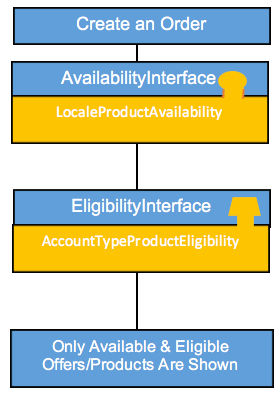
Use availability implementations to specify what product is available for a specific shipping state, city, country, street, contact, or product attributes. Availability rules use the ProductAvailabilityInterface and associated implementations. The ProductAvailabilityInterface is called when a request is made to provide a list of products that are available to the customer to select. Availability implementations include the following:
-
AvailabilityFlowOpenImplementation: Evaluates defined availability rules and filters products and still displays products that are not available so the user can see them but cannot add them to the cart.
-
AvailabilityRulesFlowImplementation: Run advanced availability rules when the sequence of those rules is important.
-
DefaultAvailabilityOpenImplementation: Provides availability in a loosely typed nonoperative interface.
-
DefaultProductAvailabilityImplementation: Nonoperative (does not run availability rules)
-
FilterAvailabilityImplementation: Run advanced availability rules when the sequence of those rules is unimportant.
-
LocaleProductAvailability: Run standard availability rules.
-
XLIAvailabilityValidationService: Invokes availability rules to validate line items.
Eligibility Rules use the ProductEligibilityInterface and associated implementations. The ProductEligibilityInterface is called immediately after the ProductAvailabilityInterface and DefaultProductAvailabilityImplementation. Eligibility implementations include the following:
-
AccountTypeProductEligibilityImplementation: Run standard eligibility rules.
-
DefaultEligibilityOpenImplementation
-
DefaultProductEligibilityImplementation: Nonoperative (does not run eligibility rules)
-
EligibilityFlowOpenImplementation
-
EligibilityMatrixFlowImplementation
-
EligibilityRulesFlowImplementation: Run advanced eligibility rules when the sequence of those rules is important.
-
FilterEligibilityImplementation: Run advanced eligibility rules when the sequence of those rules is unimportant.
-
XLIEligibilityValidationService: Availability Rules define which offers and products are available to a customer based on address or account type. Eligibility rules exclude products of specific types.
See Interfaces, Implementations, and Services.
Example availability and eligibility rules include:
-
The gold iPhone is not available in New York.
-
Do not ship orders when the number of contract months is less than or equal to 10.
-
Office Internet Solution is not available in Alaska or Hawaii.
-
Billing accounts are not eligible to purchase Office Internet Solution.
-
Bronze and silver accounts are not eligible to purchase Office Internet Solution.
-
Office Internet Solution is available only in California.
-
Free installation offer is shown only to customers who have not used it in the last year.
-
Products are not available based on the postal code returned by the Canadian post portal.
-
Products are not available if they have already been ordered.
-
New customers are not eligible for specific products.
Salesforce Industries supports multi-service point ordering, in which different sites within the same opportunity, order, or quote have different availability and eligibility rules.
To base availability rules on attributes, you must ensure that you set those attributes on the appropriate products. For more information, see Set Up Product Attributes.
The rule actions in availability and eligibility rules are called offering procedures. Offering procedures support inclusion or exclusion. An offering procedure is another object that you define to include or exclude. For more information, see Rule Actions.
Create a Standard Availability Rule
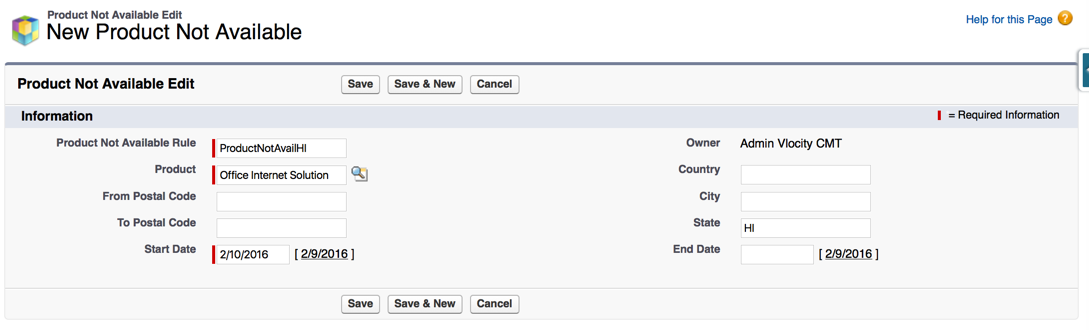
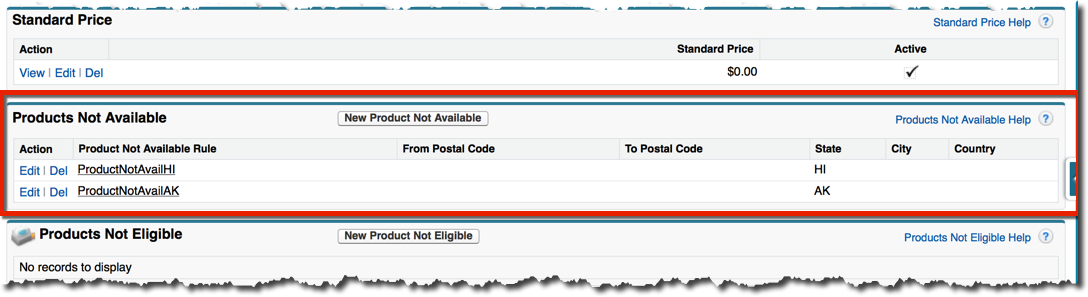
You can create Availability Rules for a product to restrict products by shipping address state or postal code range. Unavailable products are excluded from selection in Opportunities, Orders, and Quotes.

The Country and City fields are not currently used in Availability Rules.
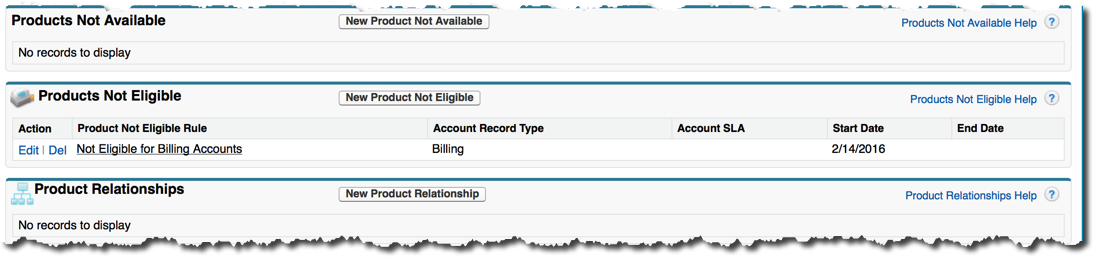
- On the Product page, scroll down to the Products Not Available related list.
- Click New Product Not Available.
-
Enter either a state or an inclusive postal code range.
Note
Data in the State field is case-sensitive and must match data in the Shipping Address field on the Opportunity, Order, or Quote.
- Enter a start date.
- If you want the Rule to expire, enter an end date.
- Click Save.
Create a Standard Eligibility Rule
You can create Eligibility Rules to restrict products by Account Type or SLA. Ineligible products are excluded from the Opportunity, Order, and Quote Managers.
For example, you can make a Product ineligible for all Bronze-level business accounts. Another product may be restricted to all Consumer Accounts, regardless of SLA.
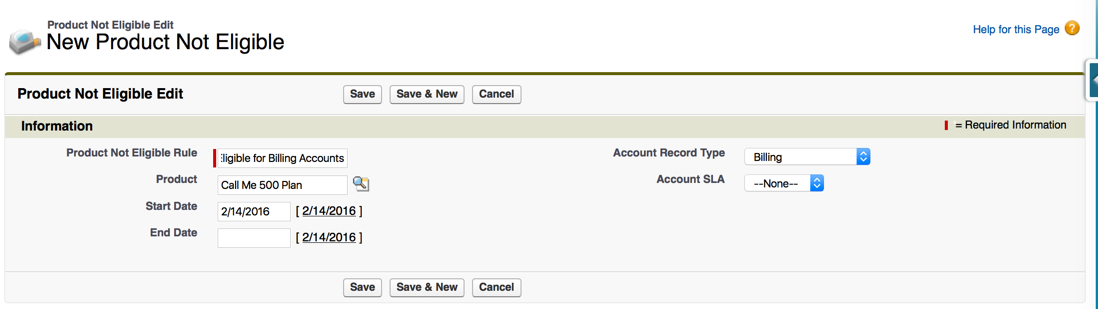
In this procedure, the Office Internet Solution cannot be ordered on an Account when the Record Type is Billing.
- On the Product page, scroll down to the Products Not Eligible related list.
- Click New Product Not Eligible.
- In the Product Not Eligible Rule field, enter a name for the Rule.
-
Enter a
Start Date. - If you want the Rule to expire, enter an End Date.
- From the Account Record Type picklist, select the Account record type that is not eligible for the product, for example, Billing.
- From the Account SLA picklist, select the account service level agreement to which the Rule applies.
- Click Save.
Create an Advanced Eligibility Rule
Use an advanced eligibility rule when there are multiple criteria to determine if a customer is eligible for a product.
In this example, customers are eligible for free installation when they have been a customer for less than one year.
To create an advanced eligibility rule:
-
Create the necessary entity filters.
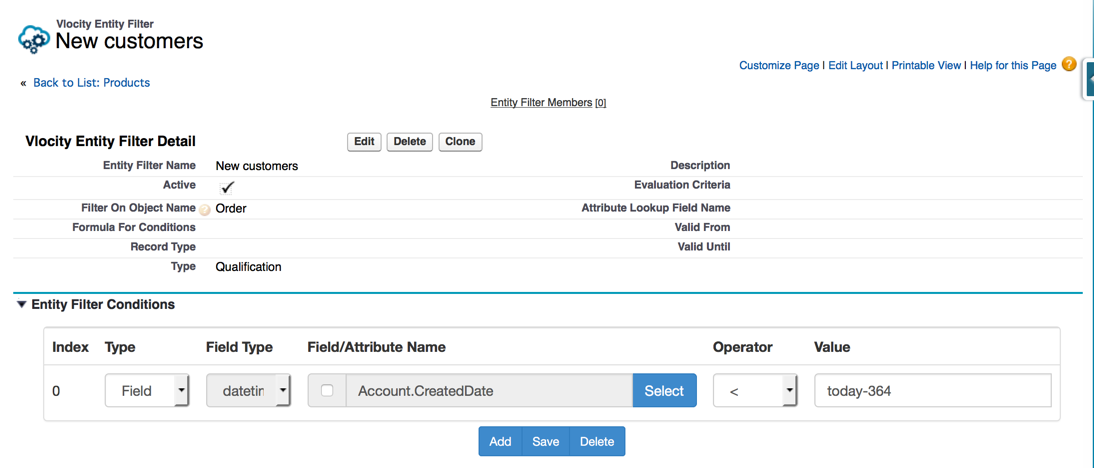
In this example, create an entity filter that returns accounts that have been active for less than one year.
-
The Entity Filter Name is New customers.
-
The Filter on Object Name is Order.
-
Active is selected.
-
The Type is Qualification.
-
- Create the necessary entity filter conditions.
-
Click the Vlocity Rules tab.
- Click New.
-
Enter the following information:
-
Rule Name is the name of the rule. Enter a descriptive name so you can easily remember what the rule does.
-
From the This defines picklist, select the rule type, for example, Eligibility.
-
From the Rule that applies to picklist, select the object to which the rule applies, for example, Order <Order>.
-
From the And is picklist, select if the rule is Active or Inactive.
-
In the Description field, enter a description of what the rule does.
-
-
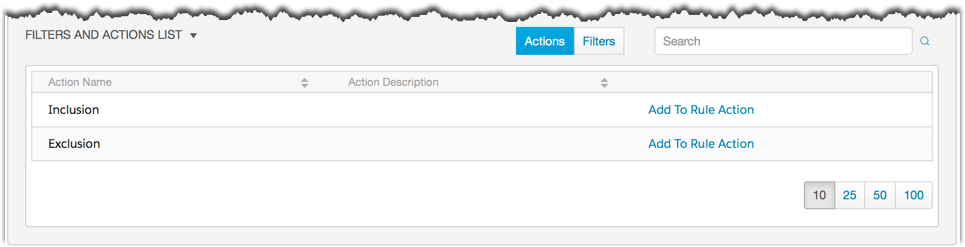
Scroll down to the Filters and Actions section. Click Filters.
- In the Filters and Actions list, locate the entity filter.
- Click the Add to Rule Filter link to the right of the filter to add.
-
Click Actions.
- In the Filters and Actions list, click Add To Rule Action to include or exclude the filter.
- Scroll to the top of the page and click Save.
Test Availability and Eligibility Rules
You can test Availability and Eligibility Rules by adding products to the cart in the Opportunity, Order, or Quote Manager. You can create a new Opportunity, Order, or Quote from the appropriate Account and try to add items to the cart.
For example, the Office Internet Solution product should not appear in the list if the shipping address state is AK or HI, nor should it appear for Billing Accounts.
Before you can test Rules, you must ensure that Vlocity is using the appropriate interface implementation. For more information, see the Interfaces, Implementations, and Services.
To test Availability and Eligibility Rules:
- Click the Orders tab.
- Create a new Order.
- On the Order detail page, scroll down to the Order Manager.
- Search for the products that are not supposed to be there.
- Confirm that only the available and eligible products appear.
