
You are here:
Cancel a Promotion in Industries CPQ
You can cancel a promotion after you have applied the promotion to products that are now assets or after you have applied a promotion to products that are assets.
You can assign a context rule to assign a penalty if a promotion is canceled. For more information, see Penalty Rules for Promotions.
- Create a change order or asset-based order.
- Click the Promotions tab in the cart.
- Click the Cancel button next to the promotion you want to cancel.
-
In the Cancel Promotion dialog box,
choose a date in Cancel
Date.
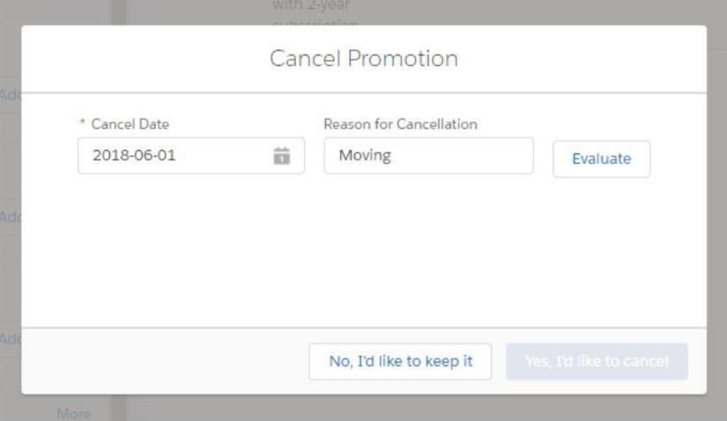
- Enter the reason for the cancellation in Reason for Cancellation.
-
Click Evaluate.
 Note When canceling promotions on change orders, if those promotions have overrides on one time charges, there will be no impact on the one time charges. This is because one time charges are not carried forward from assets to order line items.
Did this article solve your issue?
Let us know so we can improve!
