
You are here:
Compatibility Rules
Compatibility rules are also known as configuration rules or validation rules. Compatibility rules determine if a product combination is valid. Using compatibility rules, you can define that, when a product is added to the cart, related products are added with it. You can also automatically add, automatically remove, or recommend products based on other products in the cart.
Compatibility rules run on Order Line Item objects—Opportunity Line Item, Quote Line Item, or Order Line Item. The rule actions involve product relationships.
Compatibility rules define the relationship between products to ensure that the correct combination of products is added to the cart. Compatibility rules use the ProductValidationInterface and associated implementations to execute definitions in the Product Relationship object. For more information about product relationships, see
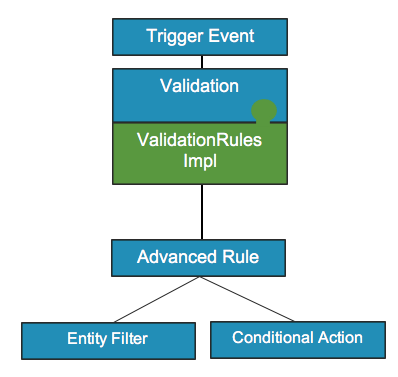
The validation interface and implementation are triggered when products are added to an order. Compatibility rule implementations include:
-
ValidationRulesFlowImplementation
Use ValidationRulesFlowImplementation when using a flow with Compatibility Rules included.
-
ValidationRulesImplementation
Use ValidationRulesImplementation when using advanced Compatibility Rules, including those that should be run conditionally.
-
ProductRelationshipValidationImpl (deprecated)
Use ProductRelationshipValidationImpl when using standard Compatibility Rules with soft relationships— requires or excludes.

With the ValidationRulesImplementation, you must also use a flow that includes a custom action with the class name UnconditionalProductValidation.
For more information about interfaces and implementations, see the Interfaces, Implementations, and ServicesInterfaces, Implementations, and Services.
Example compatibility rules include:
-
VOIP requires Office Internet.
-
Office Internet excludes Business Video Service when the download speed is less than 100 Mbps.
-
Office Internet automatically adds free installation for high-priority accounts in California.
-
VOIP requires Office Internet only if the customer doesn’t already have Office Internet.
-
Automatically add an iPhone case when the customer adds two or more iPhones to the cart.
You can also create compatibility rules based on product attributes, for example, exclude Product B if Internet speed is less than 100Mbps. For more information about product attributes, see Product Attributes.
Before you create a compatibility rule, you must create an entity filter that defines the conditions. The entity filter must be run on the same object type as the rule. For more information about entity filters, see
Create a Compatibility Rule
Compatibility Rules determine if a product combination is valid. Using Compatibility Rules, you can define that, when a product is added to the cart, related products are added with it. You can also automatically add, automatically remove, or recommend products based on other products in the cart.
Compatibility Rules are also known as Configuration Rules or Validation Rules.
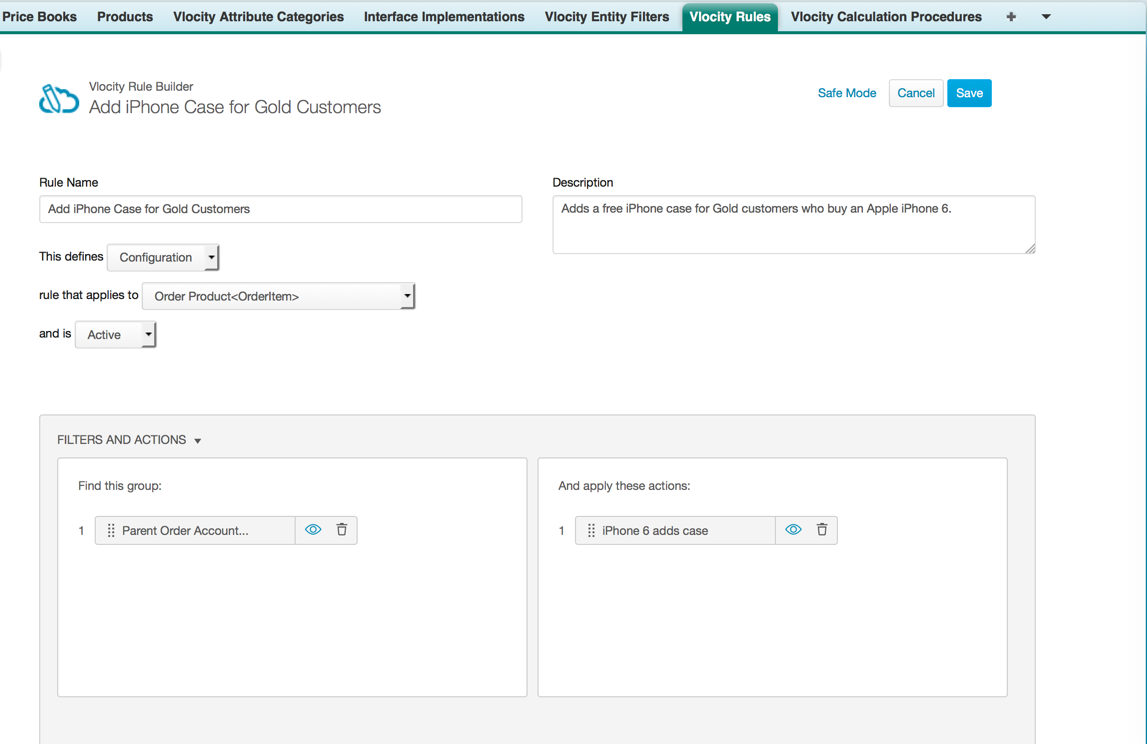
In the example, Gold accounts are automatically given a free case when they order an iPhone 6.
To create a Compatibility Rule:
-
Create the necessary Product Relationships. For more information, see
Create a Product Relationship.
In this example, create a Product Relationship for the Apple iPhone 6 that automatically adds an iPhone case.
-
Create the necessary Entity Filters. For more information, see About Build Rules and Entity Filters
In this example, create an Entity Filter that returns the Gold accounts.
-
The Entity Filter Name is Parent Order Account Gold.
-
The Filter on Object Name is Order Product<OrderItem>.
-
Active is selected.
-
The Type is Qualification.
-
-
Create the necessary Entity Filter conditions. For more information,
see Entity Filters.
In this example, the condition finds the Gold accounts.
-
The Type is Field.
-
The Field/Attribute Name is Order.Account.vlocity_cmt_vCustomerPriority.
-
The Operator is = (equal sign).
-
The Value is Gold.
-
- Click the Vlocity Rules tab.
- Click New.
-
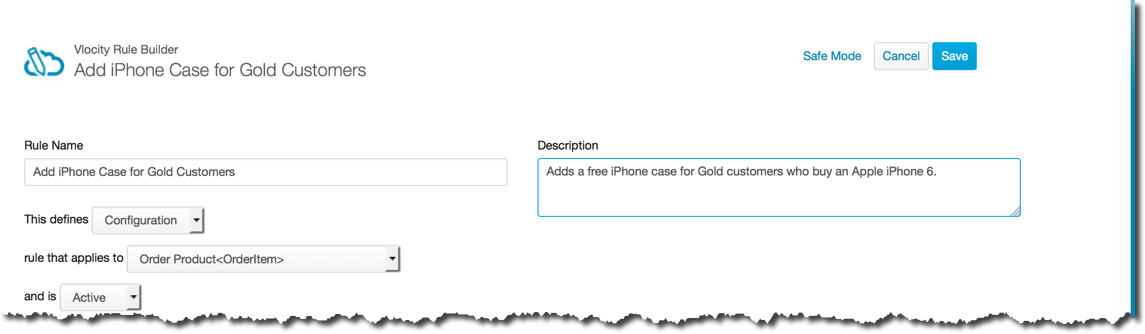
Enter the following information:
-
Rule Name is the name of the Rule. Enter a descriptive name so you can easily remember what the Rule does.
-
From the This defines picklist, select the Rule type, for example, Configuration.
-
From the Rule that applies to picklist, select the object to which the Rule applies, for example, Order Product<Order Item>.
-
From the And is picklist, select if the rule is Active or Inactive.
-
In the Description field, enter a description of what the Rule does.
-
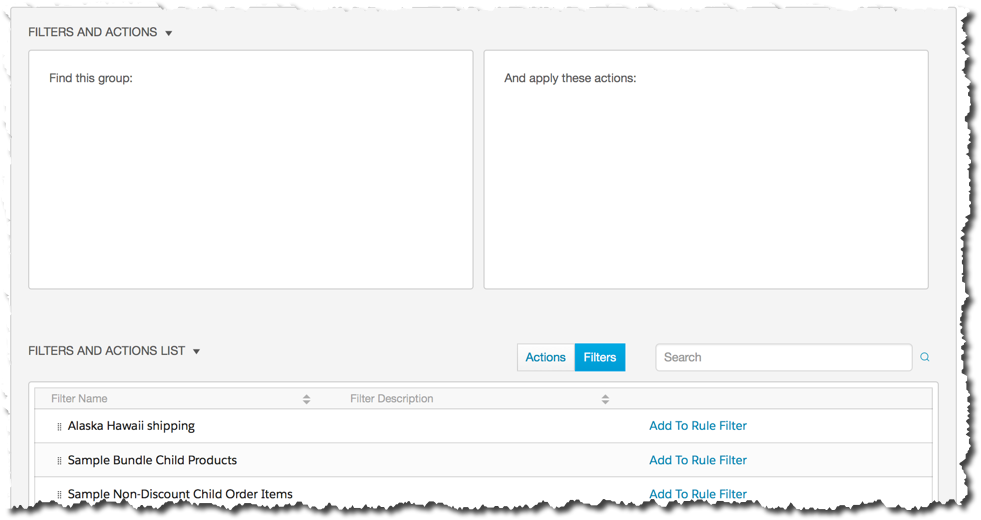
- Scroll down to the Filters and Actions section.
- Click the Filters button.
- In the Filters and Actions list, locate the Entity Filter. Click the Add to Rule Filter link to the right of the filter to add.
- Click the Actions button.
- In the Filters and Actions list, click the Add to Rule Action link to the right of the action to add.
- Scroll to the top of the page and click Save.
Test a Compatibility Rule
You can test Compatibility Rules by adding products to the cart in the Opportunity, Order, or Quote Manager. You can create a new Opportunity, Order, or Quote from the appropriate Account and add items to the cart.
For example, ordering an iPhone 6 from a Gold Account should add a free case.
To test a Compatibility Rule:
- Click the Orders tab.
- Create a new Order.
- On the Order detail page, scroll down to the Order Manager.
- Add the product that should activate the Compatibility Rule.
- Confirm that the appropriate message appears or action has been taken.
