Asset Viewer is a powerful, configurable component built that use Flexcards and
Integration Procedures. Add this component to your Account page to provide a comprehensive,
interactive view of all assets. It shows records for both the primary account and all associated
child accounts in a single location.
Required Editions
Available in: Lightning Experience
Available in: Enterprise, Unlimited, Performance, and
Developer Edition.
User Permissions Needed
To Set Up Asset Viewer:
CME Managed Package
Find the necessary setup, core functionalities, and advanced customization options for the
Asset Viewer.
Before you begin, see Install IDX Workbench to get the setup for Industries CPQ
deployment, including Flexcards, Integration Procedures, and DataRaptor.
Ensure to import and activate the CPQ Flexcards related to Asset Viewer:
cpqAssetViewerContainer
cpqAssetViewerLineItem
cpqAssetViewerChildLineItem
cpqAssetViewerGroupLineItems
cpqAdvancedSearchLineItem
cpqAssetSearch
cpqAssetViewerAdvancedSearch
cpqAssetViewerSelectAllAssets
cpqCartInlineChildPromoForAssetViewer
cpqCartInlinePromoForAssetViewer
cpqChangeOfPlanGroups
Add Asset Viewer to your Account Page
From the App Launcher, find and select Accounts, and then click
your Account name.
From the Setup, on the account page, select Edit Page from the dropdown.
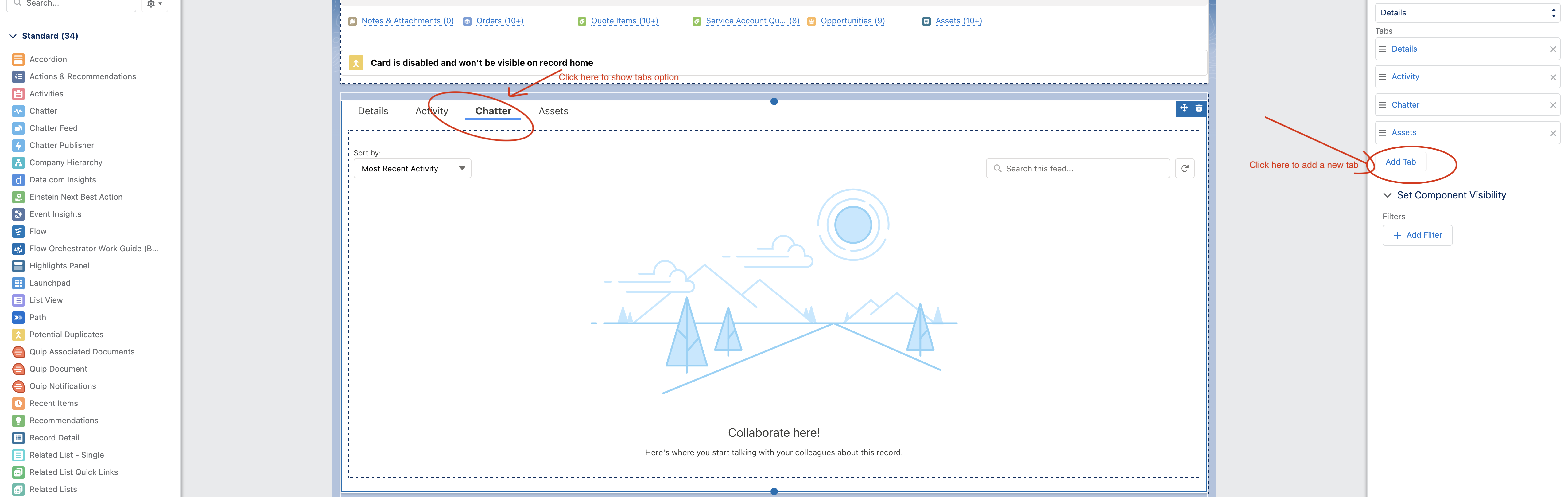
Select any tab on this page and then click Add Tab. The page
appears in this way:
On the new tab, select the tab Label as Custom and fill in Asset
Viewer under the Custom Label.
Save the changes.
From the Components, drag the cpqAssetViewerContainer a Flexcard
component, under the new Asset Viewer tab.
Save the changes and activate the Asset Viewer.
Customize the Asset Viewer
Adding New “Group By” Fields:
From App Launcher, find and select OmniStudio Flexcards.
Search for the cpqAssetViewerContainer Flexcard and create a
version to edit.
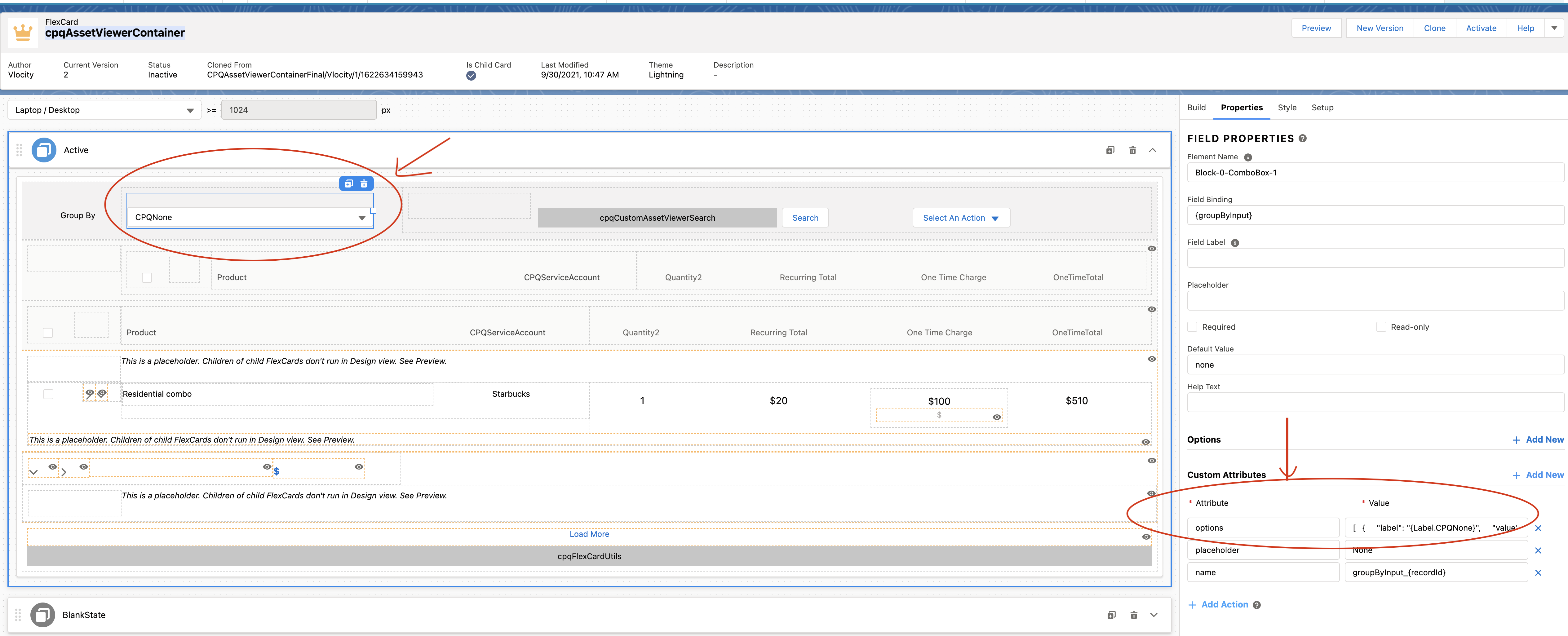
On this Flexcard Designer page, click Group by Input component, and
fill in these details.
Activate the new version of the Flexcard and see the changes on the Account page.
Did this article solve your issue?
Let us know so we can improve!
Loading
Salesforce Help | Article
Cookie Consent Manager
General Information
Required Cookies
Functional Cookies
Advertising Cookies
General Information
We use three kinds of cookies on our websites: required, functional, and advertising. You can choose whether functional and advertising cookies apply. Click on the different cookie categories to find out more about each category and to change the default settings.
Privacy Statement
Required Cookies
Always Active
Required cookies are necessary for basic website functionality. Some examples include: session cookies needed to transmit the website, authentication cookies, and security cookies.
Functional Cookies
Functional cookies enhance functions, performance, and services on the website. Some examples include: cookies used to analyze site traffic, cookies used for market research, and cookies used to display advertising that is not directed to a particular individual.
Advertising Cookies
Advertising cookies track activity across websites in order to understand a viewer’s interests, and direct them specific marketing. Some examples include: cookies used for remarketing, or interest-based advertising.