You are here:
Create a Price List in the Pricing Designer
The price list entry defines the product price. When a product has more than one base price list entry in a price list, you can use a context rule to determine which price to apply to the product.
This information is for the Pricing Designer. For the Product Console, see Create a Price List in the Product Console.
A child price list inherits all the pricing from its parent price list. You can include exceptions to the parent price list in the child price list.
You can use multiple price lists. For example, you can separate wholesale pricing from retail pricing by creating a wholesale price list and a retail price list. You can apply a context rule to a price list so that an order for a wholesale account always uses the wholesale price list.

To create a price list:
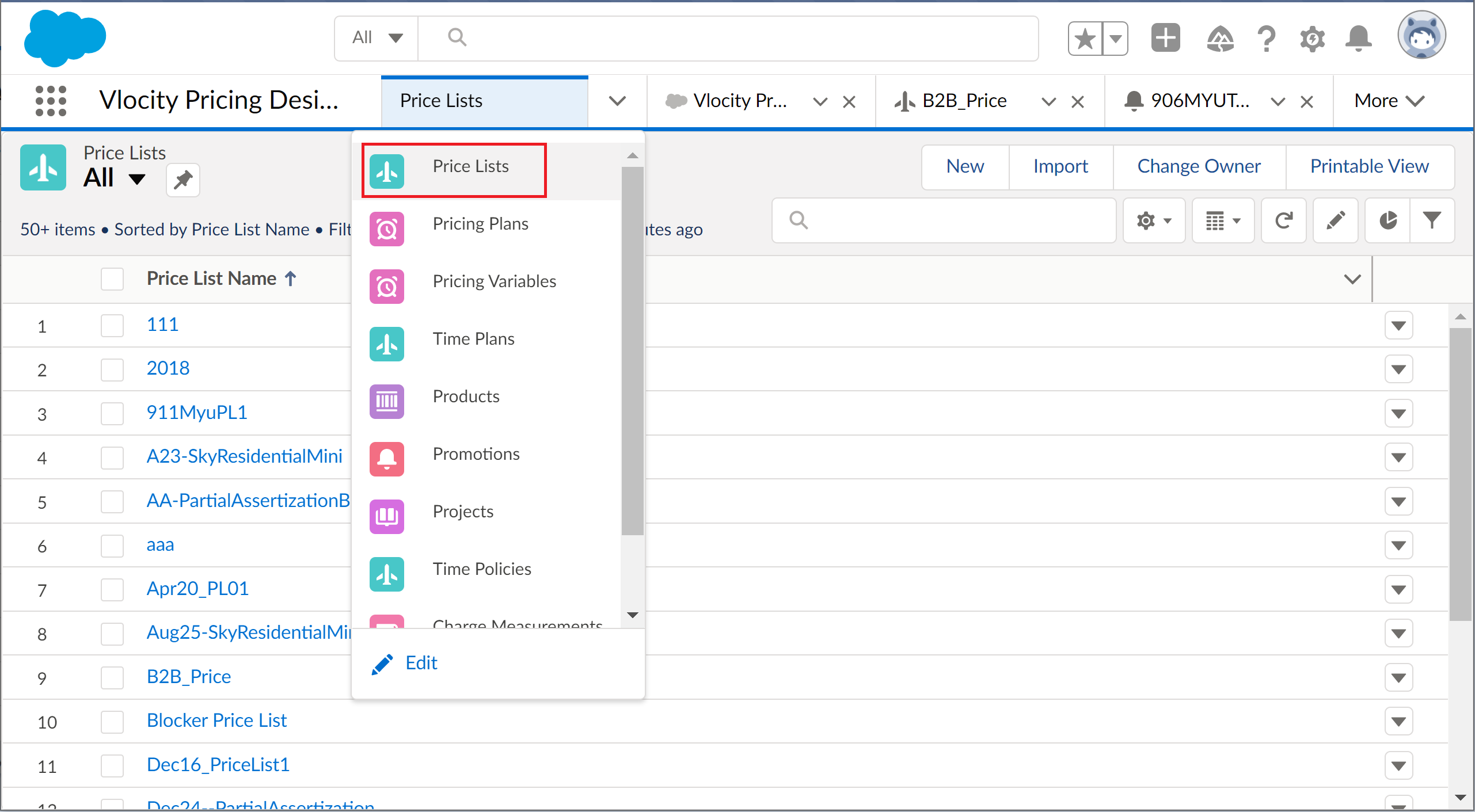
- From the App Launcher, click Pricing Designer.
- Click Price Lists from the navigation menu.
- Click New.
-
Enter the following information in the New Price List dialog.
Fields marked with an asterisk are required.
Field
Description
General Properties
Price List Name
Enter the name of the price list.
Code
Enter a unique code that identifies the price list. As a best practice, use uppercase and no spaces, for example, PL-B2B.
Description
Enter the description of the price list, for example, Commercial/Business price list.
Parent Price List
Specify the price list to act as the parent to this price list. When you designate a parent price list, this price list becomes a child of the parent price list. A child price list inherits all the pricing from its parent price list. You can include exceptions to the parent price list in the child price list.
Active
Indicate the status of the price list. If selected, you can use the price list.
Price Book
Specify the price book with which this price list is associated. You can associate multiple price lists with a single price book.
Sequence
Indicate the sequence of the price list in the list of price lists.
Currency Code
Set the currency code for the price list.
Loyalty Code
Specify the loyalty indicator used for loyalty points, typically "PTS". For more information, see Using Loyalty Pricing.
Availability
Effective From
Specify the date and time the price list becomes available for use.
If you don't enter a date, the current date is set as the Effective Start Date. This field must have a set date.
When you choose the date, the system automatically populates the time with the current time. If the price does not have a beginning effective date that is current, you cannot use the price list.
Effective Until
Specify the date and time the price list is no longer available for use.
The end date can be empty, or you can select a date. The Effective End Date must be greater than or equal to Effective Start Date.
When you choose the date, the system adds the current time.
- Save the changes.