You are here:
Create a Usage Standard Cost for a Product
You can create a usage standard cost and apply the usage cost to a product.
To create a usage standard cost for a product:
- Create a pricing element for the usage standard cost.
- Apply the usage standard cost to a product.
Create a Pricing Element for Usage Standard Cost
Create a pricing element for the usage cost.
- From the App Launcher, search for Vlocity Product Console and open it.
-
Search for the price list for which you want to create usage standard cost and open it.
The price list is displayed.
- Click Pricing Elements on the left.
-
Click on the Costs tab.
The pricing elements defined for the price list are displayed.
- Click New. The Pricing Variable section is displayed on the right.
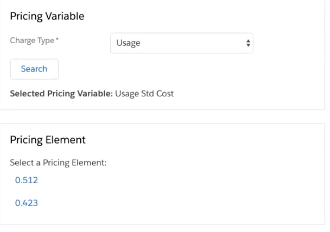
- On the Charge Type field, select Usage from the dropdown list.
- Click Search and select a pricing variable.
- Select Usage Std Cost.
-
Enter the required information:
Required Fields
Description
General Properties
Name
Enter a price, for example, 0.423.
Code
Enter a code, for example, 0.423.
Display Text
Enter a display text, for example, 0.423.
Currency Value
Usage Unit of Measure
Select a unit of measure from the lookup dialog box, for example, kWh.
Amount
Enter the amount, for example, 0.423.
Currency Code
Select a currency code. USD is selected by default.
Effectivity
Effectivity From
Select an effectivity date.
Active
Select the checkbox.
- Click Save.
- Refresh the page for the new pricing element to display on the Costs tab. The new usage cost is displayed with its unit of measure, for example, 0.423 kWh.
- Apply the Usage Standard Cost to a Product.

Apply the Usage Standard Cost to a Product
After creating a pricing element, apply the usage standard cost to a product.
- From the App Launcher, search for Vlocity Product Console and open it.
- Search for the product to which you want to apply the usage standard cost and open it.
- Click Pricing on the left.
- Click on the Costs tab.
-
Click New.
The Price List Entry section is displayed on the right.
- On the Price List field, select the price list for which you configured the usage standard cost.
- Enter a display text, for example, 0.423.
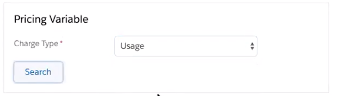
- On the Charge Type field, select Usage from the dropdown list.
- Click Search and select a pricing variable, for example, Usage Std Cost.
- Select a pricing element, for example, 0.423.
- Select the Active checkbox.
-
Click Save.
You have added a usage cost to the selected product.