You are here:
Create an Offer Migration Plan and Define Mappings in the Product Catalog
To help customers who want to change offers, you can create a migration plan that allows switching from one product offer to another. A migration plan can define specific products that are eligible or can be open for changing from any product to any other product.
For example, customers often request to switch her existing limited data plan to a plan with unlimited data, text, and talk. As a product modeler, you want to ensure that customers are eligible for the switch. You create a new migration plan and make sure that the any-to-any plan path is available. This allows you to switch a limited plan to an unlimited plan.

Migration plans can have change fees. See Set Up Change Fees in the Product Catalog.
You can define exceptions to the any-to-any offer plan. This means that the customer can only migrate to the new plan if the source and target defined in the exceptions list match the criteria. When you select the Specific Offers migration path option, the mappings are used to define the allowed migration paths for the offers.
- Click the App Launcher.
- Search for Vlocity Product Designer or Vlocity Product Console in the quick find box and open it.
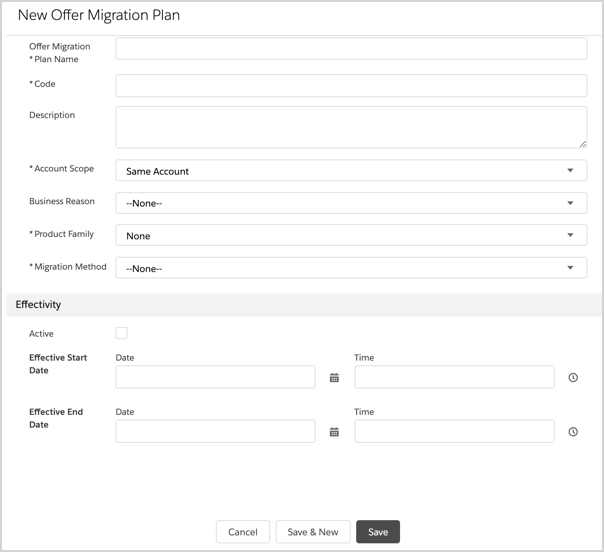
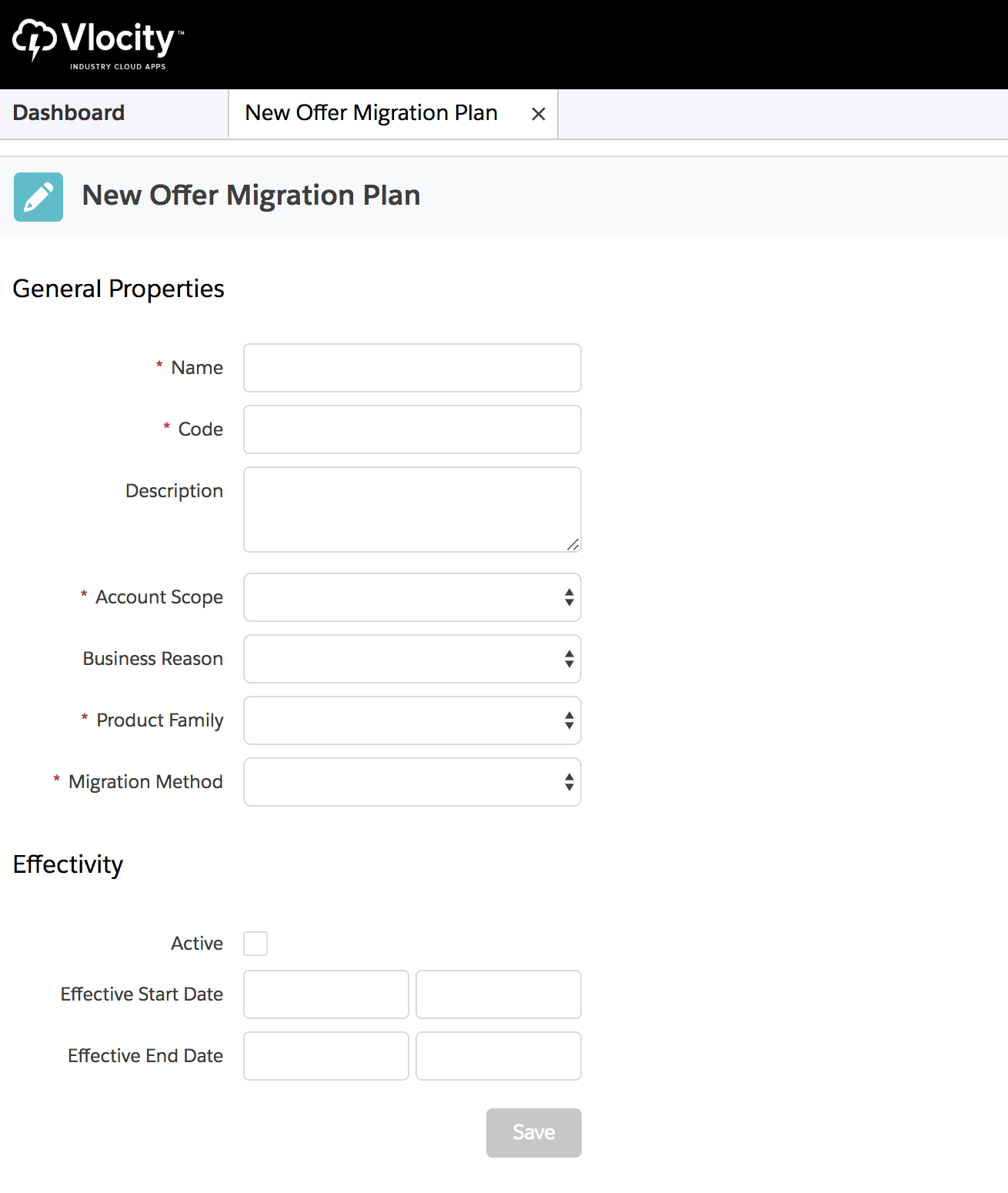
- Create a new Offer Migration Plan.
-
Enter the following required information. All fields marked with an
asterisk are required.
Required Fields
Description
Name
Enter the name of the offer migration plan.
Code
Enter a unique code for the offer migration plan.
Account Scope
Select the account to which the offer migration plan applies.
Product Family
Select the family of products to which the offer migration plan applies. In Salesforce, a product family provides a way to categorize products.
In telecommunications, a product family can represent the following products and services:
-
Internet
-
TV
-
Wireless Mobile
-
Broadband
-
Support
-
Fixed Line
As a service provider, you can use product families to categorize products one way for internal operations, and another way for external presentation. It's up to you to determine how to categorize or classify the products. The root catalog may have several categorizations for presenting products to customers on an eCommerce website.
The Offer Migration Plan's Product Family field can be a subset or a complete set of the Product2 object's Product Family field.
Migration Method
Select the migration method. The offer migration plan applies to either Any-to-Any offers or Specific offers.
-
For Any-to-Any offers, users can upgrade or downgrade plans without any restrictions. The product administrator can allow upgrades or downgrades from any-to-any offers, with or without exceptions.
If you're using versioned offers, Any-to-Any means that any version of an offer can migrate to any version of the same offer or of another offer.
 Tip
TipIn most cases, use Any-to Any to migrate with versioned offers to have the most flexibility.
-
For Specific offers, users can only migrate to plans that meet the criteria defined in the Offer Migration Component Mappings section. The product administrator can allow upgrades or downgrades between named offers.
If you're using versioned offers, Specific means an offer can migrate only to a later version of the same or different product. For example, Offer A version 1 can migrate to Offer A version 3 or to Offer B version 2.
-
-
Enter the following optional information:
Optional Fields
Description
Description
Provide a description of the offer migration plan.
Business Reason
Enter the business rationale for the offer migration plan.
Effectivity Fields
Active
Select this option to activate the offer migration plan.
Effectivity Start Date
Enter the start date for the offer migration plan.
Effectivity End Date
Enter the end date for the offer migration plan.
- Click Save.
- Click the Offer Migration Component Mappings facet on the left navigation pane.
- Click New Offer Migration Component Mappings.
-
Enter the required information in the General Properties configuration
panel.
Required Fields
Description
Source Product
Search for and select the Source Product offer to migrate to the new offer plan.
Target Product
Search for and select the new product offer to which to migrate from the original plan.
With versioning enabled, you can replace the target offer with the same source offer. You might have a different hierarchy for the same bundle with a different referenceDate.
- Select Active.
- Click Save.