You are here:
Create an Order Using Industries Cart
You can create an order from the Industries Cart instead of the Account page.
Industries Cart is your shopping-cart UI, which was developed using the Vlocity Cards Framework.
You can modify the appearance and behavior of the cart to customize it according to your specific business requirements. The Vlocity Cards Framework provides configurable cards, layouts, and templates, which are UI building blocks included out-of-the-box.
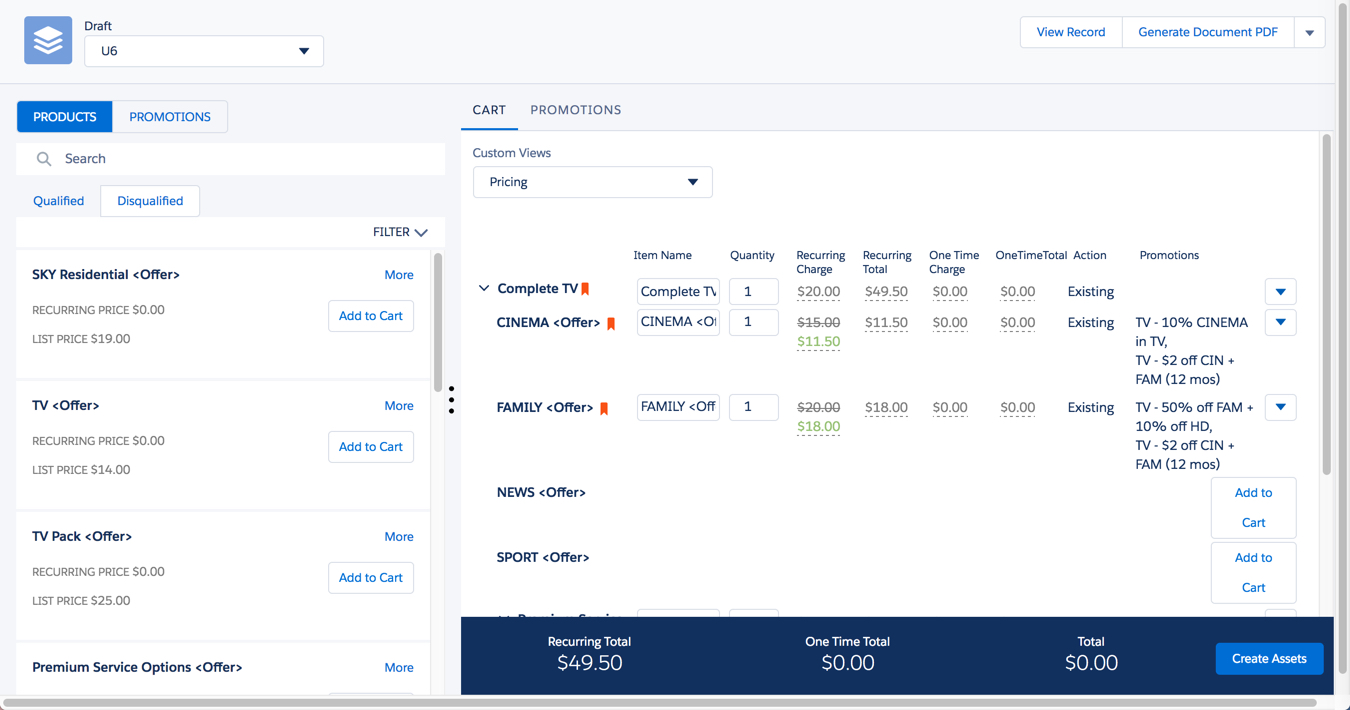
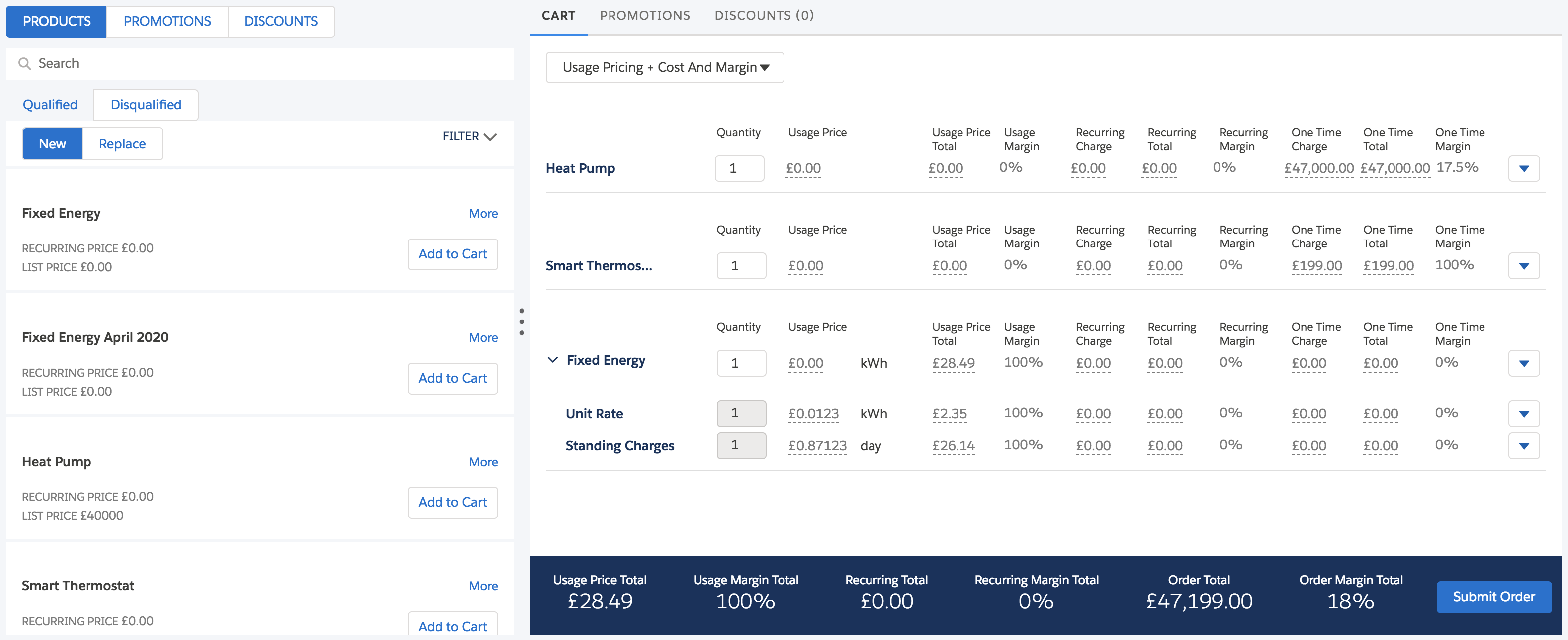
Industries Cart is split into two parts: the list and cart panes. The list pane is on the left and the cart pane is on the right.
If you have products with different versions, the product list shows only one active version of a product (standalone or root product of a bundle). This listing is based on the versioning start and end dates for each version. It then compares the versioning dates to the creation date for quotes and opportunities and the order requested date (if available) or start date. If no product version has a versioning end date after these order, quote, or opportunity dates, no product version is listed.
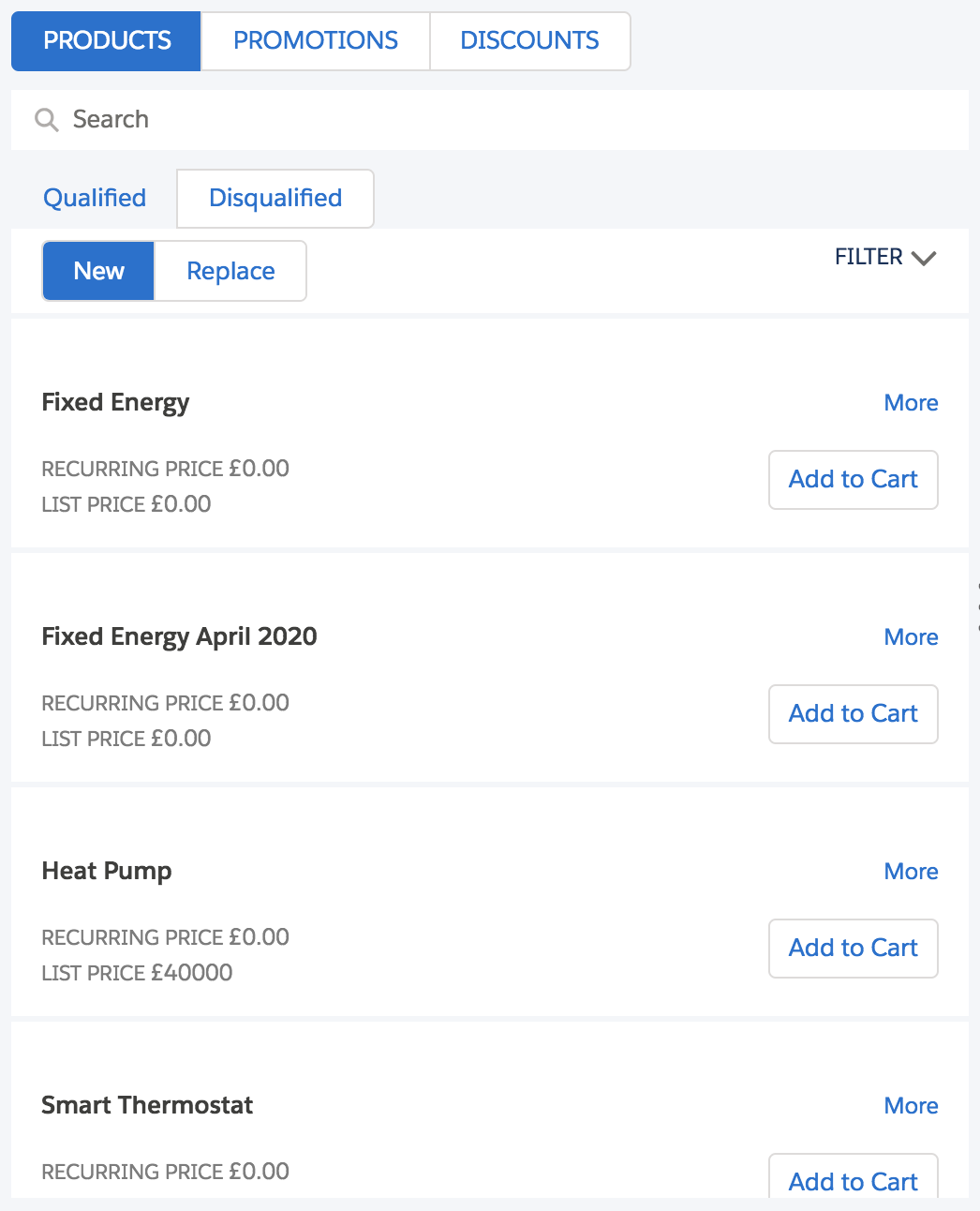
There are two tabs on the left side of the cart: the Products and Promotions tabs. A Discounts tab appears if discounts are defined.
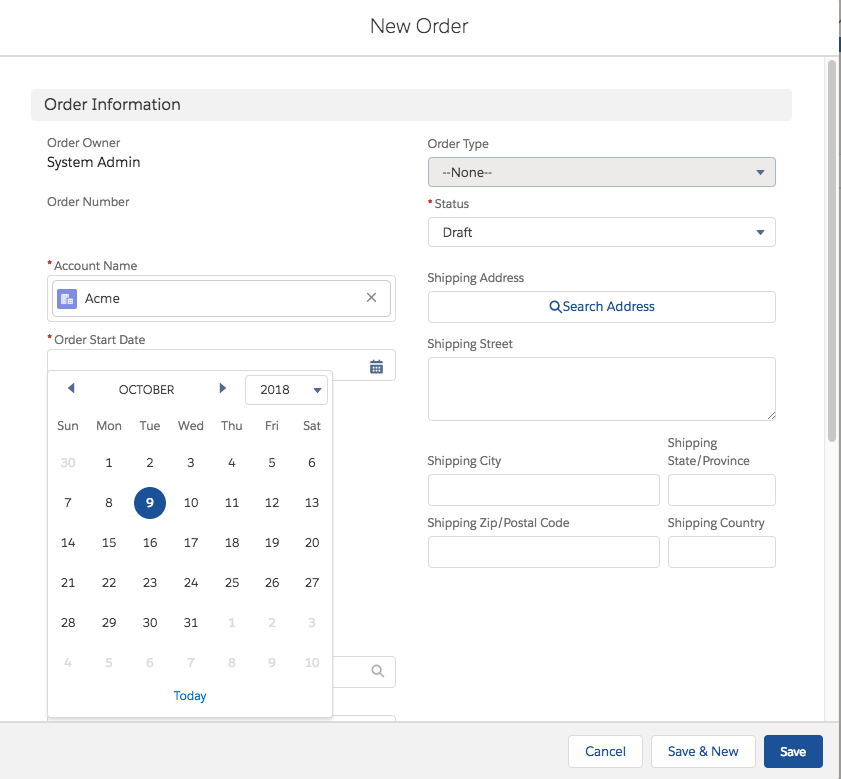
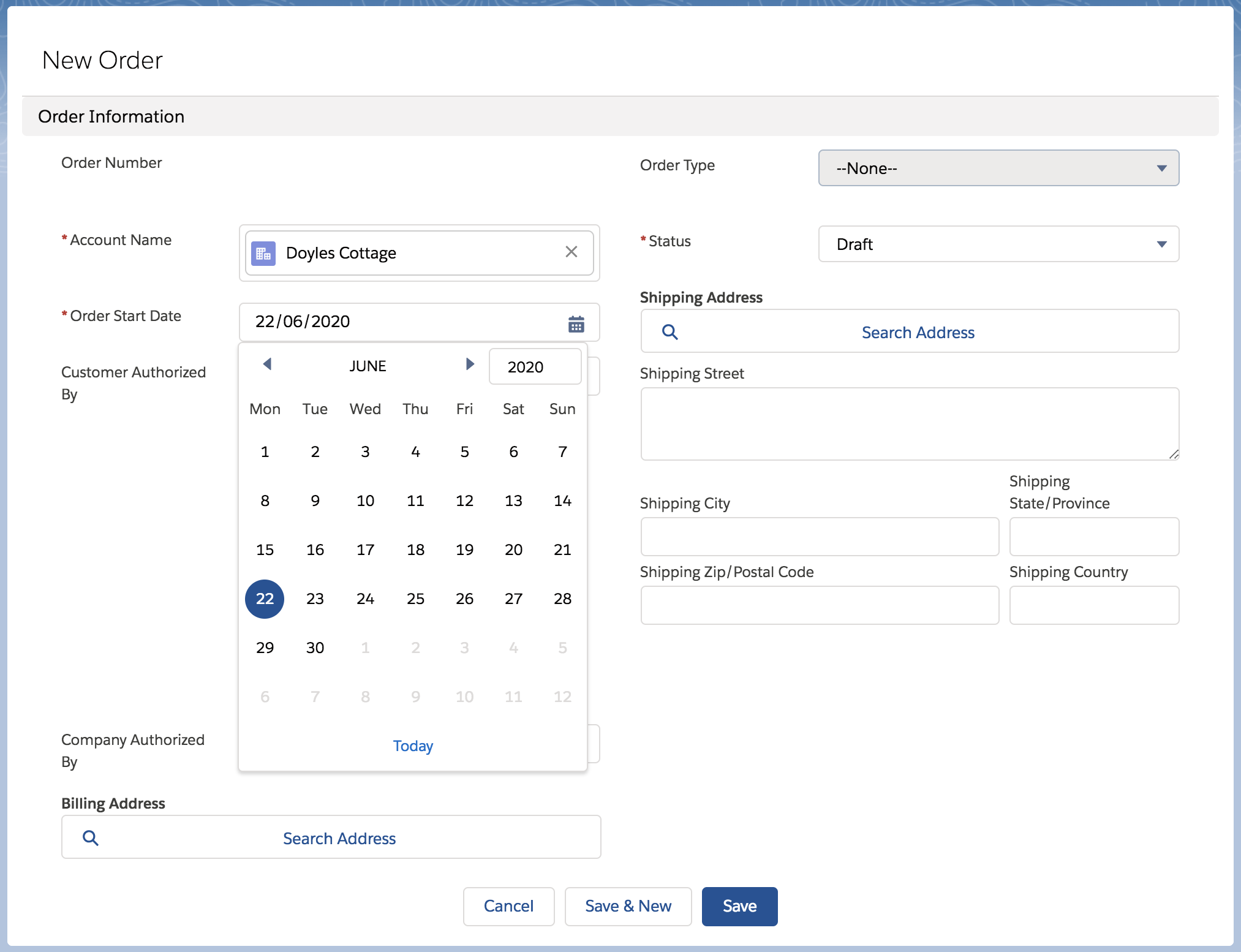
- On the Orders tab, click New.
-
Enter the following information:
-
Account Name is a lookup to the account associated with the order.
-
Order Start Date is the date on which the order becomes effective.
-
Status is the stage the order has reached.
For more information about other fields, see Order Fields in the Salesforce Help.
-
- Click Save.
- On the Order record detail page, click Configure Order or ConfigureWithNamespace.
- Select the Price List.
-
In the Products list, click Add to Cart to add products and services to the order.
To see details about the product, click More in the price list. This dialog box shows the product's ID, code, active status, version, and specification.
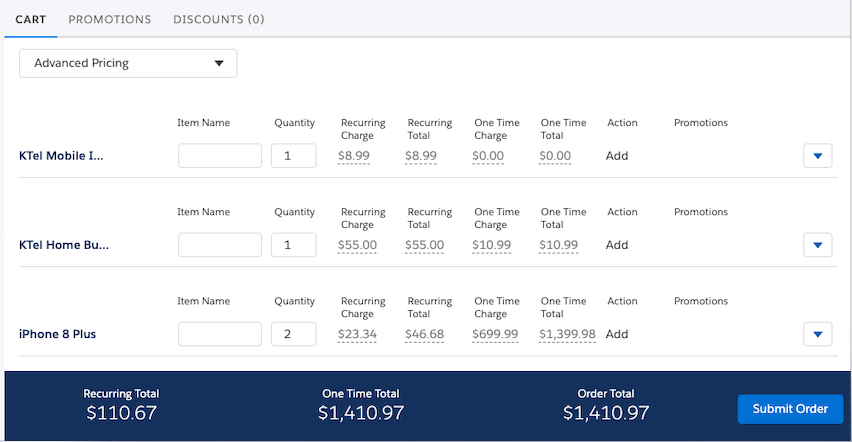
The Cart displays the selected products.
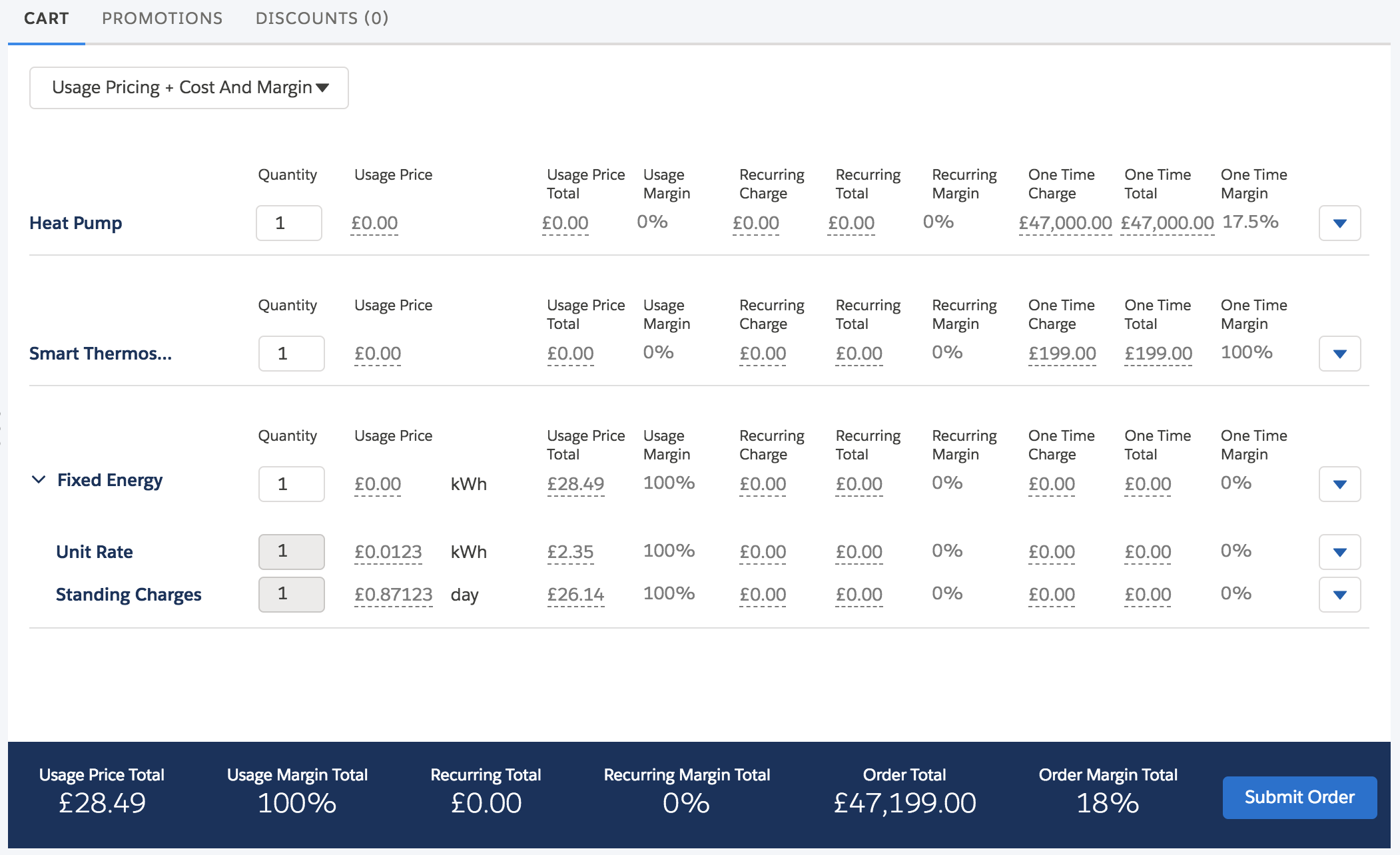
The total bar displays the price totals of the items in the cart. By default, the total bar includes the recurring total, one-time total, and order total.
Note that for the Unit Rate in the Fixed Energy product, the Usage Price Total is a forecasted price based on an estimate of energy consumption.
-
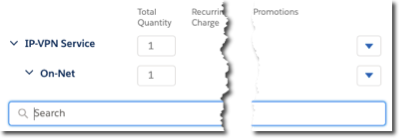
If a product bundle is configured with options, you can search for and add child products.
If products have different versions, this search displays the correct version of the child products based on the opportunity, quote, or order's reference date. See Versioning Reference Dates.
-
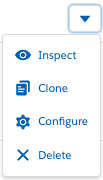
To configure the products, click the arrow on the right.
See Configure a Product Using Industries Cart.
You can also clone, inspect, and delete products in Industries Cart. See Child Line Items in the Cart and Delete a Line Item From the Cart.
-
When you complete configuring line items, click Submit Order.
If you are using Vlocity CME Winter '20, a message appears that displays the result of the order submission. The result can be a successful submission or rejection of the order or assetization of the product based on the response from Order Management.