
You are here:
Create Product Specifications in Product Designer
A Product specification is a record in the product object. Create product specifications from your object types. Product specifications inherit all fields, attributes, and layouts defined for the associated object type.
Before You Begin
-
Create the required object types. See Create Object Types in the Product Designer.
-
Review Product Specifications and Characteristics for Product Designer.
This information is for the Product Designer. For the Product Console, see Create a Product Specification in the Product Console.
An object type has a one-to-many relationship with a product specification. In other words, you can create many product specifications from the same object type. For example, for the Smart Phone object type, you can create iPhone and Samsung Galaxy product specifications.
After you create a product specification, specify values for the attributes and fields defined for the object type.

Example: iPhone Specification
After Monique creates the Smart Phone and Smart Wearable objects, she creates a product specification for each: an iPhone specification and an Apple Watch specification.
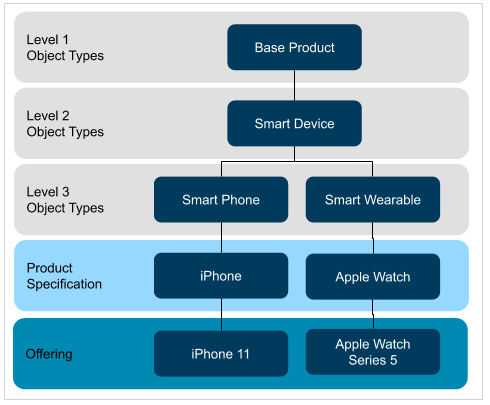
The Smart Device object has a layout with a section with the model, size, storage, color, operating system, and processor attributes. The iPhone product specification inherits its layout with the same fields and attributes.
Example: Standing Charge and Unit Rate Specifications
After Monique creates the Commodity (root base, category base, product, and child product) object types, she creates product specifications for them. She creates a Fixed Energy product based on the Commodity Offer object, a Standing Charge product based on the Standing Charge Component object, and a Unit Rate product based on the Unit Rate Component object.
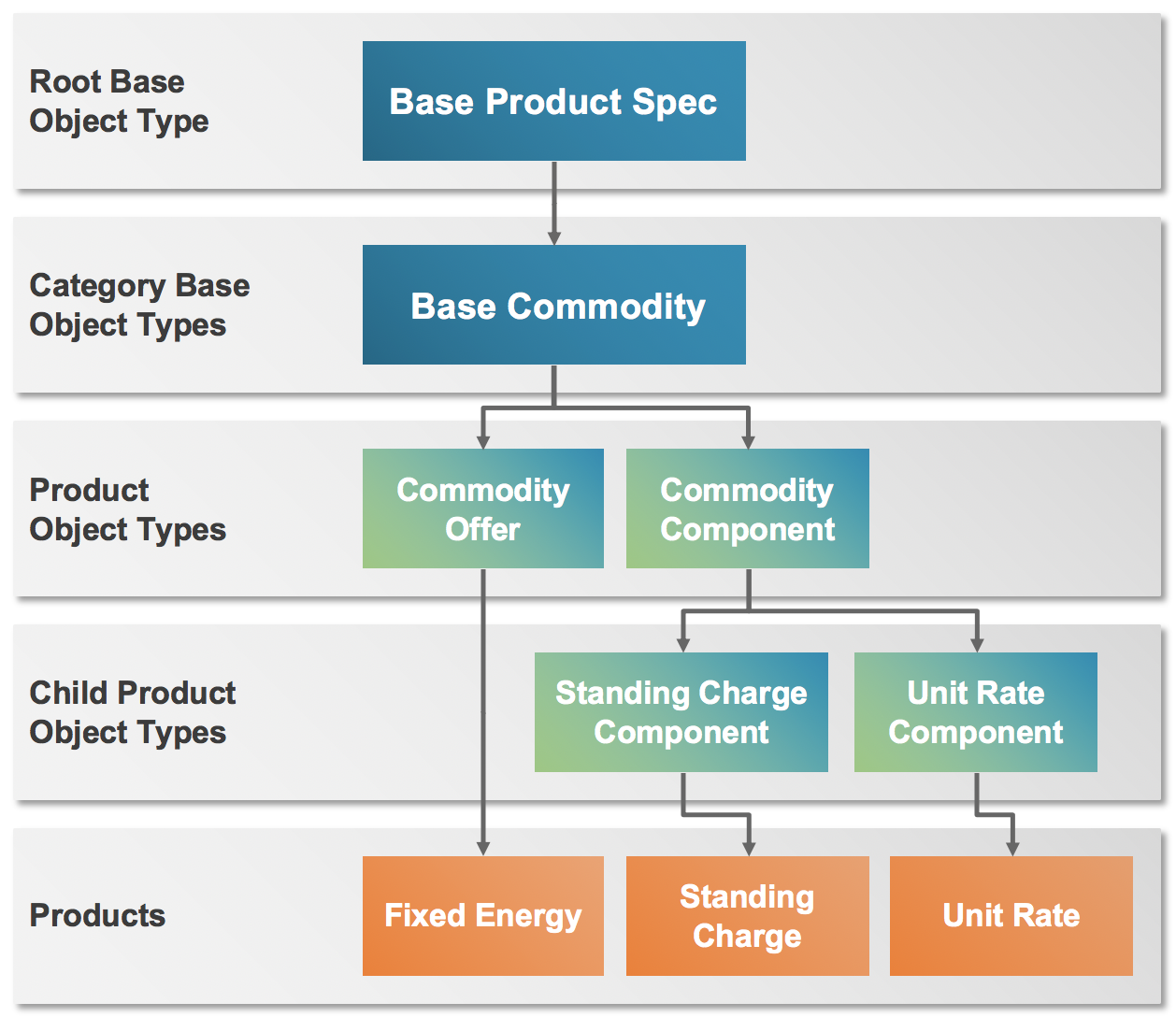
The object type hierarchy isn’t the same as the product hierarchy in bundles. Later when Monique creates the Fixed Energy product bundle, the Standing Charge and Unit Rate are child products.
-
From the Product Designer, click the
 button, and select Products.
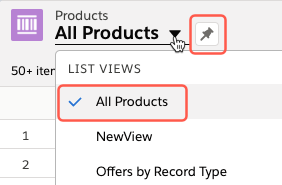
- If the view isn’t All Products, click the menu, and select All Products from the list.
- Click Create New Product.
-
In the New Product: Class page, enter the following information.
Field
Description
Product Name
Enter a name for the product.
Example: iPhone
Note The pipe symbol ( | ) and single quotes (') are not supported in the product name.Product Code
Enter a unique code for the product. At runtime in the Industries Cart, the Product Details window shows this code.
Example: C-DPP-001
Product Description
Enter a description that is shown at runtime in the Product Details window of Industries Cart. It's also searchable in the Search dialog.
Product Family
Select a group of products that this specification belongs to.
Leave this field blank if this specification doesn't fit into a product family or if you don't use product families.
If the Product Family list doesn’t show all active values, click Refresh Tab from the tab menu for a product.
Specification Type
Select from a specification type or offering. See Configuration for Offer Specification Realization.
Product Spec
This field is reserved for the Offer Specification Realization functionality. See Configuration for Offer Specification Realization.
Select a product specification for an offering. You can only select this option if Specification Type is set to Offer.
Object Type
Enter the name of the object type and select from the list.
Example: Smart Phone
Specification Sub Type
This field is reserved for the Offer Specification Realization functionality.
Select one of the following types or leave it blank for backward compatibility. If blank, the product is treated as a bundle and can have child specifications.
-
Simple — The product doesn’t have child specifications and can’t be associated with another product specification. It can be a child of a bundle product specification and can refer to an object type. In the Structure view, it can’t be set as a Virtual Item.
-
Bundle — The product can have child specifications and refer to an object type. In the Structure view, it can be set as a Virtual Item when the specification is a child of a parent specification. But it can’t be virtual when the specification is a root product in a bundle.
Help Text
Enter the text that displays at runtime in the Industries Cart if users hover over the information icon (lowercase letter “i”).
Status
This field is a customer-defined.
Orderable
For product specifications, this field is typically not checked. An offering for the product specification is what is orderable.
Type
This field is customer-defined. Use it to classify products.
Version Label
This field is reserved for Versioning functionality. See Product Versioning Start and End Dates.
Enter a value to indicate a new version, such as v2.0. You can only set this field if Specification Type is set to Product or Offer.
Version Start and End Date
This field is reserved for Versioning functionality. See Product Versioning Start and End Dates.
Enter a date or date range when the new version is available. The dates for different versions of a specification can’t overlap. You can only set this field if Specification Type is set to Product or Offer.
Lifecycle Status
This field is reserved for Versioning functionality. See Product Versioning Start and End Dates.
Set and track the lifecycle status of the specification. You can only set this field if Specification Type is set to Product or Offer.
Active
Indicate that the specification is in use.
Selling Start and EndDate
Enter a date or date range when a commercial product can be ordered and sold.
Fulfillment Start Date
Enter a date when a commercial product is ready to be fulfilled. By default, this date is the same as the selling date, but it can be a future date to support pre-orders.
End of Life Date
Enter a date when a commercial product is no longer available to be fulfilled.
Sub Type
This field is customer-defined field. Use it to classify products.
-
- Click Done.


The new product specification is saved.
To modify or remove an existing product specification, click the arrow on the product row and select Edit or Delete.
You can edit the attributes of a product on the product details page. You can see additional fields like Min, Max, Min Length, and Max Length when you edit the attributes whose behaviors are set to Run-time Configurable in Vlocity Object and Object Types. These fields ensure that attribute values are within the prescribed minimum and maximum values for attributes of the currency, number, and percent data types. For attributes of the text type, these fields ensure that attribute values are within the minimum and maximum lengths. You can also delete a product if it's opened on a tab.
