
You are here:
Create Promotions and Offers for Product Bundles in the Product Designer
You can select a child product in the structure and modify an existing promotion, add a promotion, or create an offer-level adjustment or override. From a child product, you can define contextual adjustments or overrides for bundled products. For example, you can create a promotion to give a new residential customer a reduced Unit Rate for six months.
When you define a promotion, adjustment, or override from the Structure tab, it’s defined within the context of the bundle for the parent product.
If you create an adjustment with a promotion in the Vlocity Product Designerand delete the promotion from the Vlocity Product Console, the promotion is deleted but not the adjustment. Instead of deleting, mark the promotion inactive if it's not required.
Specifying Overrides
Using the Override feature, you can create:
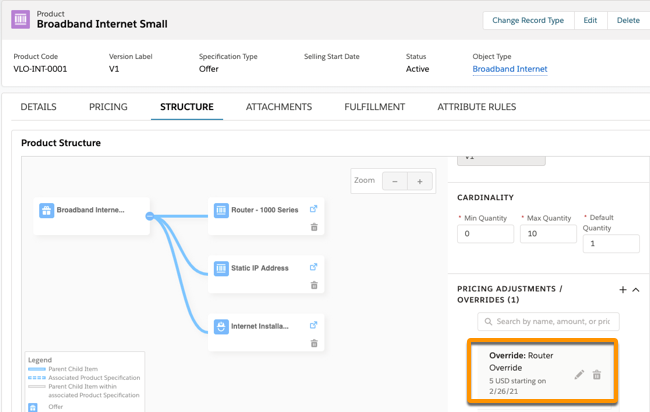
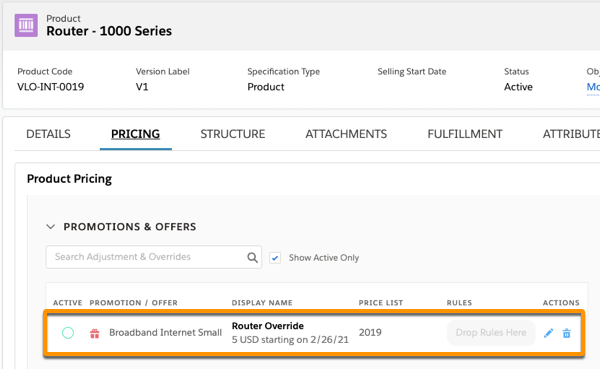
You can see a newly created override in two places for a product:
-
In the Structure tab of the parent product, select the child product. The PRICING ADJUSTMENTS / OVERRIDES panel shows the overrides.
-
In the Pricing tab of the child product, the Promotions section shows the overrides and the applicable promotion.
Related information
- Create a New Promotion with an Override
You can create an override to a promotion when you first create the promotion. - Add an Override to an Existing Promotion
You can select a child product in the structure and modify an existing promotion, add a promotion, or create an offer-level adjustment or override. From a child product, you can define contextual adjustments or overrides for bundled products. - Add an Override to an Offer
You can select a child product in the structure and modify an existing promotion, add a promotion, or create an offer-level adjustment or override. From a child product, you can define contextual adjustments or overrides for bundled products. - Create a New Promotion with an Adjustment
You can create an adjustment to a promotion when you first create the promotion. - Add an Adjustment to an Existing Promotion
You can select a child product in the structure and modify an existing promotion, add a promotion, or create an offer-level adjustment or override. From a child product, you can define contextual adjustments or overrides for bundled products. - Add an Adjustment to an Offer
You can select a child product in the structure and modify an existing promotion, add a promotion, or create an offer-level adjustment or override. From a child product, you can define contextual adjustments or overrides for bundled products. - Edit or Delete an Adjustment or Override
When an adjustment is deleted, it doesn’t delete the promotion because other products may be tied to it. Deleting the promotion adjustment or override entry doesn’t delete the promotion.
