You are here:
Define Basic Discount Settings in the Pricing Designer
You can apply a discount to a product or service. When you create a discount, you must define some basic settings in the Pricing Designer.
Before You Begin
To use discounts, you must run the Create Default Time Policy job at least once. This is required to define recurring adjustments for contextual discounts. The time policy created by the job is checked, and errors occur if something is required.
The Create Default Time Policy job creates a default time policy, but you can clear the time policy. Time plan is not defaulted. If both the time plan and time policy are undefined, the runtime time plan and policy are ignored, and start and end dates are not calculated.
See Create Default Time Policy job and Set Up Attribute-Based Pricing with Time Plan and Time Policy.
This information is for the Pricing Designer. For the Product Console, see Define Basic Promotion Settings in the Product Console.
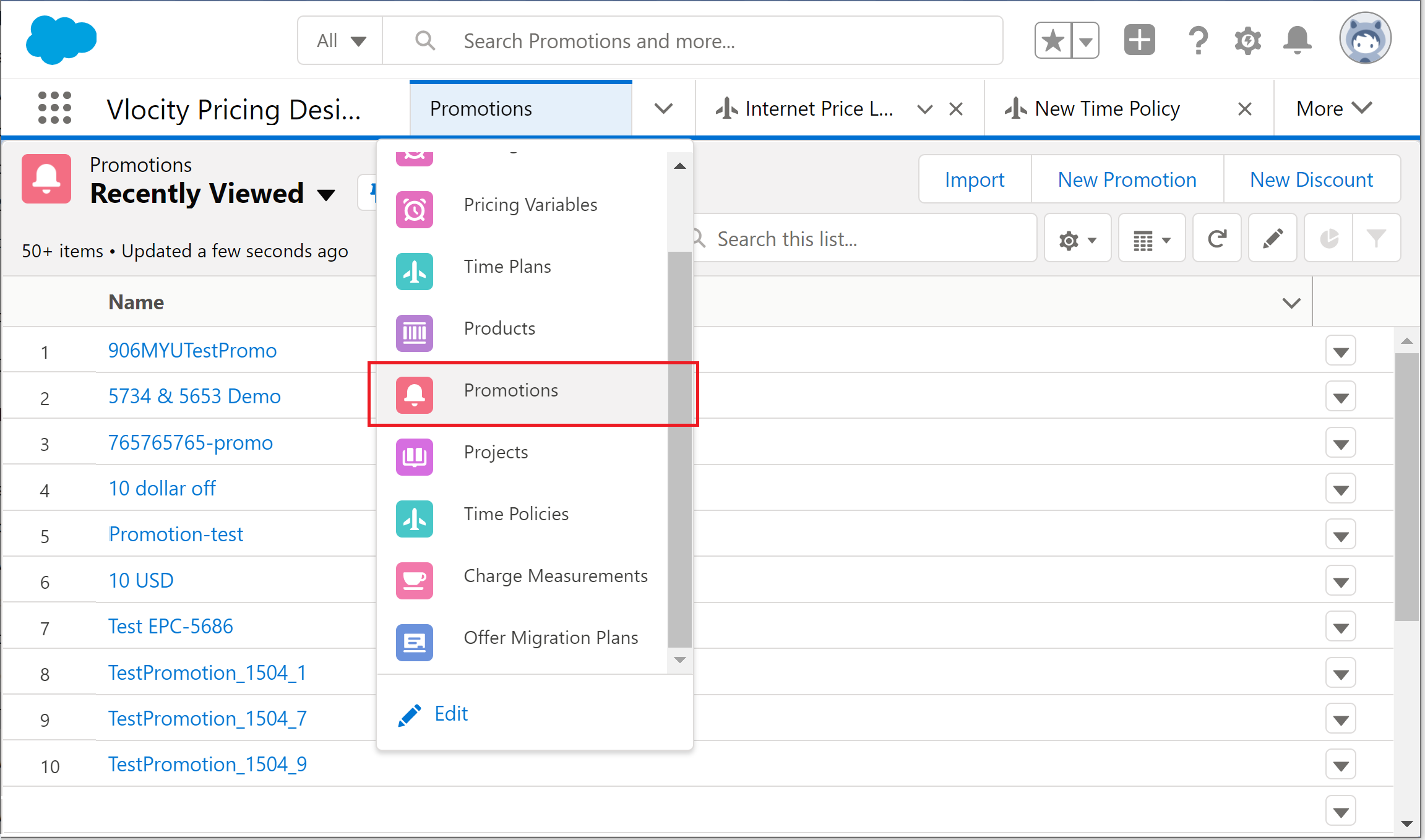
- From the App Launcher, click Vlocity Pricing Designer.
- Click Promotions from the navigation menu.
- Click New Discount.
-
Enter the following information in the New Discount dialog. Fields marked with an asterisk are required.
Field
Description
General Properties
Name
The name of the discount.
Code
The unique code that differentiates this discount from others. As a best practice, use all caps and no spaces.
Description
The description appears along with the discount name in the cart. As a best practice, include the details of the price changes and durations for each product.
Discount Type
Select the order, account, or contract to which the discount applies.
-
Select Order to create an order-based discountTypes of Discounts in EPC.
-
Select Account to create an account-based discountTypes of Discounts in EPC.
-
Select Contract to create a contract-based discountTypes of Discounts in EPC.
Price List
The price list where the discount will be stored. The products you add to the discount must be from the same price list as the discount.
Discount Duration
Enter the number of months during which this discount applies. When the discount expires, it becomes unavailable for future sales and orders. If you do not specify a duration, the discount expires when the end date becomes effective. If you do not specify an end date or a duration, the discount never expires.
Applies To All Items
Indicate whether this discount applies to all items in the cart. If you select this option, specific discount items are ignored because the discount applies to all items in the cart.
Effectivity
Effective Start Date
The date and time the discount becomes available for use.
If you don't enter a date, the current date is set as the Effective Start Date. This field must have a set date.
When you choose the date, the system automatically populates the time with the current time. If the discount does not have a beginning effective date that is current, it is not available for use. See Effectivity Date Ranges for Price List Entries.
Effective End Date
The date and time the discount is no longer available for use.
The end date can be empty, or you can select a date. The Effective End Date must be greater than or equal to Effective Start Date.
When you choose the date, the system adds the current time.
Active
If this option is selected, the discount is available for use.
-
- Click Done.