You are here:
Penalty Rules for Promotions
To apply a penalty amount when a promotion is canceled in the Industries Cart, use context rules with the rule type, Penalty. Penalty rules apply only when promotions are canceled during a move, add, change, or delete operation or in asset-based orders. Penalty rules are applied when one or more penalty conditions are met.
Prerequisites to Set Up Org for Penalty Rules
Verify that the following settings are configured in your organization before setting up penalty rules. See Configure Your Org to Use Context Rules for details on how to configure the following settings.
-
Context rules are enabled.
-
Cache is enabled.
-
Trial storage allocation for the platform cache, named CPQ Partition, is set.
-
CtxRulesProductsOpenImplementationinterface implementation is activated. -
If you use the function condition in the rule, then make sure that an apex class is deployed and the function definition in Custom Metadata types is set.
Set Up Penalty Rules
Penalty rules are created in the Vlocity Product console using the same context rule components as qualification context rules.
-
Create a penalty rule.
-
Don’t include spaces in the Context Dimension name, Rule Condition Code, and Rule Code.
-
Don’t include spaces, "-", and "_" in the Function name.
-
When defining a custom expression, use spaces to delimit each element. For example:
( Rule1Code OR Rule2Code ) AND Rule3Code-
Use one space between parenthesis and code.
-
Match code exactly because code is case-sensitive.
-
Use
ANDandORexactly. -
Don’t use unsupported characters: &&, ||, and, or, And, Or.
-
-
Set up the Data Type of Context Dimension correctly and use text instead of string.
-
Ensure that condition weight in dimension is <= 30.
-
Ensure that the Context Dimension name isn’t a function name.
-
To get context from a field from custom object, such as, ContractTerm field from the vlocity_cmt__ContractId__c in Asset Object, use __r instead of __c (
Asset.ContractId__r.ContractTerm).
-
-
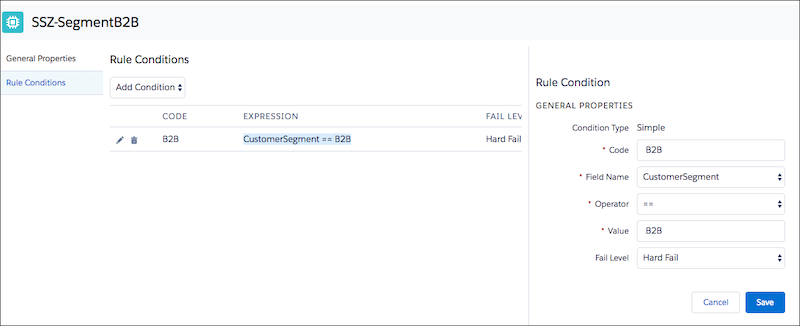
Create a rule condition for the penalty rule.
See Creating a New Rule with Simple Condition.
 Note
NotePenalty is applied when the specified condition is true and the Fail Level = Hard Fail.
Here’s an example.
-
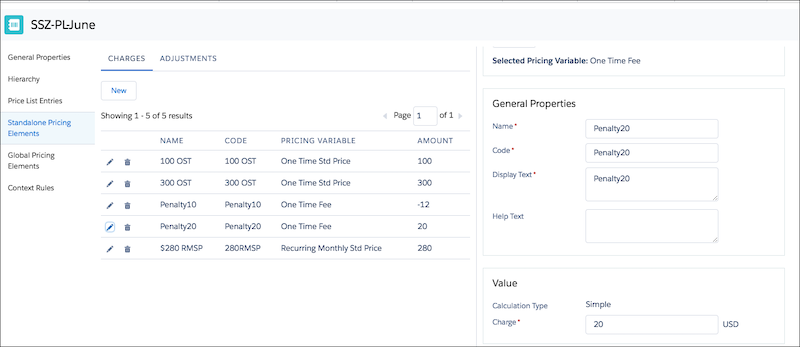
Create a pricing element charge.
See Create a Pricing Element Charge or Adjustment in the Pricing Designer.
Here’s an example of a pricing element called Penalty20.
-
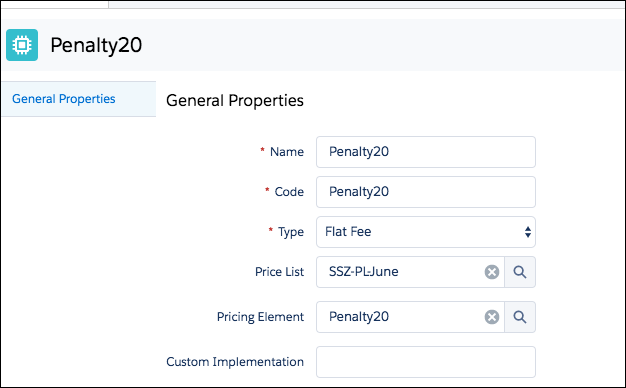
Create a context action.
Here’s an example of a context action called Penalty20.
-
Create a rule set using these values.
See also Create a rule set.
Enter these values:
-
Rule Type: Penalty
-
Rule Purpose: Eligibility
-
Expression Mode: If Else If or If
-
Header Rule: optional
-
-
Add a child penalty rule. In the child penalty rule,
-
Set Action Taken to Policy Action.
-
Select the Context Action that you created earlier.
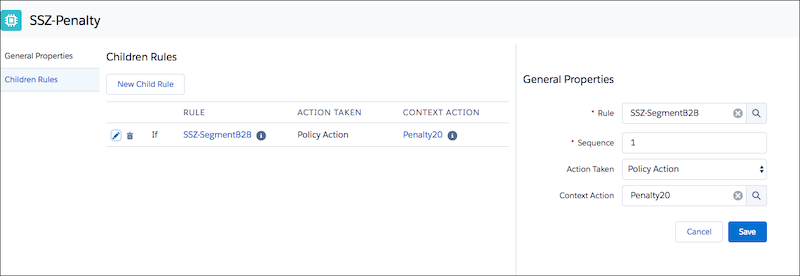
You can add multiple rules with different actions. For example:
If customer segment = B2B, apply penalty20,
Else if customer segment = B2C, apply penalty10,
Else (Always true rule), apply penalty30.
-
-
Apply the penalty rule set to a promotion.
Cancel Promotions
See how to cancel a promotion in Industries Cart.
- Go to the Account record detail -> Assets page.
-
Select the asset whose promotion you want to cancel.
- Click Change to Order.
-
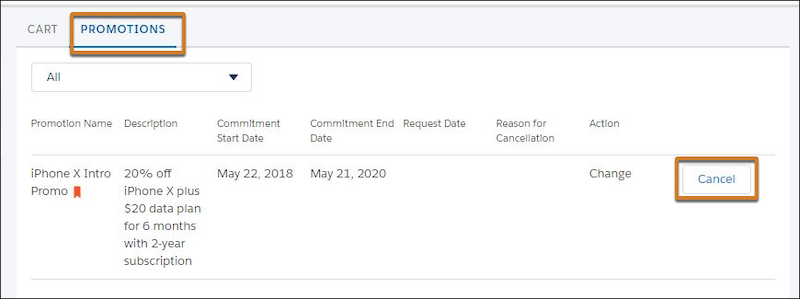
From the Promotions tab, select and cancel the relevant promotion.
-
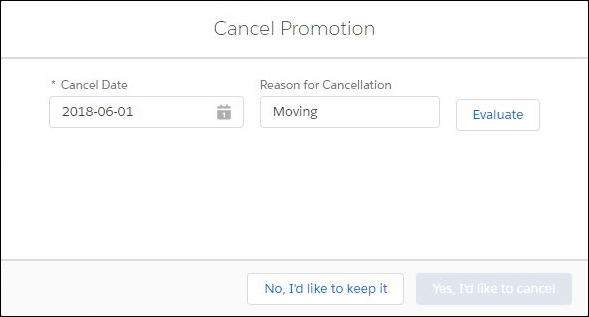
Enter a cancel date and a reason for cancellation, and then click Evaluate.
If the cancellation initiates a penalty rule, the Cancel Promotion dialog shows you the penalty amount that’s levied if you cancel the promotion. You can cancel the promotion or keep it.
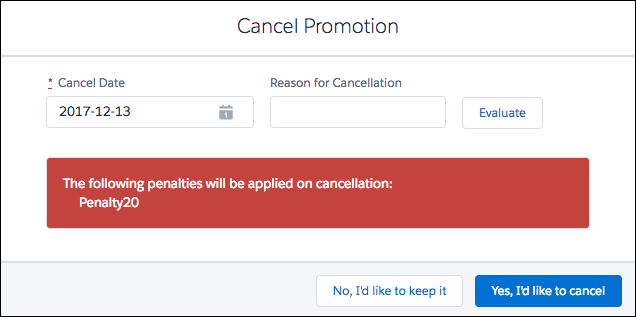
If you choose to cancel, the promotion status changes to Disconnect.
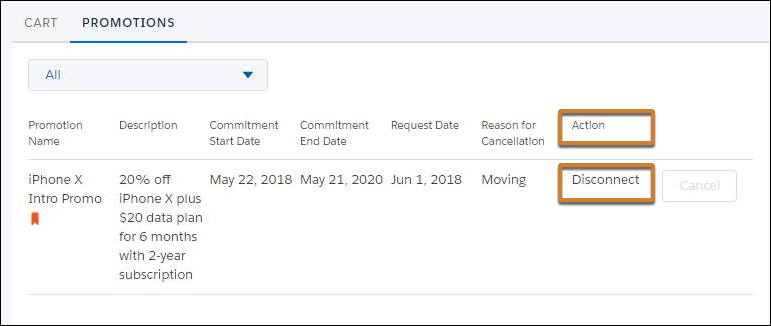
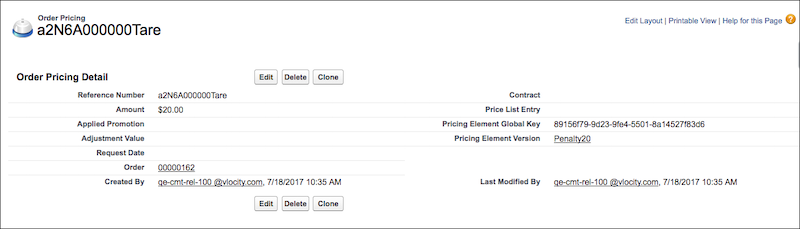
The Order Pricing object (
vlocity_cmt__OrderPriceAdjustment__c) keeps a record of the levied penalty and any reversed promotional pricing adjustments. -
To see the penalty applied to an order, check Order Pricing Detail.