You are here:
Product Selling Period Dates and CPQ Cart
The Industries CPQ Cart supports product selling periods. At runtime, users can see products in the Products list and in the Cart based on the Order Start Date.

Product Selling Period Dates and the Products List
The Products list selection pane in the Cart now displays current and future products based on the Order (or Quote or Opportunity) Start Date (Order.EffectiveDate).
Product selling period functionality does not override other standard controls for displaying products in the Products list. In order to display, products must be marked Orderable, Active, and have a price list entry. The price list entry Effective From date must be current as well.
-
Current products are products with dates that are within the selling period based on the Order Start Date or Quote/Opportunity CreatedDate. Products that have reached the end of their selling period or are at their end of life date will not display in the product list and can't be added to the cart.
-
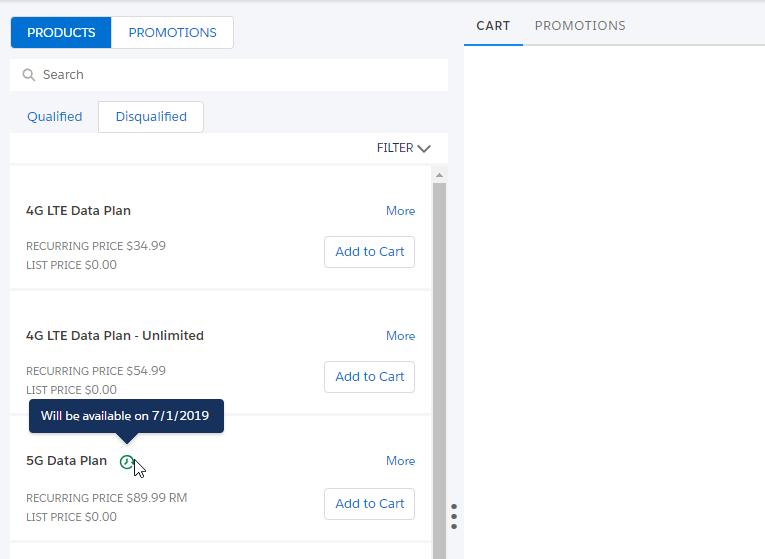
Future products with a Selling Start Date that is later than the Order Start Date or Quote/Opportunity CreatedDate also display in the product list, and they are indicated with a green clock icon. You can hover over the icon and see the Selling Start Date or the product will be available. If you enter a Fulfillment Start Date, you can add the future product to the cart and submit the order normally. Future Dated Ordering functionality must be implemented in order to manage the fulfillment of future products.
Product Selling Period Dates and the Cart
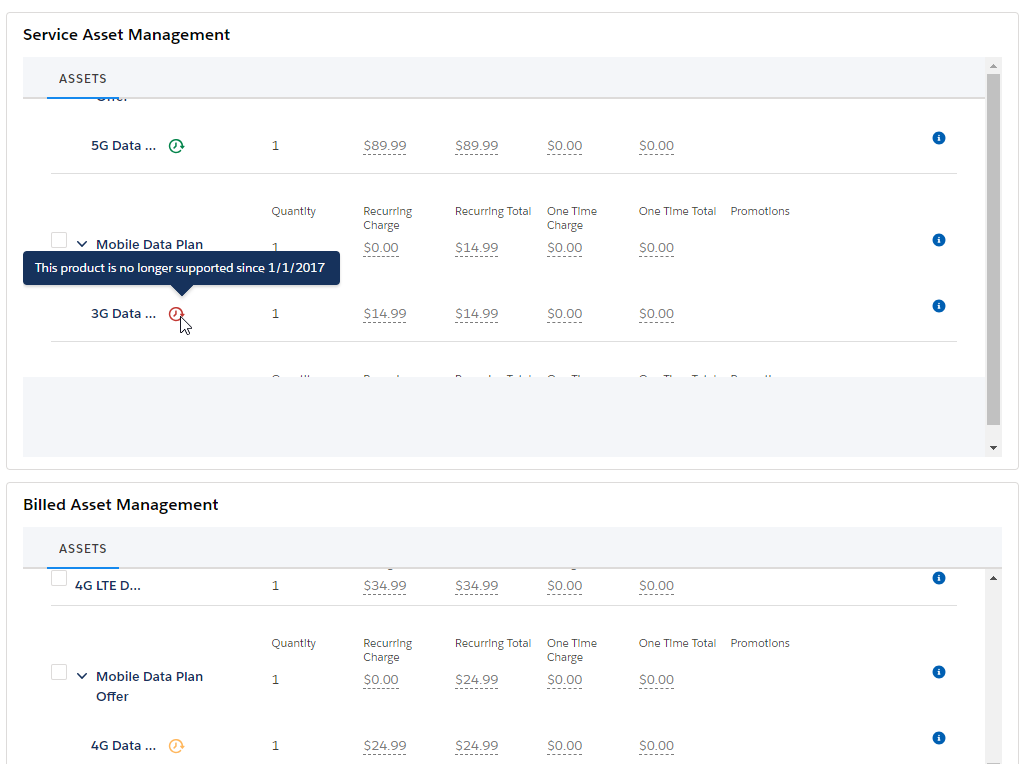
To support MACD and asset-based ordering (ABO), the Industries CPQ Cart can display current, future, past and retired products based on the Order (or Quote or Opportunity) Start Date (Order.EffectiveDate).
-
Current and future products display in the cart normally, but future products are indicated with a green clock icon like they are in the Products list. Both can be added to the cart and configured normally.
-
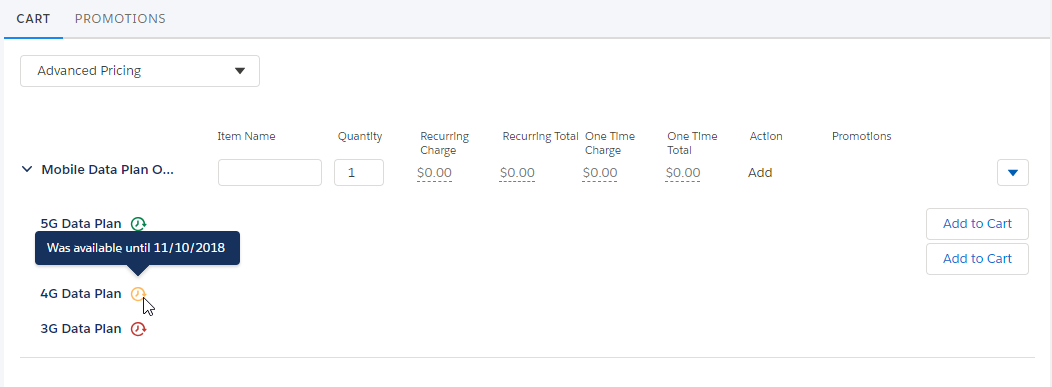
Past products are products that have passed their Selling End Date but have not passed their End of Life date. They are indicated by a yellow clock icon. They cannot be added to the cart or configured for new orders, but they can be configured or deleted during MACD or asset-based ordering. You can hover over the icon to see the Selling End Date.
-
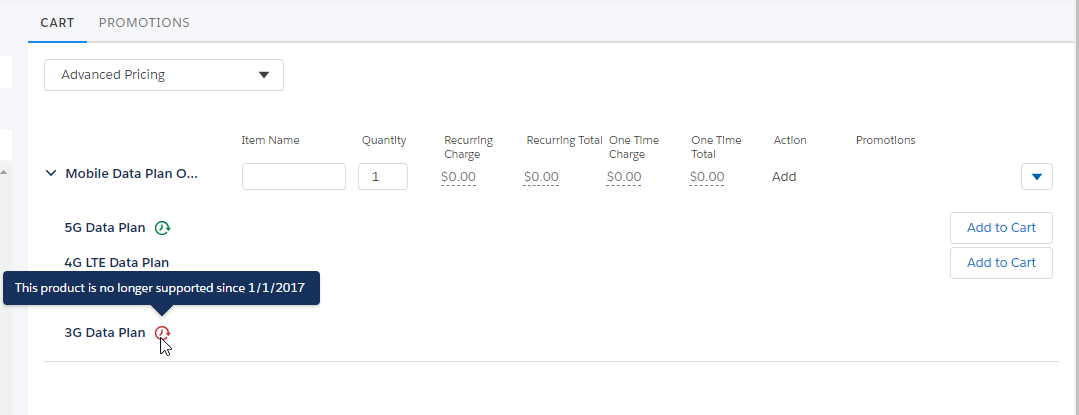
Retired products are products that have passed their end of life date, and they are indicated by a red clock icon. In a new order, they cannot be added to the cart or configured, but during MACD or asset-based ordering, they can be deleted. You can hover over the icon to see the date the End of Life date.