
You are here:
Setting Up Your CPQ Configuration Settings
You can configure many custom settings that control configure, price, quote (CPQ) features and behaviors.
To set up your CPQ configuration settings:
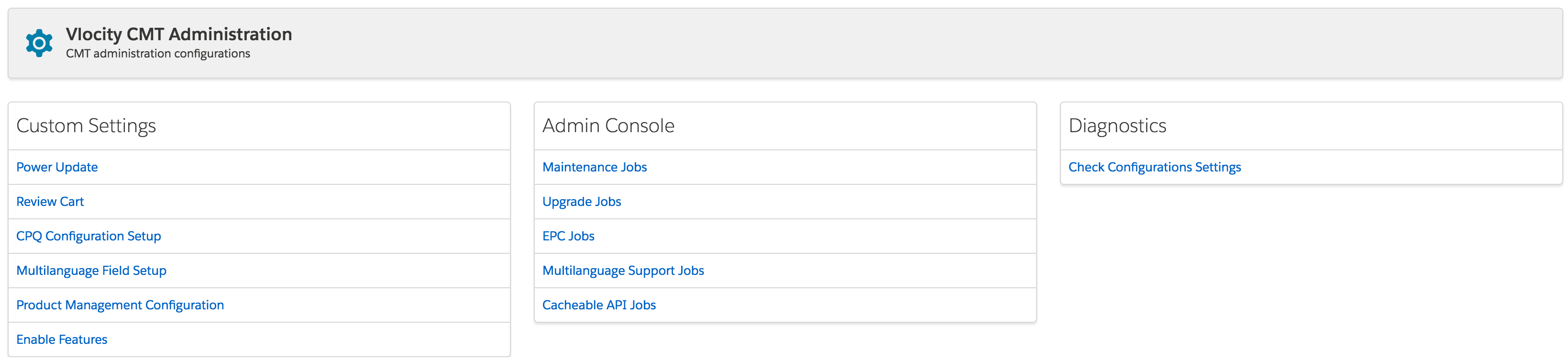
- Go to the Vlocity CMT Administration tab.
- Under Custom Settings select CPQ Configuration Setup.
- Click the Action button to modify a Configuration Name or Setup Value.
- To view the current values for your Configuration Settings, return to the dashboard and under Diagnostics, select Check Configurations Settings.
- Checking Your CPQ Configuration Settings
You can view the current values for your CPQ configuration settings. - CPQ Configuration Settings Reference
Salesforce Industries Communications, Media, and Energy includes these custom settings that control many configure, price, quote (CPQ) features and behaviors. - Adding CPQ Configuration Setup Custom Settings
You can add custom settings on the CMT Administration tab's CPQ Configuration Setup page. - Configuring CPQ Platform Cache
An org cache is necessary so you can use CPQ. Your org should have a platform cache named CPQPartition. If the CPQPartition does not exist, create a default partition and name it CPQPartition. - Configuring Power Update
Use Power Update to edit multiple line items at one time. When products are added to the cart, line items are created. When a bundle is added to a cart, the parent and child products are independent line items. - Configuring Cart Item Refresh Levels
As you add items to the cart, the cart contents increase. When the cart page refreshes, the getCartsItems API is called. The call can fail due to the heap size or an exceeded time limit. To support a large number of items when returning responses from getCartsItems and addToCart, a level-based approach to refreshing the cart is supported. This approach creates a smaller response to optimize performance. Use the level-based approach when you find that response times are excessive. - Analyzing CPQ Processing with Vlocity Tracking Service
As a performance engineer or system integrator working on customer projects, you can analyze the timing of CPQ processing to quickly drill into the problem areas where CPQ processing is slow. Using the tracking service greatly speeds-up performance analysis of CPQ processing. - Enabling Compatibility Using the Cart Customizable Attribute Level Setting
In Salesforce Industries Communications, Media, and Energy Summer '17, the Industries Cart UI introduces an enhancement that changes how the Industries Cart determines which attributes are configurable in the cart. However, to enable customers to choose when to switch to the new behavior, the Cart Customizable Attribute Level custom setting is provided to enable compatibility with prior releases. - Creating a Custom Product Configuration Message
Product compatibility rules, also known as product configuration rules, determine if a product combination is valid. Salesforce includes default product configuration error messages in the Opportunity Manager, Order Manager, Quote Manager, and cart. However, you can create custom messages to provide more useful information to the user. - Adding the ConfigureWithNamespace Button to Layouts
In Lightning mode, the ConfigureWithNamespace button has been added to the Order, Opportunity, and Quote layouts as a custom button by default. The Configure custom button no longer works. If upgrading from CME Winter ’19 to CME Summer ’19 or later, you can configure your own button to invoke CPQ using the Object Manager to add ConfigureWithNamepsace to the layout manually. - Configuring Values for Status and Order Status Fields
When you create an order and submit it to Order Management for processing, the status of the order is changed to "In Progress". When you create a subsequent order on the same asset while the first order is still in progress, the changes made in the first order are stacked into the second order. For example, if the subsequent order is scheduled and submitted after the original order is completed, it can include the changes from the order in progress. This is achieved through a flexible FDO check so that additional Order Status values are considered when looking for FDOs. - Settings to Support Canceling Orders
When installing or upgrading CME, you can create a remote site setting to support such actions as canceling orders, and accessing the streaming API. Once you have created the remote site setting, you do not need to do it again for subsequent CME upgrades. - Required Indexes for Industries CPQ Implementations
If you are implementing Industries CPQ, add the following required indexes to support the related CPQ objects. - Editing $root.settings and $root.vlocityCPQ.features Variables
In Winter '18, the UI settings for Industries CPQ have been moved fromrootScopeto a service. If you have custom templates that use$root.settingsor$root.vlocityCPQ.featuresvariables, you must some base files.
Did this article solve your issue?
Let us know so we can improve!
