
You are here:
Submit Discounts for Approval in Industries CPQ
To manage discounts for quotes and orders in the Industries CPQ Cart, discounts have four states. You can approve discounts from the cart.

This section applies only if the Custom Setting, Cart Level Discount Approval Required, is set to True. The default value is set to False which means that all discounts are auto-approved. You don't see the Discount Approval button in the Industries CPQ Cart if the value for Cart Level Discount Approval is set to False. To change the settings, see Enabling Discount Approvals.
Discounts go through any one of the following states:
-
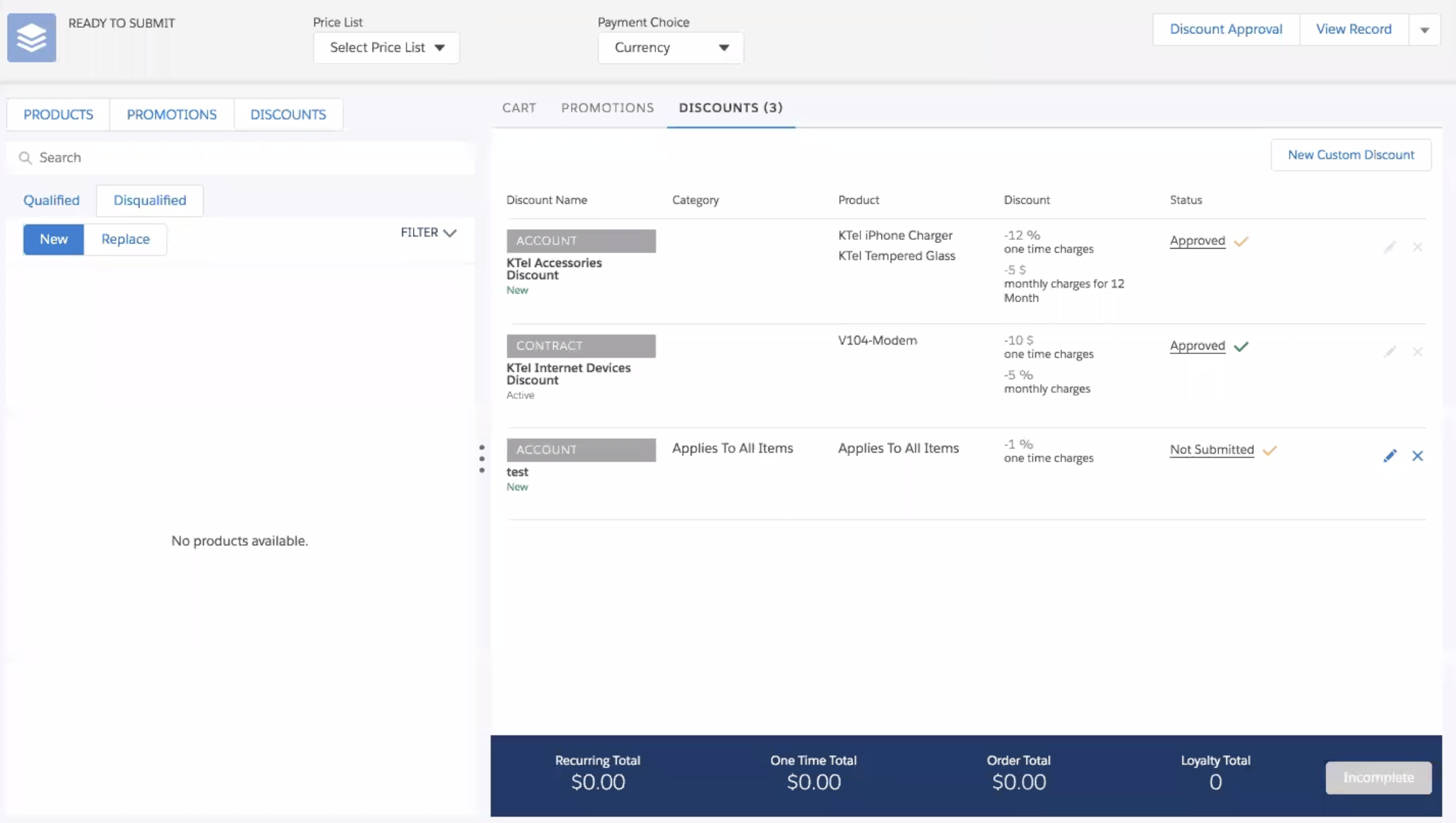
Approved: When a discount is approved, the status changes to Approved and is Pending Activation as indicated by the tool-tip on the yellow checkmark in the Industries CPQ Cart. When you submit the order, the discount status changes to Approved. In a different cart, the approved discount appears with a green checkmark.
-
You cannot edit the discount in the same cart after it has been Activated. You can create a new cart and edit the discount. See Edit Discounts in Industries CPQ Cart.
-
You can edit contract-based discounts in the Amend Frame Agreement scenario only.
-
-
Rejected: When you reject a discount, the status changes to Rejected and the Discount Approval button in the Industries CPQ Cart is not activated. You can edit the discount and re-submit it for approval.
-
Not Submitted: If the Cart Level Discount Approval Required value is set to True, the discount has a status of Not Submitted in the Industries CPQ Cart when you add the discount to cart. It is Pending Activation as indicated by the tool-tip on the yellow checkmark. Click Discount Approval to submit the discount for approval. After it has been approved, the status changes to Approved, Pending Activation. You cannot submit your order, opportunity, or quote till the discounts in the cart are approved.
-
Pending: The discount is pending approval. It can be approved or rejected.
In the Winter '19 release, the Discount Approval button does not appear in the cart if the discount is rejected. Proceed in one of two ways:
-
Delete the discount by clicking the x icon in the Industries CPQ Cart.
-
Alternatively, edit the discount by clicking the pencil icon. When you edit and save the discount, the status changes to "Not Submitted". You can then submit the discount for approval.
- Go to the Industries CPQ Cart by opening the order record detail page and clicking CPQ.
-
Click the Discounts tab on the right pane in the cart.
 Tip
TipThe Discount Approval button only appears if the Cart Level Discount Approval Required value is set to True. If the value is set to False, the Discount Approval button will not appear.
- Click Discount Approval.
For more information of Approval Processes, see Approval Processes.
