
You are here:
Assigning, Filtering, Sorting, and Retrying Items in a Manual Queue
In Industries Order Management, you can assign, complete, retry, or clear tasks one-at-a-time or in bulk.
- From All Tabs, click Manual Queues.
- Select a manual queue. The Manual Queue Details page appears with the items in the queue.
 Note
NoteFrom release Spring '22, the Queue Items LWC component is available with improved UI and much of the same functionality as the older Manual Queue component. To use the newer component, add the Queue Items component to your Manual Queue page layout because it's not there by default (see Order Management LWC Components).
- Click the check boxes beside the items you want to assign, complete or clear.
- If you've set up a filter in the Filter Fields section of the page, then the Filter button appears. You can click it to filter the results that appear in the list. See Displaying Custom Columns and Configuring Filterable Attributes
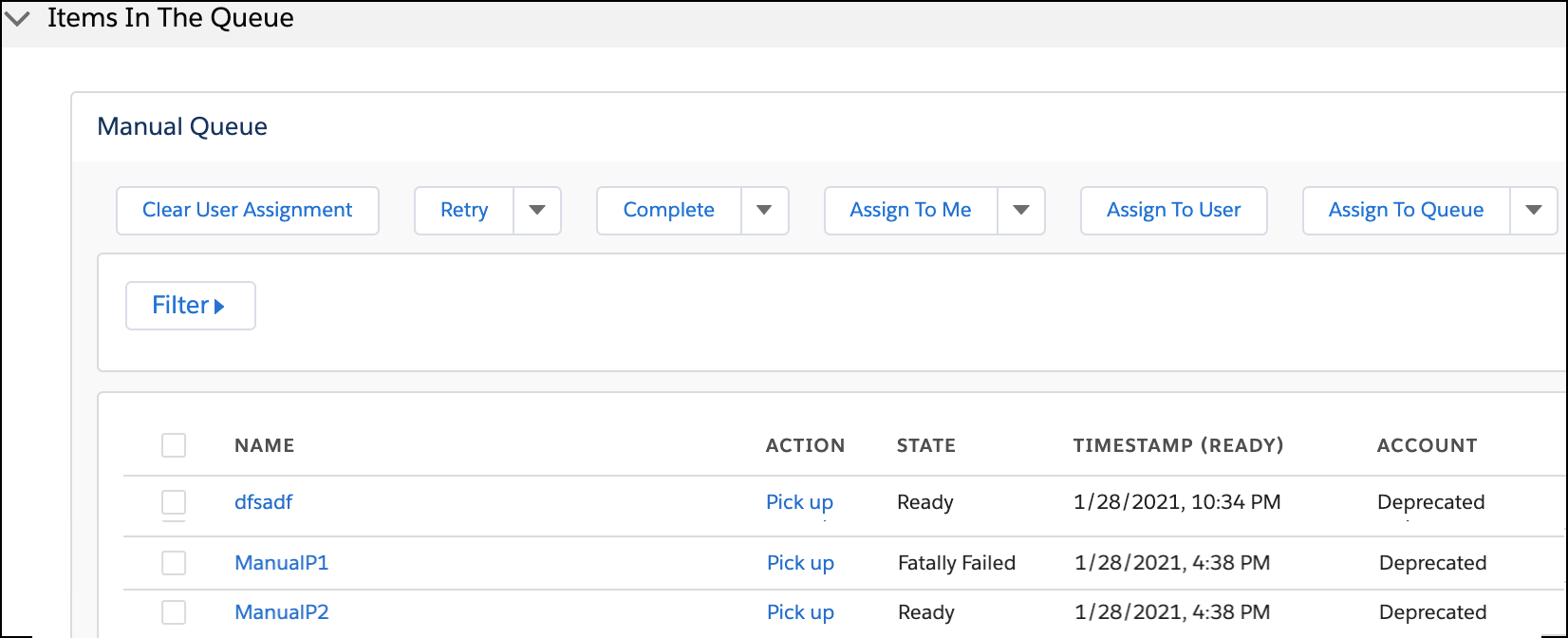
- Click one of the following buttons across the top row. The button applies to those items that you checked in the list. Note
Some of the buttons have a little down arrow next to them. Click it to see two options that affect all the records in the list, regardless of whether they're checked. (If you've filtered the list, then these options apply only to those items that appear in the filtered list.)
Apply to all items: The button affects every item in the list (not just the ones that you checked).
Apply to first records: You'll be asked how many records to apply the process to. The button affects the number of records you choose, regardless of whether you had checked them.
Filter: If you haven't set up a filter for the queue, then this button doesn't appear. Otherwise, click it to filter by the criteria that's in the Filter Fields part of the Queue Details.
Clear User Assignment—Clear the assigned user, so that no one is assigned to the item, and set the state to ready.
Retry—Retry multiple failed auto task orchestration items. Once completed, the retried items are removed from the list of orchestration items in the Error Queue. When you view the orchestration plan, the items that were completed after retry appear in the completed state and the processing log indicate that the items were retried and completed.
If you retry an orchestration item that is in the Skipped state, you receive an error message, because skipped items cannot be retried when the plan is in progress.
Complete—When you look at the orchestration plan again, the tasks you completed appear in green boxes.
Assign to Me—Assign the selected tasks to yourself
Assign to User—Assign tasks to a specific user
Assign to Queue—Re-assign or move tasks from one user’s queue to another user’s queue
- Bulk Operations
You can filter records in a manual queue, then apply a bulk operation, such as Complete, Retry, or Re-assign, without waiting for all the records to load on the screen and without having to scroll through all the records. This is especially useful if you have a large number of records that would take time to load on the UI. - Displaying Custom Columns and Configuring Filterable Attributes
Industries Order Management gives you the ability to configure the display columns in the Manual Queues page for manual tasks and fallout tasks. This lets you see the error code for each fallout task.
