
You are here:
Bulk Operations
You can filter records in a manual queue, then apply a bulk operation, such as Complete, Retry, or Re-assign, without waiting for all the records to load on the screen and without having to scroll through all the records. This is especially useful if you have a large number of records that would take time to load on the UI.

Note
Orchestration items in Skipped state cannot be retried when the plan is in progress.
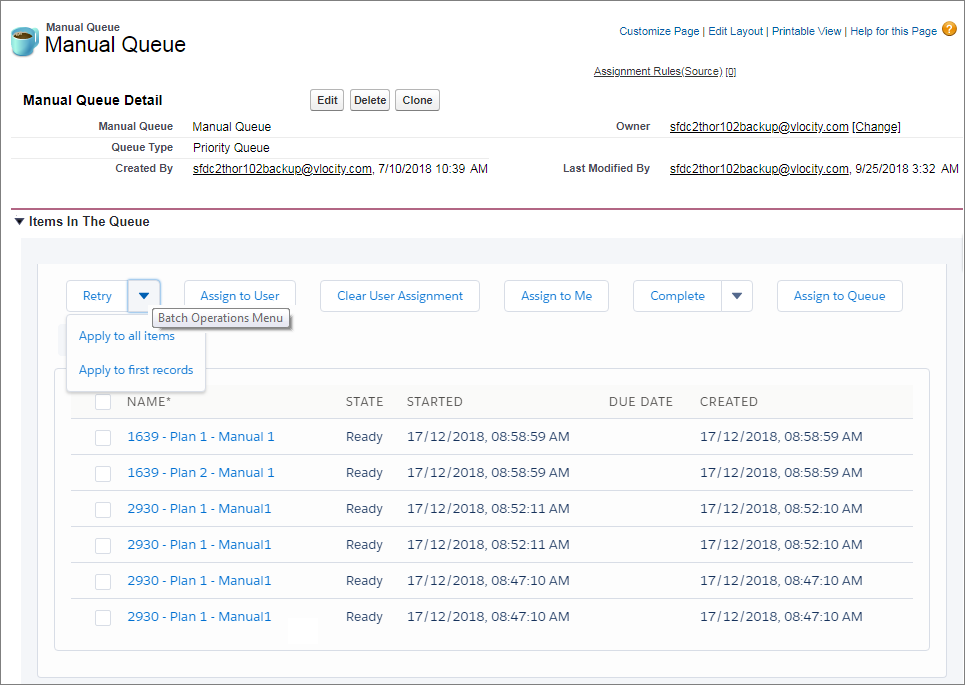
- Click the down arrow on the operation that you want to do a bulk action for. The image shows the Retry button, but you could also do the Complete operation. Note
From release Spring '22, the Queue Items LWC component is available with improved UI and much of the same functionality as the older Manual Queue component. To use the newer component, add the Queue Items component to your Manual Queue page layout because it's not there by default (see Order Management LWC Components).
- Click Apply to all items or Apply to first records.
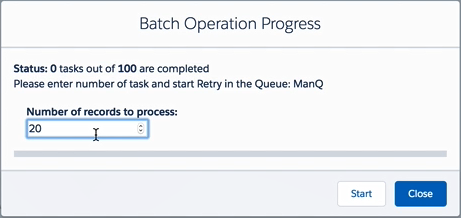
- If you chose Apply to first records, enter the number of records to process.
- Click Start. The batch operation status appears.
- Click Close once all tasks are completed. The page refreshes after the batch operations complete.
Did this article solve your issue?
Let us know so we can improve!
