
You are here:
Configuring or Running the OM Plus Status Job
The OM Plus Status job checks that OM Plus components are running and properly connected to Salesforce. If the job finds that OM Plus is offline, then it sets the status appropriately and new orders are placed in a queue.
When the job finds that everything is OK again, it resets the status to operational, and the items in the queue start being processed again.
You can stop a running job, stop the job from running in the future, or run it yourself at any time. In fact, every time you open that page, the job runs right away.
To configure or run the OM Plus Status job, follow these steps:
-
In Lightning Experience, click the App Launcher:

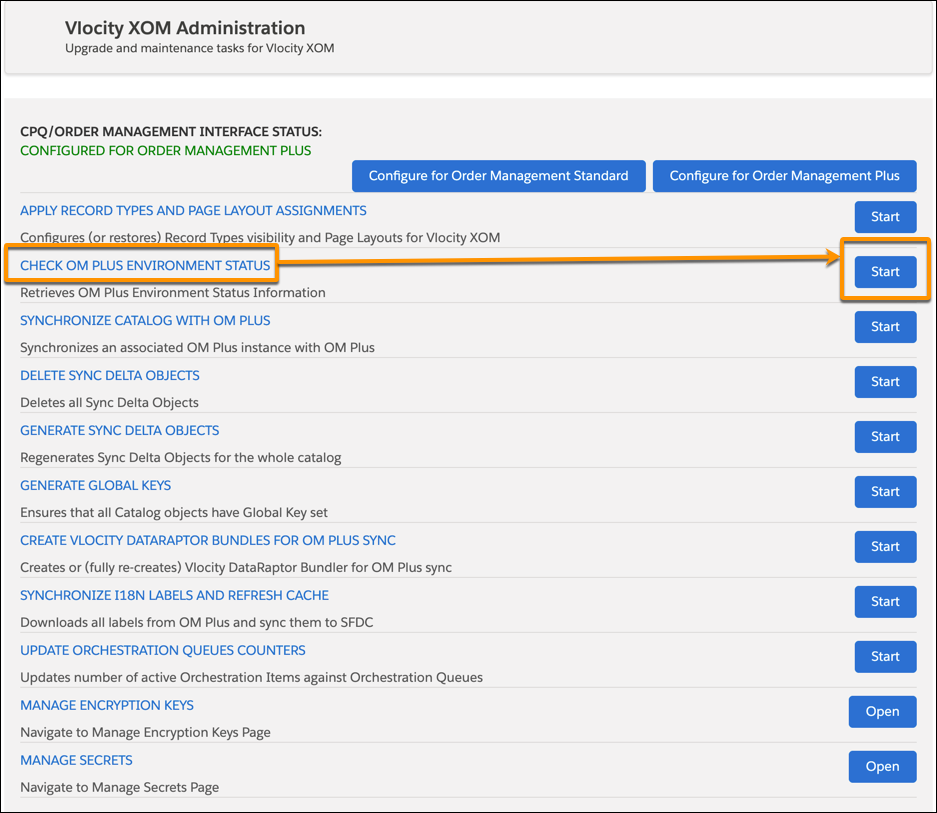
- Begin to type XOM Administration until Vlocity XOM Administration appears in the list, and then click Vlocity XOM Administration. The Vlocity XOM Administration panel opens.
- Click the Start button on the Check OM Plus Environment Status row. The OM Plus status is checked, and the OM+ Environment Status page opens and the job runs.
- From the top of the OM Plus Environment Status page, you can do the following things:
Stop scheduled OM Status jobs from running: Click the Stop button. OM Status Jobs that are in the queue to run will not run.
Stop future OM Status jobs from running: Click the Suppress button. Jobs that are already scheduled or running will run, but no new ones will be scheduled to run.
Start running the job automatically again if you've stopped it, click Schedule.
- Click any component to see details about its status.
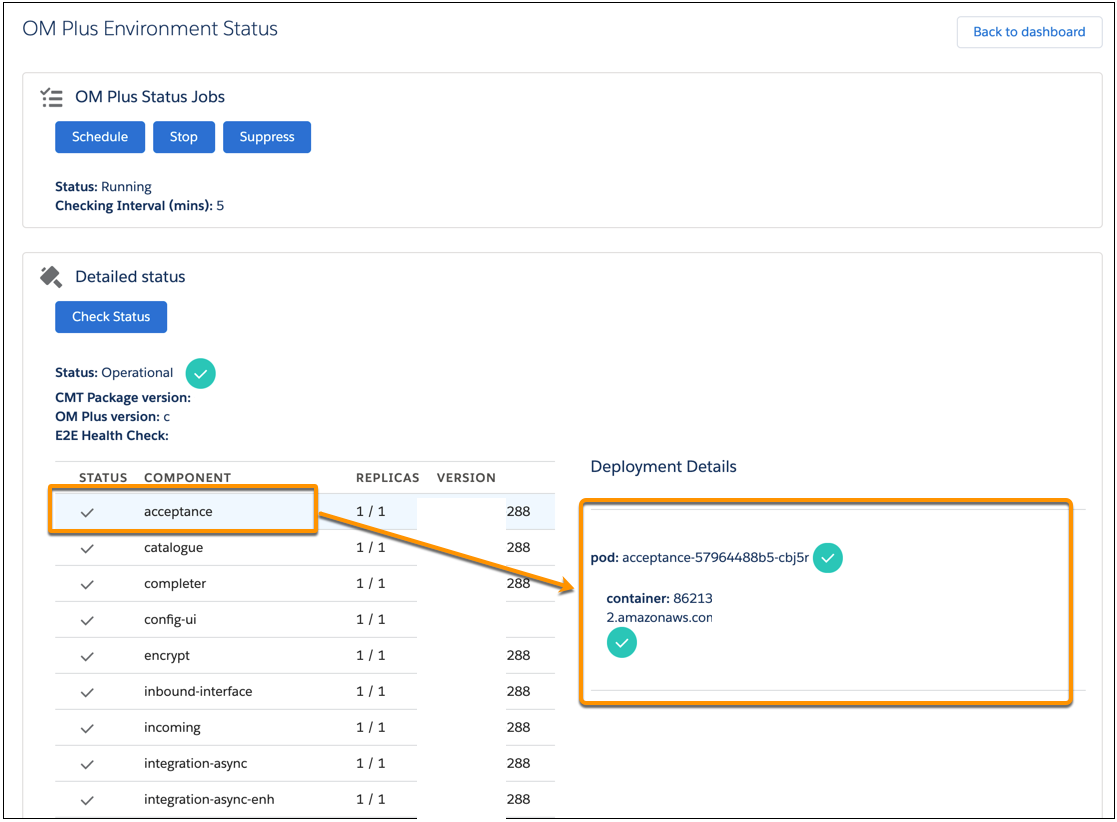
In the Detailed status section, the job returns one of the following statuses:
Operational: Working as expected. Sync Delta Objects for initial full catalog sync have been generated. The system can send orders, unless there are pending Sync Delta Objects.
E2E Check Failed: The system sends internal requests to OM Plus and back. This status sometimes indicates that the response did not return within a specified amount of time. Usually, this issue is caused by the order backlog that's being processed by OM Plus. Treat the status as Operational.
Empty or OMPLState record does not exist: Connectivity is configured but Full Catalog Sync has not been done yet. You can run a sync by clicking the Start button on the SYNCHRONIZE CATALOG WITH THOR row on the XOM Administration page.
Partially Offline: Some product components are not available or are partially available (for example, the number of active replicas is less than configured). Orders are still submitted to OM Plus. The component in question will auto-heal and will process the backlog.
Offline: The cluster is not reachable. New orders are placed in a queue until this issue is resolved.
