
You are here:
Create an Enterprise Quote (Managed Package)
To create an enterprise quote for an account in Enterprise Sales Management, start by going to an account.
 This feature is part of the Communications Cloud managed package.
Ensure that the account you want to work with has the status Active. Otherwise, you can't view the products for this account.
To get started with creating an enterprise quote:
- From the App Launcher, find and select Accounts.
-
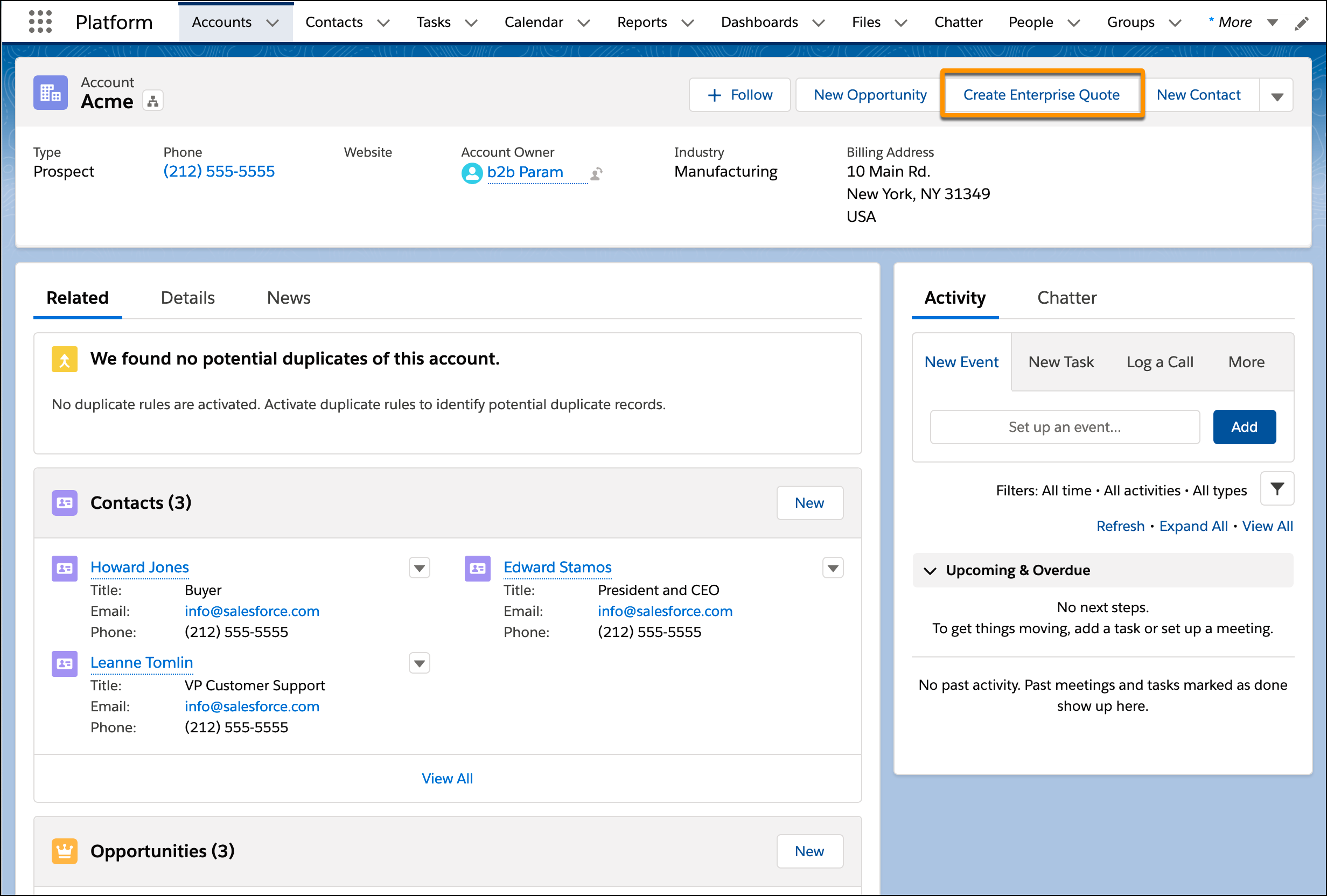
Open the business account for which you want to create an enterprise quote, and then click Create Enterprise Quote.
 Note If you don't find the Create Enterprise Quote button, then configure the Accounts page layout to add it. For information on how to edit page layouts, see Page Layouts.
 - Enter a name for the quote.
- Select an opportunity.
- Select a price list.
-
If you want to create the quote with guided assistance, select Yes, and then click Next.
The guided assistance walks you through the steps to add locations, add subscribers, select products, and configure products.
-
If you don't want to use the guide assistance, select
No, and then click Next.
As part of the process of creating an enterprise quote, the next step is to add locations or subscribers. You can either add them right away or come back and add them later on. For more information, see Manage Locations and Subscribers in Enterprise Sales Management (Managed Package).
Reopen an Enterprise Quote
After you've created an enterprise quote, you might need to add additional information such as subscriber details, location data, or product configuration.
To reopen an existing enterprise quote:
- Go to the App Launcher and enter Quotes.
- Under Items click Quotes.
- On the Quotes page, click the quote to view the quote details.
-
On the quote details page, click Configure Enterprise
Quote.
You can now continue working with the quote.
Clone an Enterprise Quote
Create a quote with the same quote line items as an existing enterprise quote.
You can clone additional options based on the b2bQuoteCloneConfig session variable configuration.
For more information on customizing additional options, see Customize Additional Quote Cloning Options in Enterprise Sales Management (Managed Package).
- Go to the enterprise quote that you want to clone.
-
Click the dropdown next to Create Order, and then select Clone Quote.
Here you can either clone a quote or create a quote version. Cloning a quote, creates a quote with the same quote line items and you can select additional quote cloning options like clone members and groups, product relationships, and promotions. Quote version, replicates the existing quote and a version number is appended to the existing quote name.
-
If you want to clone the quote, then select Clone.
- Enter the quote name, and select additional quote cloning options if needed.
- Save your quote.
- If you want to create a version, then select Create Version and save your quote.
