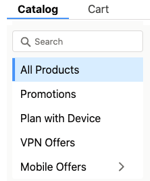
You are here:
Create an Order with the Cart in LWC
You can create an order from the Industries CPQ Cart in LWC from the Orders tab, as well as from an account page or from a quote. From the Cart, you can search, configure, and add products and promotions from the product catalog. You can also add predefined or custom discounts, manually adjust prices, and set the number of each product to order.
You can add products and promotions in two places in the Cart:
-
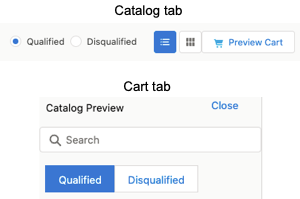
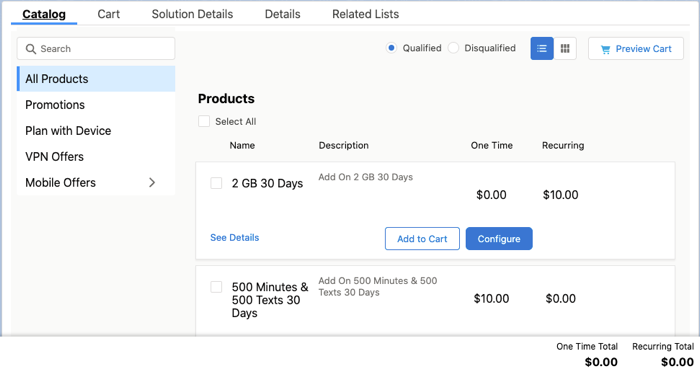
From the Catalog tab — Search and configure products and search for promotions before you add them to the Cart. You can also select and configure multiple products. The Catalog tab doesn't show the Cart and its items by default. This tab provides more area to display available catalog items. This layout helps when reviewing several possible products or discounts. To see the Cart from the Catalog tab, click Preview Cart to show a smaller view of the Cart on the right.
-
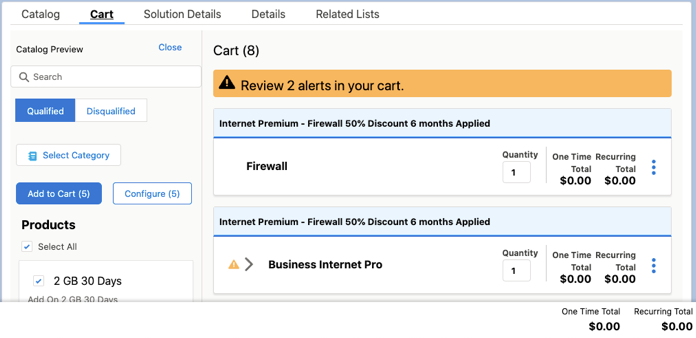
From the Cart tab — The Cart tab shows the Cart items and all applied promotions and discounts, but you can search for products and promotions here, too. Click Add Products to show a smaller Catalog Preview on the left. This Catalog view is useful when adding specific items. Add defined or custom discounts from the Cart tab.
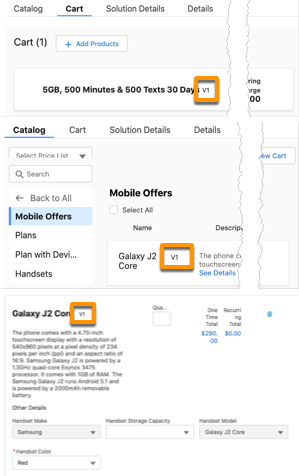
If you have products with different versions, the product list shows only one active version of a product (standalone or root product of a bundle). This listing is based on the versioning start and end dates for each version. It then compares the versioning dates to the creation date for quotes and opportunities and the order requested date (if available) or start date. If no product version has a versioning end date after these order, quote, or opportunity dates, no product version is listed. Check the version of products in the Catalog, Cart, or the configuration dialog.
- From the App Launcher, search for and open Industries CPQ.
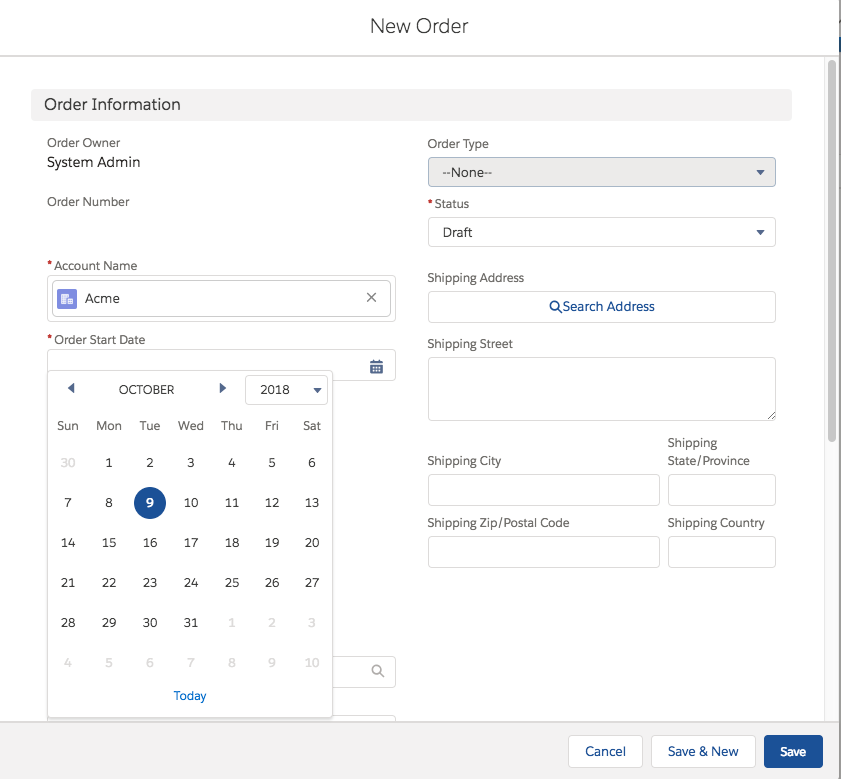
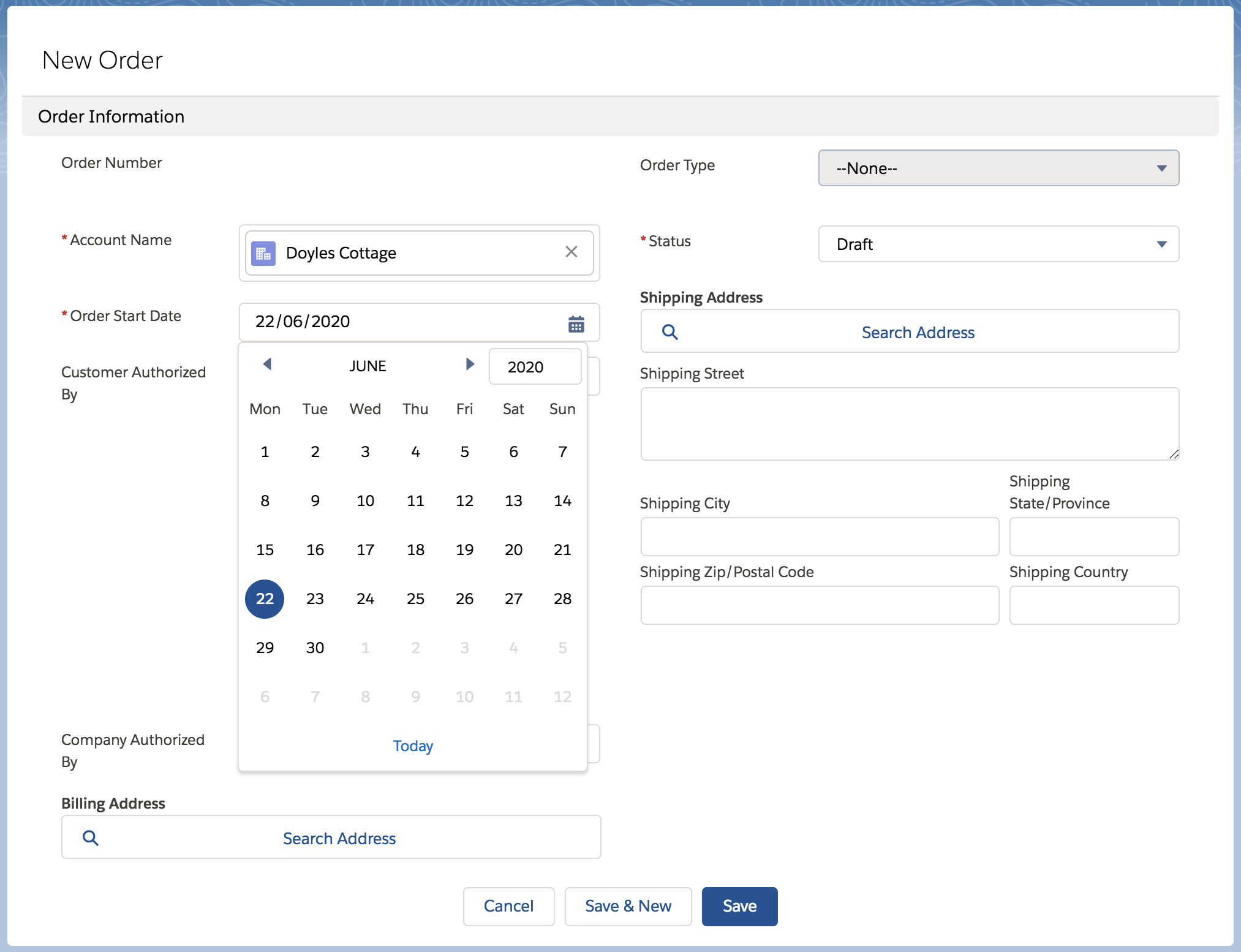
- On the Orders tab, click New.
-
Enter the following information:
-
Account Name is a lookup to the account associated with the order.
-
Order Start Date is the date on which the order becomes effective.
-
Status is the stage the order has reached.
-
Price List shows the available products and promotions.
For more information about other fields, see Order Fields in Salesforce Help.
-
-
Click Save.
The Cart in LWC opens with the Cart tab open by default. To modify the order, such as the price list, order name, billing address, or other fields, click the Details tab. Then, click the edit icon
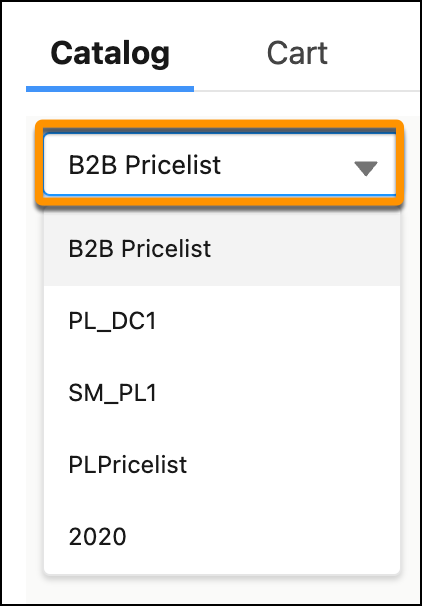
 for a field to modify. In Winter '22 and later, change the price list used for the Cart in the Details tab. In Spring '22 and later, you can also change the price list in the Cart.
 - To list items that the account or order isn't qualified for, click Disqualified.
- To change the price list, click the name of the price list and select a price list.
- To browse for items, select an item category.
-
To search for products or promotions, enter the search phrase.
For details, see Search for Products and Promotions from the Cart in LWC.
-
Click the checkbox for one or more items to add to the Cart.
If you change catalog categories, selections are removed.
- To configure the selected items before adding to the Cart, click the Configure button that shows the number of selected items.
-
Configure or add the items to the Cart.
-
To configure the selected items before adding to the Cart, click the Configure button that shows the number of selected items. A configuration dialog shows all the selected items. You can also click Configure for an individual item. After you finish configuring items, they're added to the Cart.
Starting in Winter '23, for products with collapsible hierarchy set to true, you can browse and search for child bundles and add-ons for the product when configuring it.
Starting Spring '23, you can quickly assign multiple attributes to products in the cart without repricing the cart with each change. Now, update multiple attributes and when you're done, click Update Cart. To enable this feature and see the Update Cart button, see Enable Rapid Attribute Configuration
-
To add the selected items to the Cart without configuring them first, click the Add to Cart button that shows the number of selected items. You can also click Add to Cart for an individual item.
The total bar displays the price totals of the items in the cart. By default, the total bar includes the recurring total, one-time total, and order total.
For the Unit Rate in the Fixed Energy product, the Usage Price Total is a forecasted price based on an estimate of energy consumption.
-
-
Click the Cart or Solution Details tab to review and modify the items.
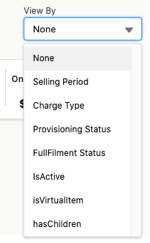
The Solution Details tab has the View By feature. Use this feature to group the items in the Cart by specific attributes.
-
To add discounts, click the Cart tab, and click Add Discount. See Define Custom Discounts from the Cart in LWC.
-
To change the one-time or recurring charges for an item, click the
 action menu, and select Adjust Price. See Manual Price Changes in the Cart.
 -
To remove a line item from the cart, click the
action menu, and select Delete. See Delete a Line Item From the Cart in LWC. -
To configure an item in the Cart, click the
action menu, and select Configure. See Configure a Product from the Cart in LWC.
-
-
If a product bundle has child items or options, click the action menu, and select Configure.
You can also manage these child line items. See Child Line Items in the Cart in LWC.
If products have different versions, the configuration dialog shows the correct version of the child products based on the opportunity, quote, or order's reference date. See Versioning Reference Dates.
- When you complete configuring line items, click Submit Order.