You are here:
Define Custom Discounts in Industries CPQ Cart
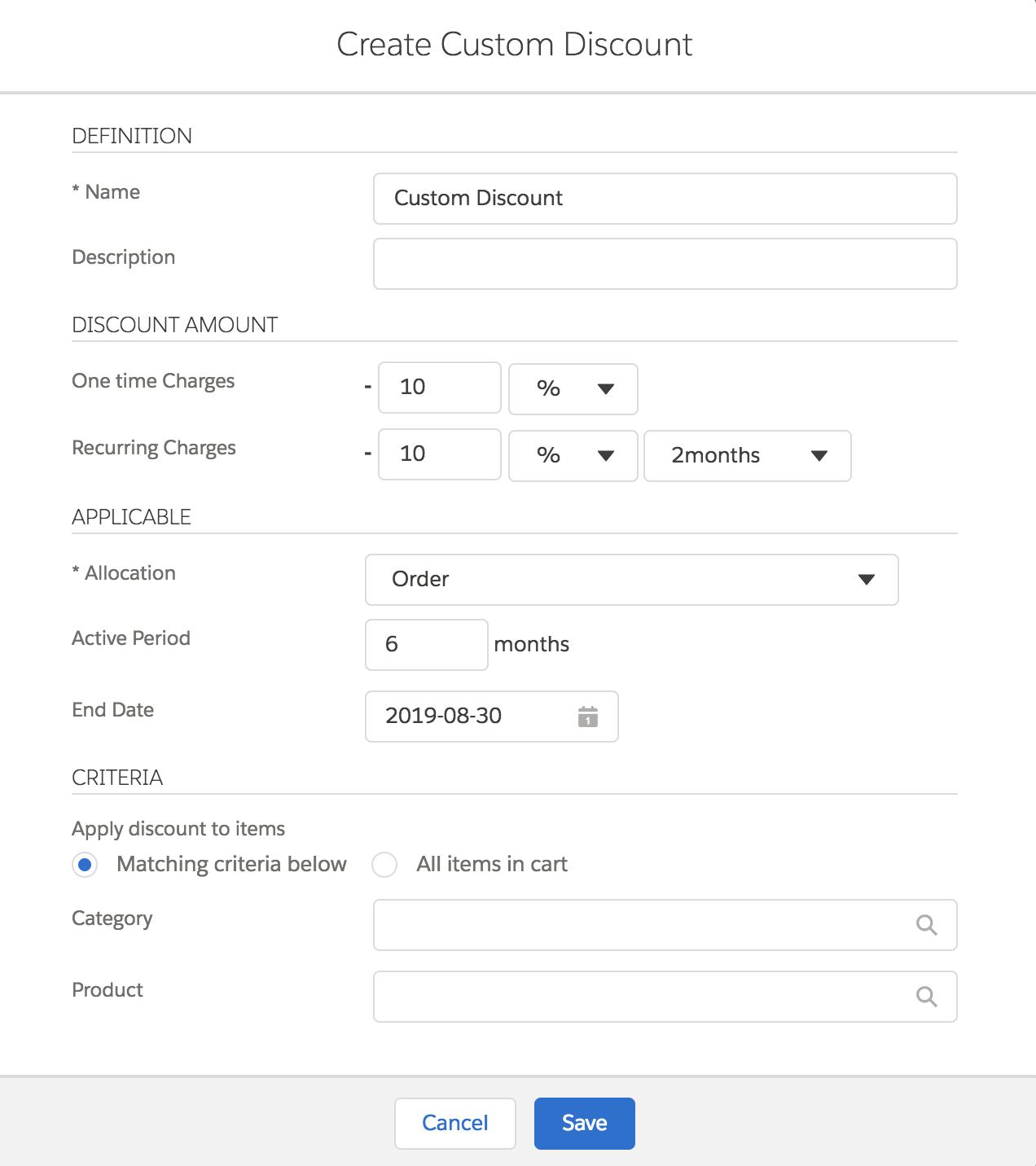
You can view discounts that are eligible for your order, account, or contract in the selectable list of the Industries CPQ Cart. You can create custom discounts in the Cart if none of the available discounts match your criteria. In this scenario, you can create a custom discount for a set of products or catalog and assign a custom discount amount with a custom time frame (if required).
- Go to the Cart by opening the order record detail page and clicking CPQ.
- Click the Discounts tab on the right pane of the Cart.
- Click New Custom Discount.
-
Enter the required information. All fields marked with an asterisk are
required.
Required Fields
Description
Definition
Name
Enter the name of the discount.
Applicable
Allocation
Select the type of discount. It can be order-based, account-based, or contract-based.
-
Enter optional information.
Optional Fields
Description
Definition
Description
Enter a brief description for the custom discount.
Discount Amount
One Time Charges
Enter the one time custom discount amount to apply in either percentage or an absolute value.
Recurring Charges
Enter the recurring monthly custom discount amount to apply in either percentage or an absolute value.
Applicable
Active Period
Enter the time period for the custom discount. Salesforce currently supports the Active Period in months only. You cannot change this to a different time period.
End Date
Enter the end date of the custom discount.
Criteria
Matching criteria below
Select this option if you want the custom discount to apply to a specific category and product. Search for and select the category and product to which you want to apply this custom discount.
All items in cart
Select this option if you want the custom discount to apply to all items in the cart.
-
Click Save.
The custom discount is added to the Discounts tab. The status of the discount depends on the CPQ Custom Setting, "Cart Level Discount Approval Required".
Status
Description
Yellow check mark
Indicates that the discount is created or modified as a part of the Cart.
Green check mark
Indicates that the discount is account-based or contract-based.