
You are here:
Set Up an Orchestration Plan for Staged Assetization
Set up your orchestration plan for staged assetization so that top-level order items and their children can complete assetization even when other top-level order items in the same order are still in process.
Staged assetization is particularly important for long running orders that can take hours, days, weeks or months.
- Select an Orchestration Plan Definition or create a new one.
- Add an Auto Task Orchestration Item Definition to the plan:
- Click New Orchestration Item Definition.
- From the Record Type of new record pick list, select Auto Task. An orchestration item of type Auto Task with the AssetizeOrderItem implementation must be associated with the order item at the required stage of the orchestration plan to assetize the order item.AssetizeOrderItem must be associated with a root order item, or with a technical order item that's decomposed from a root order item. Any association to a child order item is ignored, and assetization will not occur for any child order items.
- For Item Implementation, click the lookup icon and select AssetizeOrderItem. Using this implementation assetizes the order item to which it is associated in Order Management, then pushes the update to Salesforce. The order item is then assetized once it is created and not at the end of the entire order.
- Add any orchestration dependency definitions and create an orchestration scenario.
- Set up your decomposition relationships to map your commercial products to technical products.
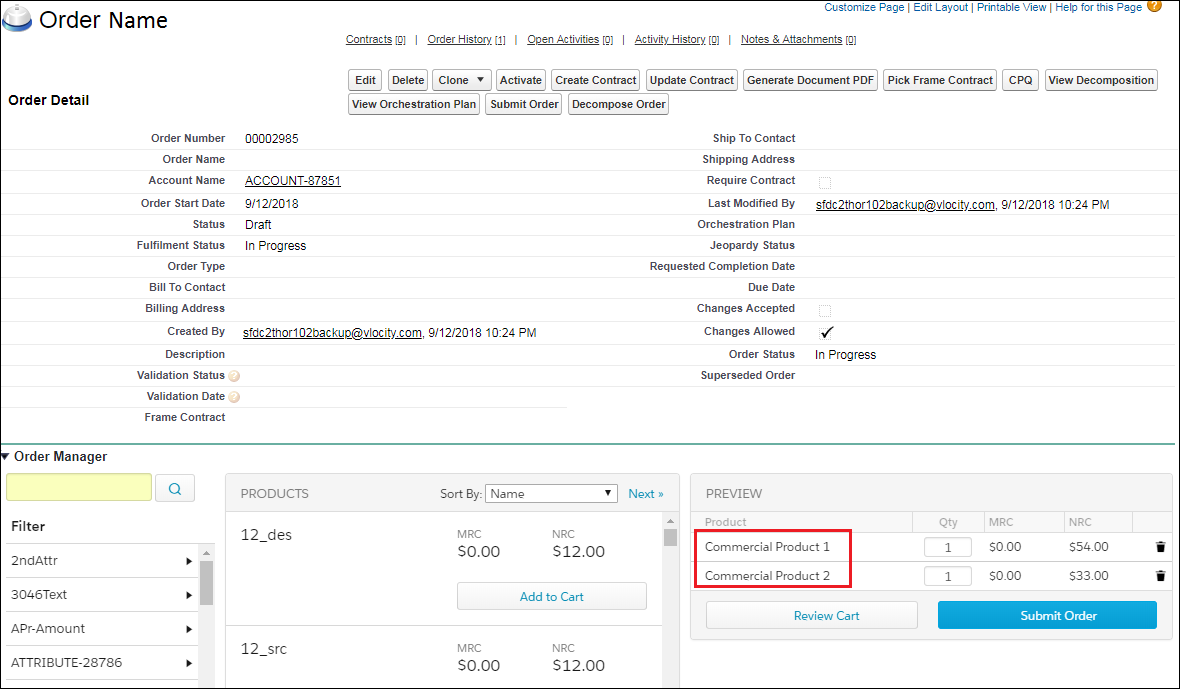
- From the Orders page, create a new order. Select the account name for your products.
- From the Accounts page, select the order. The Order page for your selected order appears.
- In the Order Manager section, search for your commercial products and add them to the cart.
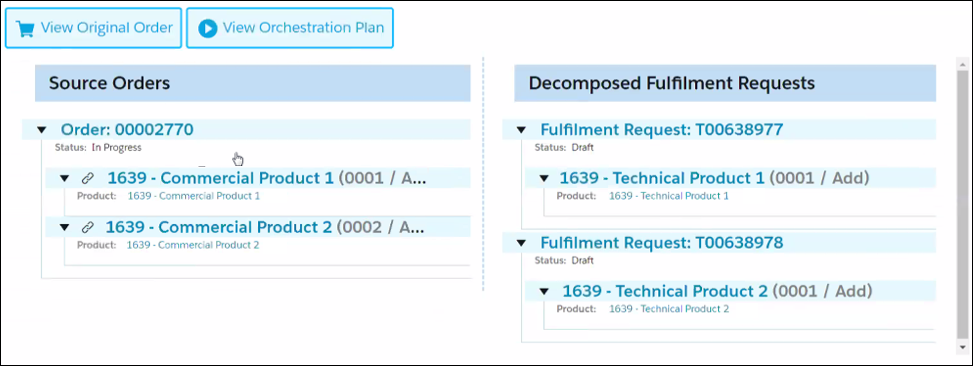
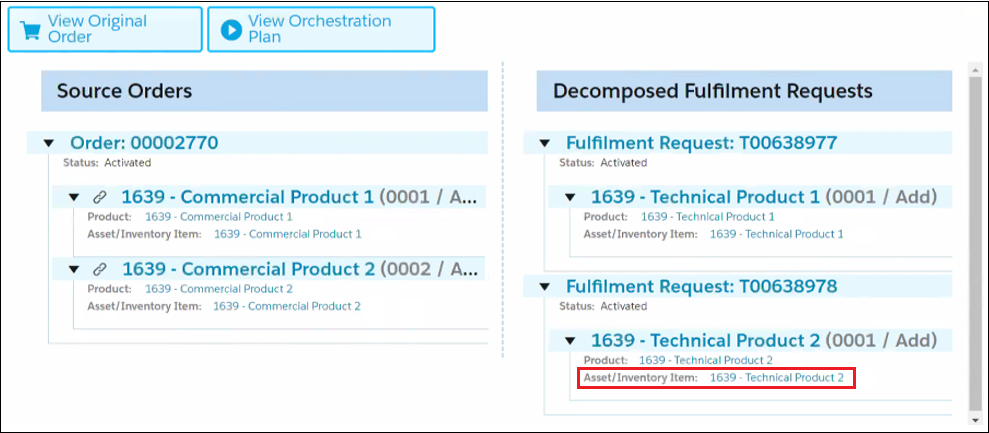
- Submit the order, then view the decomposition.
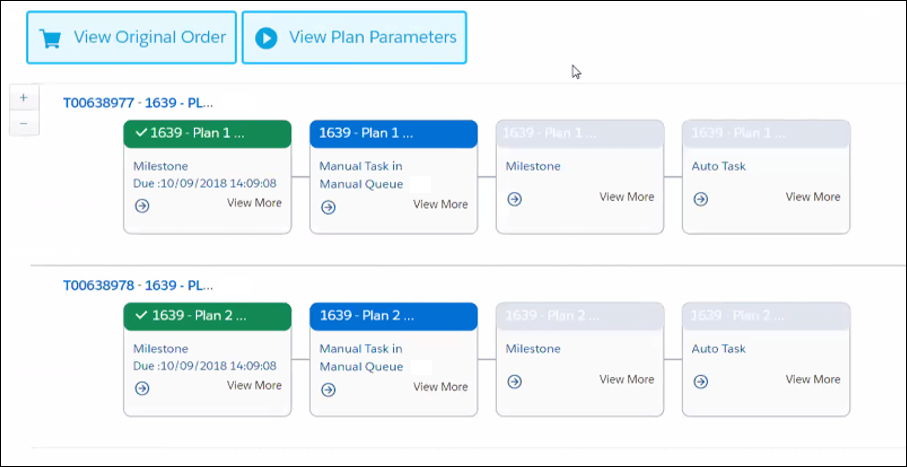
- View the orchestration plan and notice that it consists of two separate plans. The upper plan is for technical product 1 and the lower plan is for technical product 2.
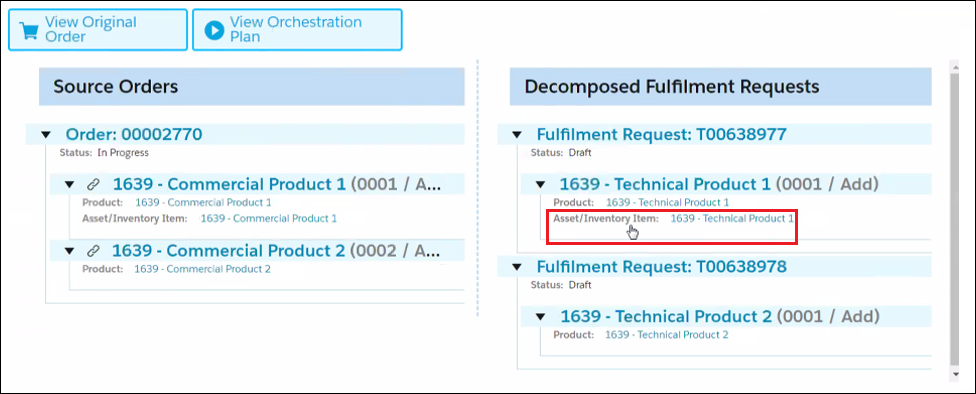
- Complete the manual task for plan 1, then view the decomposition again. You’ll see that the first technical product is now assetized, but the second is not.
- Complete the manual task for plan 2.
- View the decomposition and notice that the second technical product is now assetized.
Did this article solve your issue?
Let us know so we can improve!
