You are here:
The Orchestration Plan View
After an order has been submitted and decomposed, the Orchestration Plan is generated. The Orchestration Plan View shows orchestration items and their dependencies on each other.
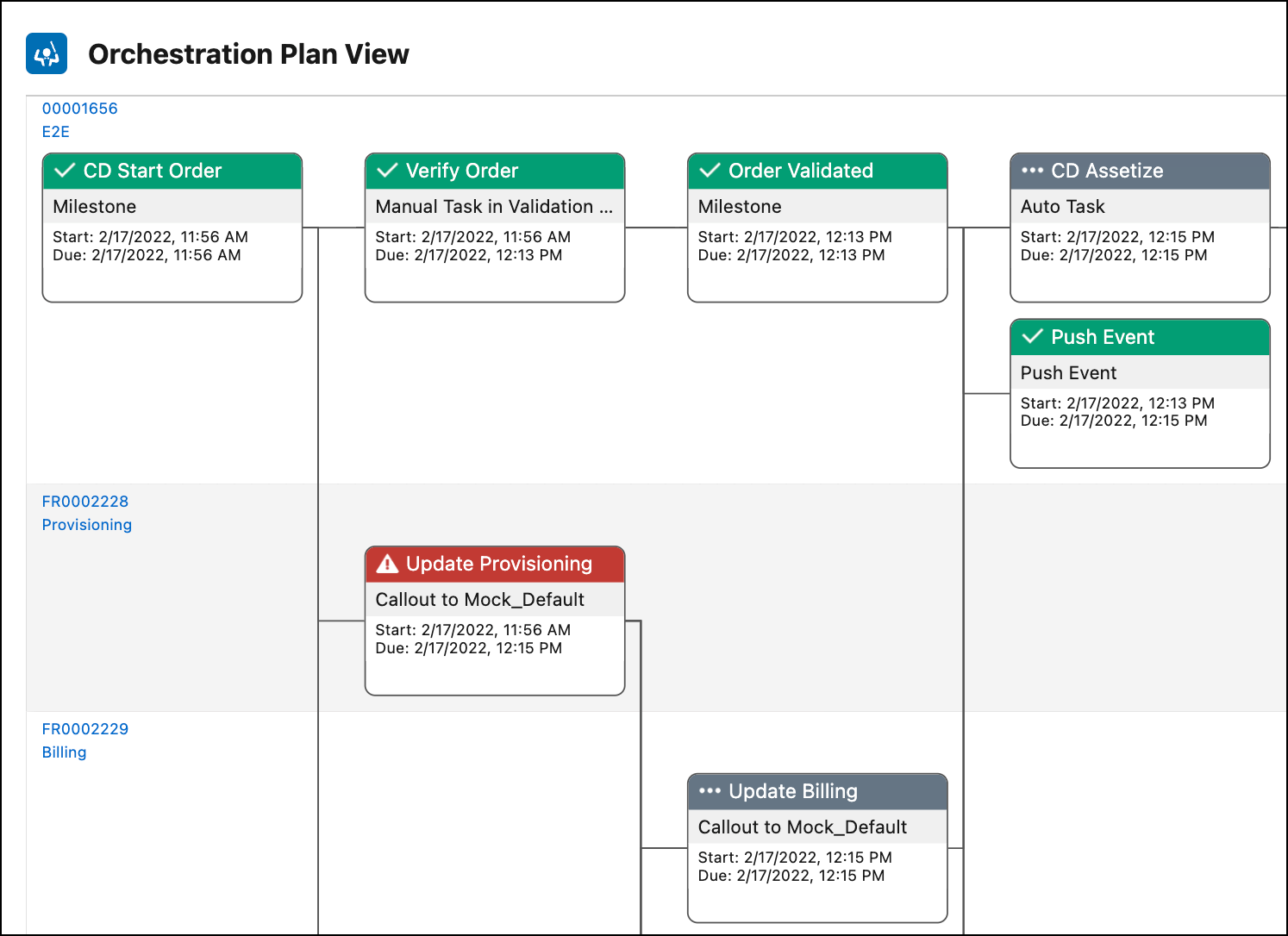
The Orchestration Plan View features a dynamic layout of orchestration items and their dependencies. Here are some things you can do in the Orchestration Plan View:
To focus on a particular position in the plan view, click and drag the view, and zoom in and out.
To see a menu with a list of actions for an orchestration item, right-click the orchestration item.
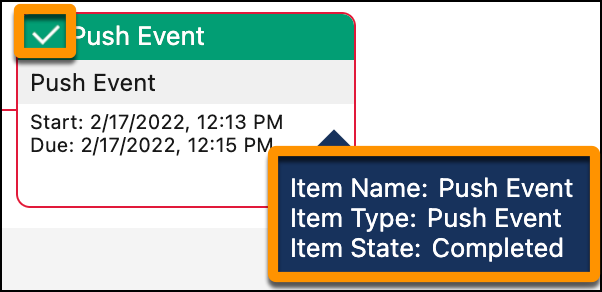
To see the state of an orchestration item, check the header color or icon in the top-left corner of the orchestration item. If you're unsure what state the color or icon represents, you can hover your cursor over the orchestration item. A pop-up opens and shows the state as well as the name and type of the orchestration item.
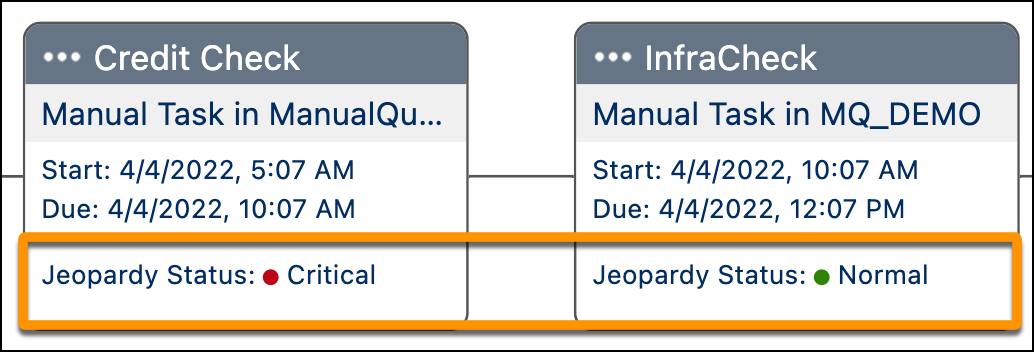
To see the jeopardy status of an orchestration item, check the text at the bottom of the orchestration item.
For more information about jeopardy status, see Manage Jeopardy (Service Level Agreements).
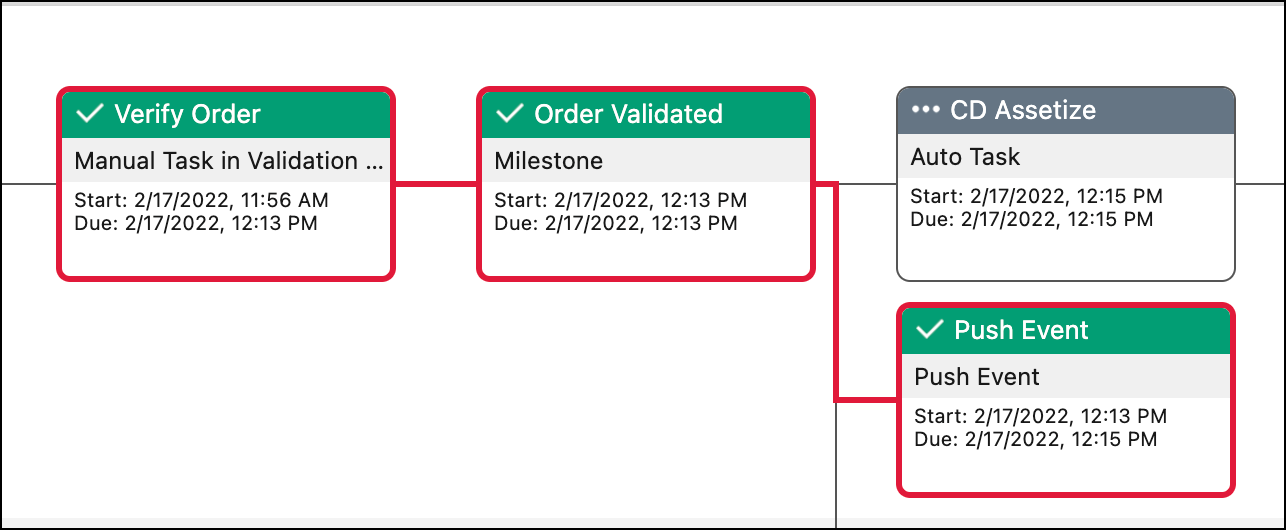
To highlight any orchestration item dependencies, click an orchestration item. The line that shows a relationship between orchestration items turns red, displaying the dependency chain.
To use the keyboard, press the Tab key to toggle focus between orchestration items. Press the Enter key to highlight dependencies.
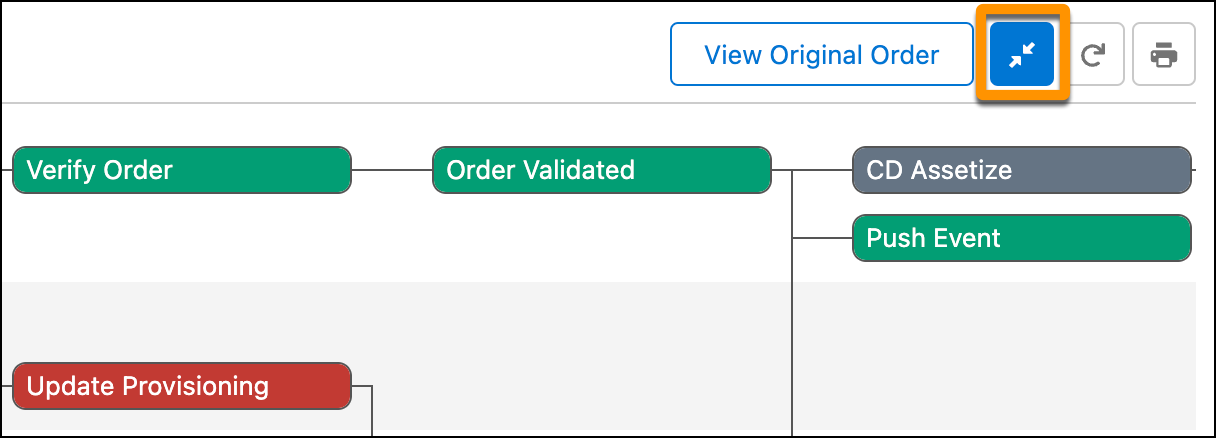
To free up some space, collapse orchestration items by clicking the Collapse button. Click the Collapse button again to revert to the expanded orchestration items.
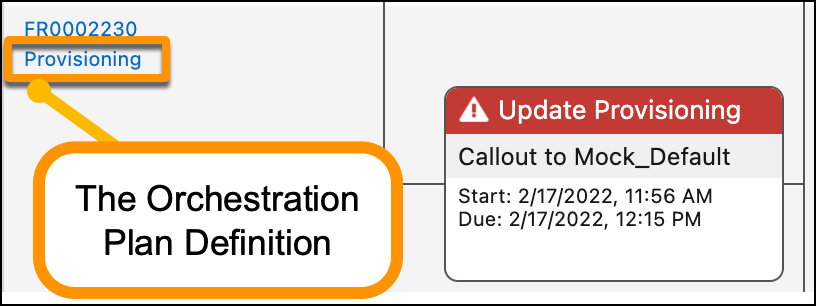
To see the orchestration plan definition details for the associated orchestration items, click the bottom link that is shown to the left of the swim lane.
To reset the layout back to the original plan view layout, click the Redraw button.
 Note
NoteThe Redraw button doesn’t pull the latest data from the database, it only resets the layout using the same data.
To print the plan view, first arrange the layout the way you'd like it, then click Print, and follow the prompts.