
You are here:
Validate, Price, and Submit a Multi-Site Quote or Order in Industries CPQ
After you add products to a group and create the child quotes and orders, you can validate and price the quote or order for multiple locations. You can then submit the final orders in the Group Cart. You can only validate, price, and submit multi-site quotes and orders in the Industries CPQ Cart.
Before You Begin:
-
Create a multi-site quote or order.
-
Add products, promotions, and discounts to the cart for each group.
-
Apply the cart to all members of the group to create child quotes and orders.
- Open a parent quote or order.
- In the Group Carts tab, select an item type (such as Service Points) and then a group (such as Smart Meter Service Points) with a gray check.
-
Click Validate and Price.
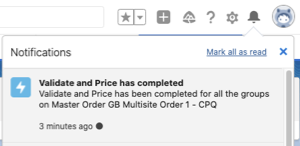
When each group is validated and priced, a notification is available and gives the status.
-
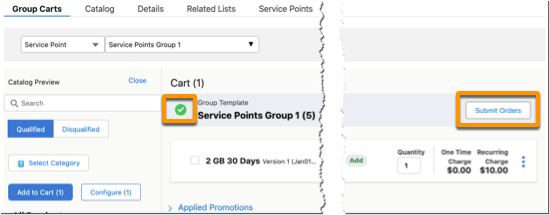
The group in the cart has a green check before the group name. The Submit Orders button is available.
-
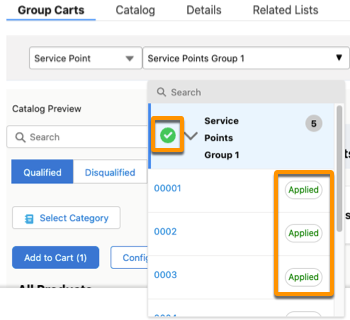
You can also verify the status for the group and its members by clicking the group menu. The group has a green check, and each member has a status of Applied.
-
-
After validation and pricing complete for each group, click Submit Orders.
Only the orders for the selected group and its members are submitted. When each order is submitted, a notification is available and gives the status.
-
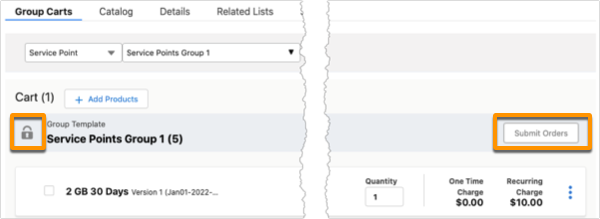
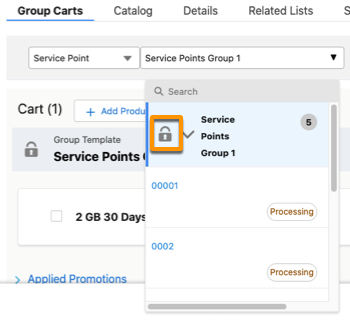
The group in the cart has a lock before the group name. The Submit Orders button is unavailable.
-
You can also verify the status of the group and its members by clicking the group menu. The group has a lock icon.
-
-
Repeat steps 2–4 for each group of each item type.
For example, if you have another premise group, select and configure it. Select Service Points as an item type and then a group.
Submitting a parent quote creates orders and the corresponding assets. Submitting a parent order creates the corresponding assets.
See View Multi-Site Orders on the Account Record Page for details about viewing the orders and related assets.
