
You are here:
View Version History and Compare Versions
To see how products and offerings have changed, you can view their version history and compare versions for additions, modifications, and deletions.
For products and offers, you can see version changes for the details (attributes and fields), pricing, and structure. Pricing includes changes to overrides and adjustments.
-
From the Vlocity Product Designer, click the
 button, and select Products.
- Open a product or offer from the list, and click Version History.
- In the Versions dialog box, click Compare for a version.
-
In the Compare Versions dialog box, select a type of change from the All Changes list.
Option
Description
All Changes
Shows all modifications, additions, and deletions.
Modified
Shows only elements that have changed.
Added
Shows only elements that have been added.
Deleted
Shows only elements that have been removed.
- To change versions to compare, select a version in the From or To list.
-
To find a specific change, enter the keywords in the Search field.
The list of changes automatically updates to show matching results.
The versions for a product or offer are listed chronologically by the most recent change.
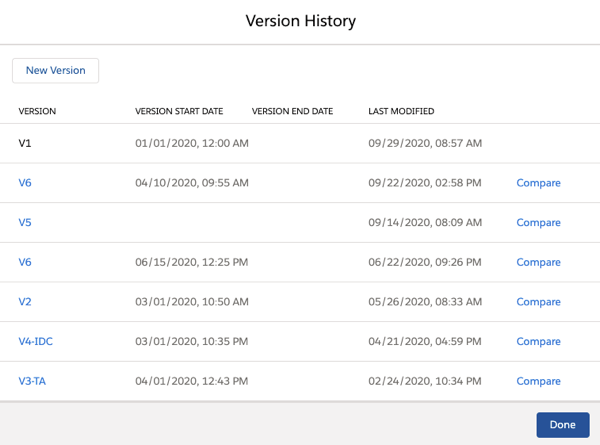
The Compare Product Versions dialog shows the versions that are compared. You can view changes for the details, pricing, and structure of the product or offering.
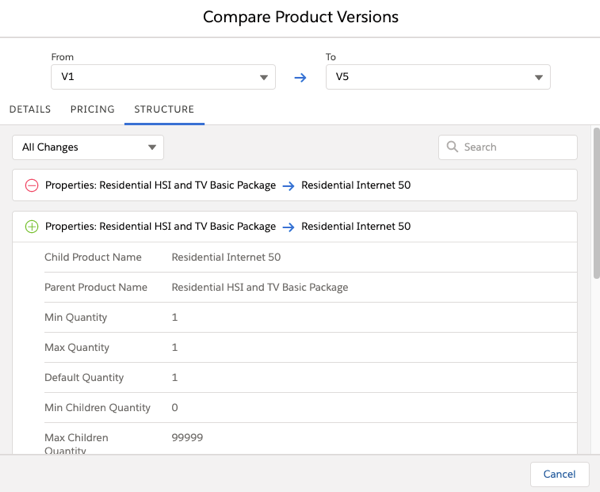
Icons indicate how an item changed, as described in the following table.
Change Icon |
Description |
|---|---|
Added item |
|
Deleted item |
|
Modified item |



