
Types of KPIs
Define different types of KPIs depending on how you plan to use them. Use KPIs to read stored measures from CG Cloud Processing as input, calculate KPIs with formulas, enter KPI values manually, or use KPIs to validate other KPIs.
Required Editions
Available in: Lightning Experience Available in: Enterprise and Unlimited Editions where Consumer Goods Cloud is enabled |
Read KPIs
Values of read KPIs are imported into Salesforce and are shown on pages such as promotion P&L or the account plan. Read KPIs can either be imported from third-party systems into Salesforce tables and then read, or calculated and written back to the processing services database and then read. Here are a few examples of read KPIs:
- Actual Total Volume: The actual values for total volume are imported from third-party system to Salesforce using integration APIs to a table with a measure code. Define this code as the Read Code in the KPI definition to read the actual total volume.
- Planned Promotion Incremental Volume: The incremental promotion volume is written back to the weekly and monthly promotion measure result tables of the processing service using a writeback code. Define this code as the Writeback Code in the KPI definition to read the planned incremental volume and populate customer business plans.
For push promotions, aggregation settings of a KPI definition define the aggregation behavior of a KPI based on the Aggregation Category field of the promotion.
The Datasource Table Name and Datasource Monthly Table Name fields in KPI definitions specify the table that the values are read from. The data for read KPIs is read from one of these tables:
- dailymeasureint
- dailymeasurereal
- weeklymeasureint
- weeklymeasurereal
- weeklypromotionmeasureresult
- accountmeasure
- accountproductmeasure
- productmeasure
- monthlypromotionmeasureresult
To give KAMs access to read previous data, specify Year Offset or Week Offset for read KPIs. Typically, using Year Offset, KAMs can view and compare yearly data, and using Week Offset, KAMs can view and compare quarterly data.
Calculated KPIs
The values of these KPIs are calculated using formulas and other KPIs. Write the formulas in JavaScript. The KPI values are calculated either as a batch process or in the browser when a relevant promotion is opened.
Here are a few examples of calculated KPIs:
- Plan Total Volume: Calculates the total planned volume by adding Effective Base Volume
to the Promotion Incremental Volume. Use the formula:
(PlanEffBaseVolume,PromoVolCase) = >{return PlanEffBaseVolume+PromoVolCase;} - Actual Liabilities: Calculates the actual liabilities based on the tactic attribute
payment method. Use the
formula:
(Tactic,ProActualVarPromoSpend,ProActualFixedPromoSpend) = >
{
if(Tactic.paymentmethod ! = = “OnInvoice”)
if(Tactic.compensationmethod = = = “Lumpsum”{return ProActualVarPromoSpend;} else{return ProActualFixedPromoSpend;}
}
else {return null;}
}
You can use
if,then, andelseclauses in a complex KPI formula and use promotions fields as input variables.
Editable KPIs
A Key Account Manager (KAM) can edit an editable KPI for both complete time frame or custom period time frame and on any product hierarchy level. A few examples of editable KPIs are promotional discounts, fixed lump sum amounts, baseline adjustments, tactic payouts in claims. When a KAM edits a KPI value and saves the promotion, the values are saved in the Manual Calculation Input field in the promotion. When the promotion is opened, the new value is retrieved from the field and is shown in the promotion summary sheet. You can choose to write back the updated value of an editable KPI to the processing service.
The Edit Mode defines whether the weekly, total or both values of the KPI are editable. The Distribution Settings define how the manual inputs are distributed and whether the values are first distributed along the planning hierarchy or along the time dimension.
Editable Calculated KPIs
KAMs can enter values for editable calculated KPIs. If an editable calculated KPI doesn’t have a value, the value for the KPI is calculated. Typically, editable calculated KPIs are used in compound KPIs, but you can also use them independently.
Compound KPIs
Compound KPIs are containers that bind multiple editable calculated KPIs that have dependency on other KPIs, and one of the KPIs in the group is the main KPI.
For example, in the Volume Planning card, Total Volume, Uplift %, and Incremental Volume are part of a compound KPI. These KPIs are dependent on baseline, but because baseline isn’t an editable KPI, it isn’t a part of the compound KPI.
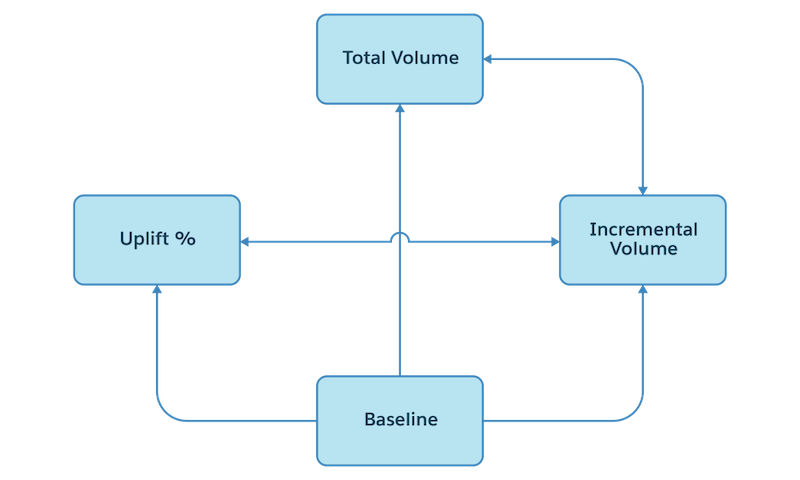
The formulas to calculate each of these KPIs are:
- Incremental Volume: Total Volume – Baseline Volume
- Uplift %: (Incremental Volume / Baseline Volume) * 100
- Total Volume: Baseline Volume + Incremental Volume or Baseline Volume * (1 + (Uplift%/100))
Because Incremental Volume, Uplift Percentage, and Total Volume are editable calculated KPIs, KAMs can manually enter values for any of these KPIs. Based on the manual input for a KPI, here’s how the other two KPIs of the compound KPI are calculated. For this example, consider that the baseline is 100,000.
- Incremental Volume is increased to 50,000: Total Volume is calculated as 100,000 + 50,000 = 150,000, and Uplift % is calculated as 50,000/100,000)*100 = 50%
- Total Volume is increased to 175,000: Incremental Volume is calculated as 175,000 – 100,000 = 75,000, and Uplift % is calculated as 75,000/100,00)*100 = 75%
- Uplift % is increased to 25%: Total Volume is calculated as 100,000 * (1 + (25/100) = 125,000, and Incremental Volume is calculated as 125,000 – 100,000 = 25,000
Manual input values are stored for the compound main KPI. If the values are changed, the editable calculated KPI values are recalculated.
Validation KPIs
Create validation KPIs to establish rules for editable and editable calculated KPIs. These rules define a KPI’s behavior and its acceptable inputs. For example, a KAM can’t enter Tactic Fixed Amount as negative.
Each validation KPI has a validation formula, which is implemented similarly to calculated KPIs (by using a JavaScript code). Calculated KPIs return results, but validation KPIs show validation errors when the validation condition fails.
Define a validation formula on different aggregation levels (Promotion, Tactic, or Product) and on different time granularity (total value or weekly value). You can add other KPIs, variables, simple static values, or a combination of these in a validation formula. To validate the manual input of editable KPIs or editable calculated KPIs, add a validation KPI to the KPI set.
Writeback KPIs
To use KPIs in multiple TPM processes, KPIs must be stored in the database so that KPIs can be read from the database tables. You can define every KPI (read, editable, calculated, or editable calculated) as a writeback KPI and define the levels of the product hierarchy for which the KPI is written back. Here are a few scenarios where you must write back KPI values:
- To use values from a customer business plan (CBP) in a promotion.
- To use values from a promotion in CBP, account P&L, or real-time reports.
- To use values from Claims or rate-based funding in various P&L pages such as promotions or account.
- To export values from all objects for further analysis.
- To store values in objects for further analysis.
- Aggregate BOM Component Values to Standard Products
Use the BOM Component Aggregation KPI definition type to aggregate sales and spend data directly from BOM components to their corresponding standard products for improved analysis and planning.
