
You are here:
Measure Your Business’ Performance with KPIs
Key Performance Indicators (KPIs) provide the business performance information, such as monetary, volume, and percentage measures. Calculate KPIs to understand how promotions and account plans perform based on current inputs. For example, estimate promotion costs and sales, and assess the effectiveness of the allocated promotion budget. You can use this information to keep a tab on the available budget for upcoming promotions. When you change KPIs in a customer business plan, the changes reflect in promotions and the account plan.

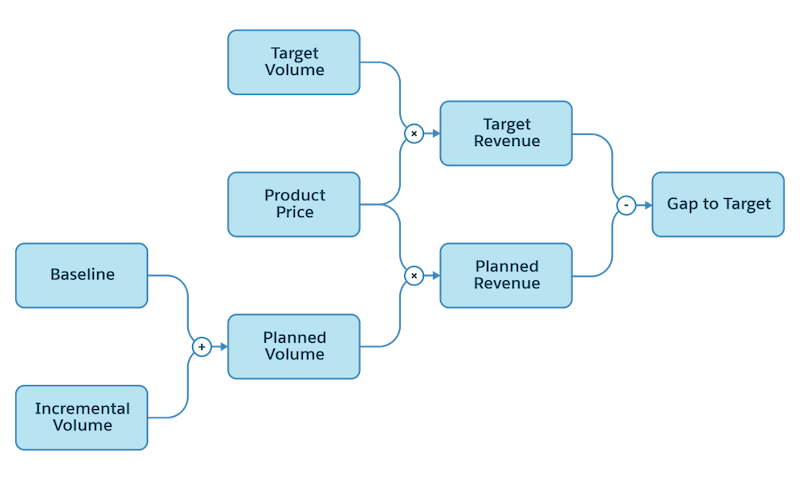
First, set a target for the period. The Target Revenue is calculated by multiplying the Target Volume with the Product Price. The Baseline is the volume you typically sell without any promotions. Incremental Volume is the volume you plan to sell with promotions. Planned Volume is the total volume you plan to sell, which is the sum of Baseline and Incremental Volume. The Planned Revenue is calculated by multiplying the Product Price with Planned Volume. You can now compare the Target Revenue and Planned Revenue to get the gap that you must fill to achieve your target. Use a hit and trial method to keep adding Incremental Volume until you fill the gap. After you’ve finalized the Incremental Volume, plan promotions that can help you sell the additional volume.
KPI Definitions, KPI Sets, and KPI Subsets
Each KPI is set up as a KPI definition. In a KPI definition, define the formula to calculate the KPI, such as how the KPI is aggregated in the planning hierarchy and how the total value is calculated.
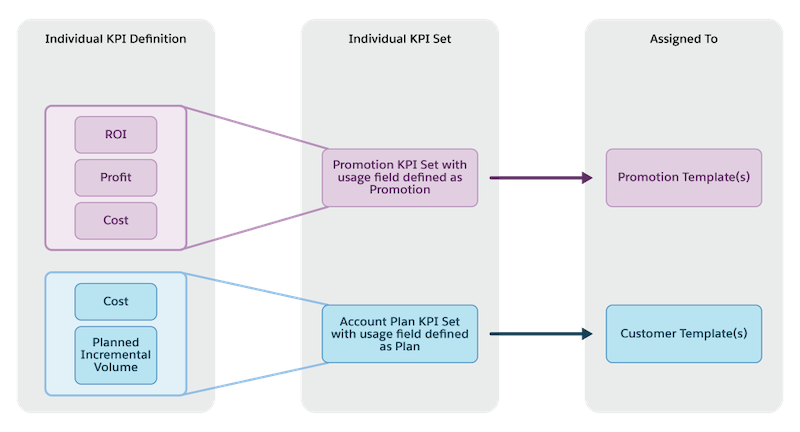
A KPI set is the group of KPI definitions that are used together in a promotion or account plan P&L. KPI set usage determines whether the KPI set is used for promotions, account plans, or other TPM financial objects such as rate-based funds, funds, or claims. For example, add all the promotion-related KPI definitions, such as Profit, to the Promotion KPI set and all the account-related KPI definitions, such as Cost, to the Account Plan KPI set. Based on this setup, a key account manager (KAM) can then see these KPIs in either the Promotion Summary sheet or on the Account P&L sheet.
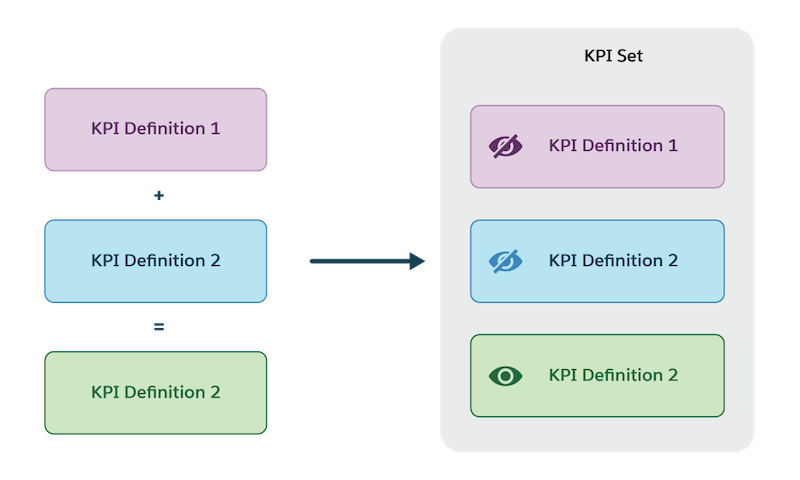
If you’re using a formula that includes other KPIs to calculate a KPI, and add the KPI to a KPI set, then all KPIs used in the formulas must be added to the same KPI set. You can choose to hide the KPIs used in the formulas.
Create KPI subsets to group KPIs based on their usage, For example, add plan value KPIs to the Planning KPI subset and the latest estimate and actual value KPIs to the Monitoring KPI subset. To view KPI definition in the P&L grid by a promotion aspect, create the Display KPI subset. When adding a KPI to a KPI set, you can choose one or multiple KPI subsets depending on where you want the KPI to be shown. For a KAM to view the KPIs of a KPI subsets, the subsets must be assigned to the KAM. For example, when a KPI is added to the Execution and Monitoring KPI subset, a KAM can see the KPIs only when the Execution and Monitoring KPI subset is enabled in the user settings of the KAM.
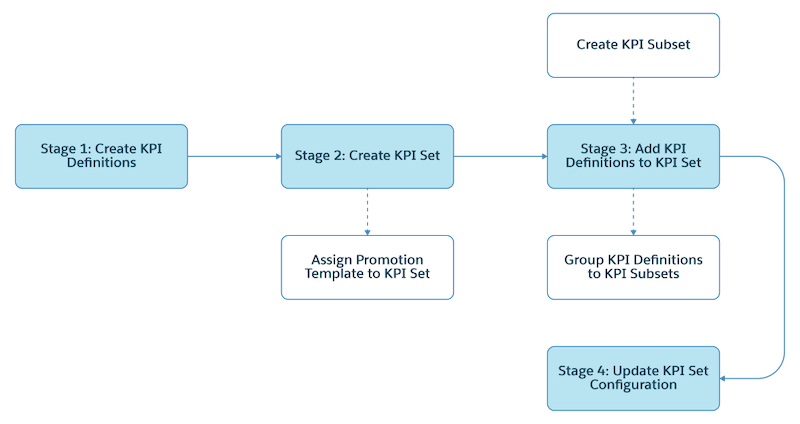
Here’s the typical workflow for configuring KPIs:
- Important KPI Settings
To ensure that KPIs are calculated correctly and show accurate figures, define KPIs with appropriate settings. For example, KPIs that are meant for planning, add the KPIs to Plan KPI Set, and define the object scope for the set as Account. - Types of KPIs
Define different types of KPIs depending on how you plan to use them. Use KPIs to read stored measures from CG Cloud Processing as input, calculate KPIs with formulas, enter KPI values manually, or use KPIs to validate other KPIs. - Best Practices for Designing KPIs
Before you start creating KPIs in Trade Promotion Management, we recommend that you design a KPI plan. Identify the KPIs you must see to understand your business’ performance. When creating a plan, consider aspects such as how each KPI connects to another and which KPIs must be written back. - KPIs for Real-Time Reports
When you plan to use a KPI in a real-time report (RTR), configure the KPI as a read, calculated, or editable (written back) KPIs. - KPI Definitions
Use KPI definitions to control the display, aggregation, and calculation of individual KPIs. Define in a KPI definition all details of the KPI, including the formula of how the KPI is calculated in the planning hierarchy and how the total value is calculated. KAMs can see the results of this setup on TPM pages such as the promotion page and the account P&L page. - KPI Sets
A KPI set includes KPIs or measures that help evaluate promotions, account plans, funds, rate-based funding, claims, and reporting. Depending on the usage of a KPI, associate one or more KPIs with a KPI set. - KPI Maps
To synchronize promotions, tactics, tactic fund information, calculated fund values, and rate-based funding values between Salesforce and CG Cloud Processing Service (CGPS), create KPI maps. KPI maps are links between the object fields in Salesforce and the KPIs stored in CGPS and are essential to calculate the values of the fields that you define in your records. For example, configure a KPI map to fill the Total Volume field in a promotion with the Total Volume KPI value whenever the promotion is saved.
