
You are here:
Create an Assessment with Discovery Framework
Create an assessment form using the OmniScript designer in the OmniStudio app. The Assessment Component shows assessments that you create using the Discovery Framework.
Required Editions
Available in: Lightning Experience Available in: Enterprise and Unlimited Editions with Health Cloud or Life Sciences Cloud |
| User Permissions Needed | |
|---|---|
| To create a Discovery Framework OmniScript: | OmniStudio User AND Create, Read, Edit, and Delete on assessment questions |
-
Create an assessment question set.
- From the App Launcher, find and select Assessment Question Sets.
- Click New.
-
Enter the name of the question set.
Use the name of the overall assessment as the name of the assessment question set. For example, Mental Health Assessment.
-
Enter the developer name.
The developer name can contain only underscores and alphanumeric characters, and must be unique in your org. It must begin with a letter, not include spaces, not end with an underscore, and not contain two consecutive underscores. In managed packages, this field prevents naming conflicts for package installations.
- Save your work.
-
Create assessment questions.
- From the App Launcher, find and select Assessment Questions.
- Click New.
- Enter the Name, Developer Name, Data Type, Category, and Question Text for the question.
- To make this question the active version, select Active.
- When you create a question, the data type that you select corresponds to an OmniScript element that you can add to the OmniScript structure. See Supported Data Types for Questions.
-
Choose the Assessment Question Set for this question.
To associate the question with other Assessment Question Sets, use the Assessment Question Assignments related list on the Assessment Question detail page.
- Save your work.
- Repeat these steps for each assessment question.
-
Create a form.
- On the Assessment Questions list view, click Select Questions.
- In the OmniScript Details section, enter the name of the assessment.
-
Enter the Type of assessment.
The type and sub type give an OmniScript its unique identity. Only one active OmniScript has the same type, sub type, and language at any time. Though not required, it’s recommended that an OmniScript’s type starts with a lower case letter.
- Enter the Sub Type of the assessment.
- Enter a Language.
-
Find the questions you created by selecting the Question Set (1).
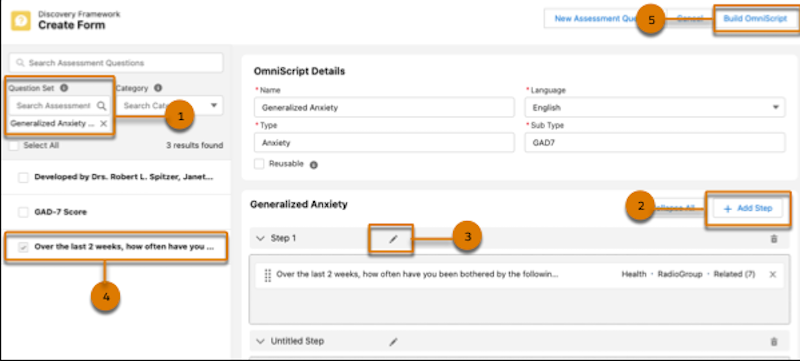
- To add more steps, click Add Step (2).
- Edit the name of the step (3).
-
Drag each question into a Step (4).
Steps correspond to the questions in your form. You can group multiple questions in a single step. You can also create multiple steps in a single form.
-
Click Build OmniScript (5).
This operation creates an OmniScript that's of type Discovery Framework for the form, and then opens the OmniScript in the OmniScript Designer on a new tab.
-
In the OmniScript’s Setup, find the Seed Data JSON section and then click
+ Add New Key/Value Pair. For Key, enter
usageType. For Value, enter
HcUsageType.
OmniScripts for the Discovery Framework can specify a usage type that turns on features for a particular industry. The usage type that turns on Health Cloud features is HcUsageType.If the usage type is HcUsageType, the Omniscript Saved Session record associated with an assessment that's saved for later automatically gets deleted when a user completes the assessment. Additionally, experience cloud site users can't submit an unanswered assessment if the usage type is HcUsageType.
- To enable FHIR-aligned assessments for features such as Documentation Templates and Rules for Utilization Management, enter HlsFhirAlignedQuestionnaire as the usage type.
- To give internal users the option to save assessments as drafts to complete later, for Save Options, select Allow Save For Later.
- Save your work.
- Use OmniScript Designer to customize the assessment further if needed.
- On the designer header, click Preview to test the form.
-
On the designer header, click Activate Version when you’re ready to
deploy the form.
 Note Activating the OmniScript generates a Lightning Web Component that you can publish on a Lightning page or Experience Cloud site. The Assessments component adds the ability to view all OmniScripts with Discovery Framework in a single place.
 - Navigate to the Assessment component on the patient record page. Verify that the assessment appears in the Assessment Library tab.
Did this article solve your issue?
Let us know so we can improve!
